Dependencies & critical path
See what waits on what, and what holds the finish date.
Link Jira issues with four dependency types and a wait between them. Ganttry schedules the work from those links and shows which chain sets your plan's finish.
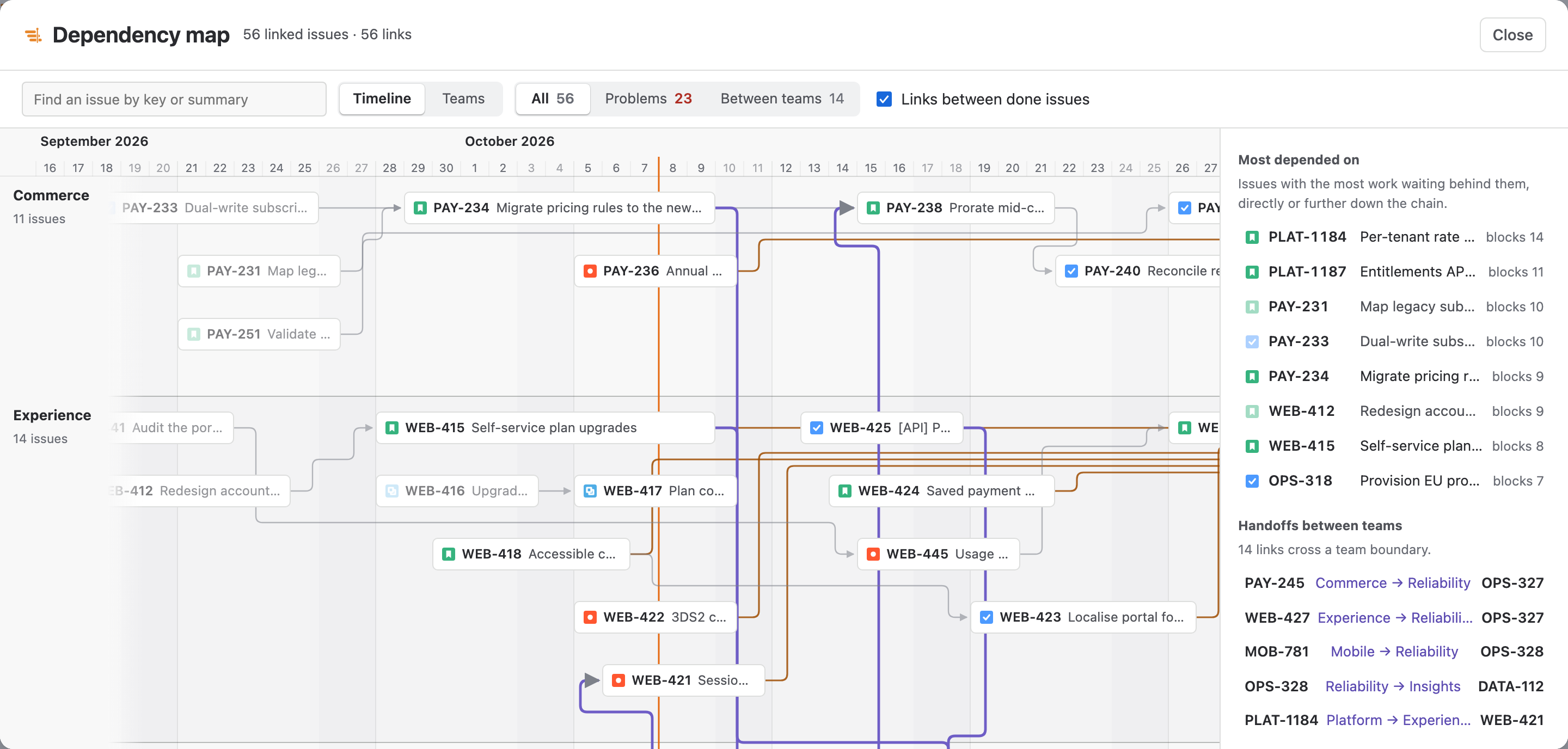
- Four link types
- Positive or negative lag
- Critical path
- Map with a Teams view
What you get
Dependencies & critical path, part by part.
01
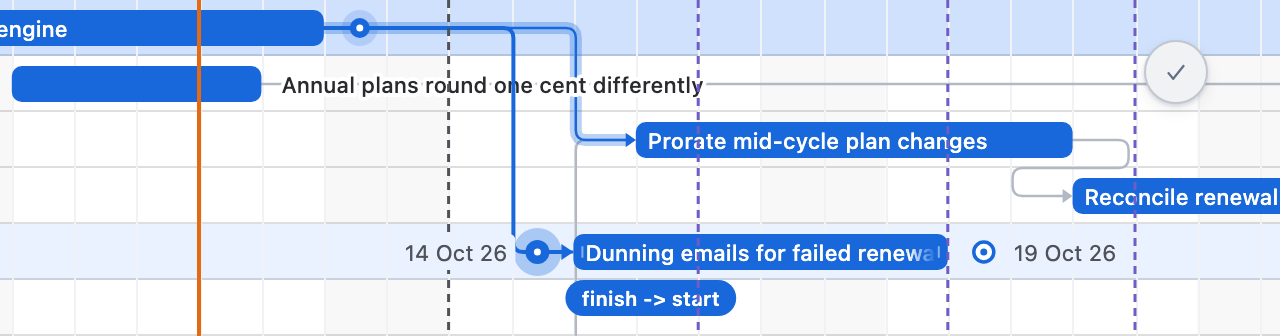
Four link types, with lag
Drag between either end of two bars to choose finish-to-start, start-to-start, finish-to-finish or start-to-finish. Or click a handle to pick the target, the type and the wait in days.
02
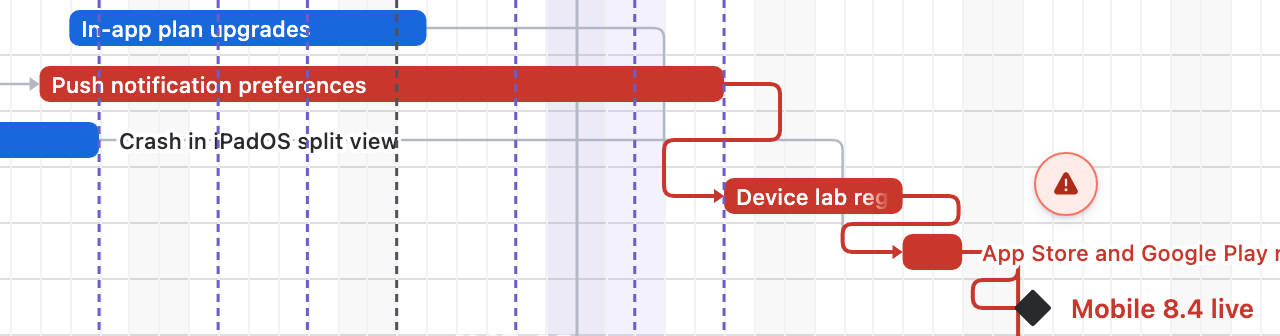
The chain that sets the finish
Set Critical path (zero slack) to Yes to colour the work that controls the plan's finish date. The setting is kept in saved views and shared links.
03
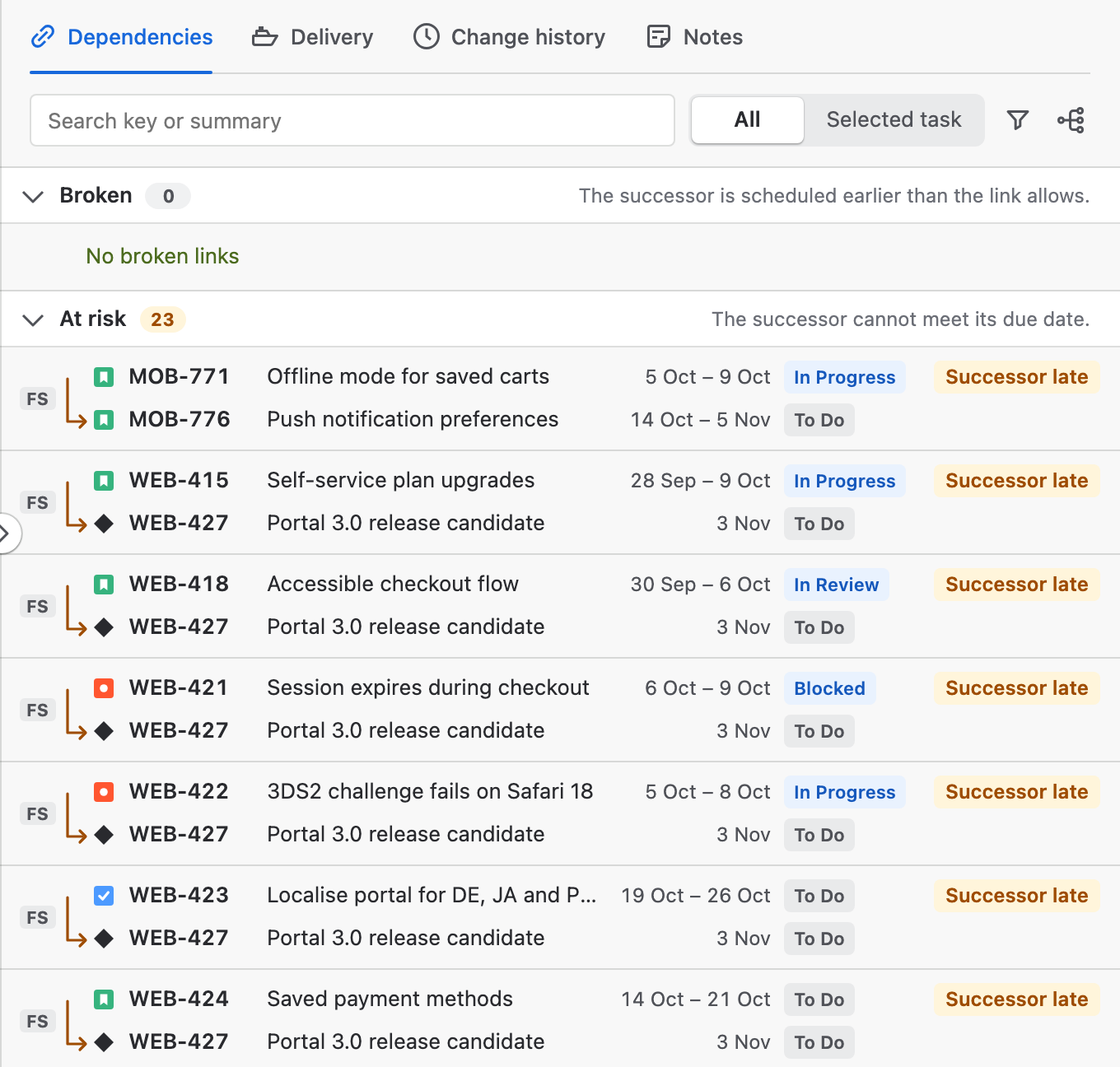
Every link, worst first
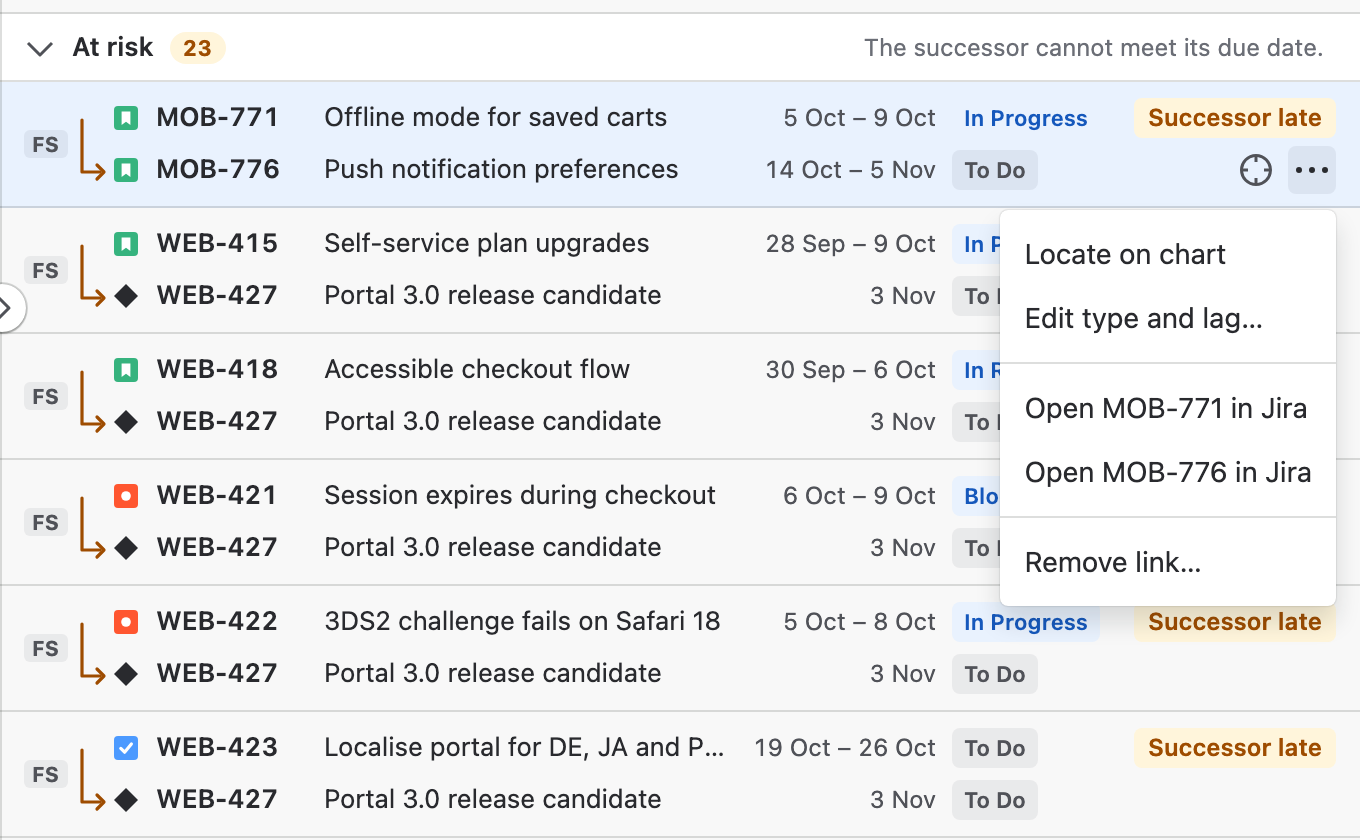
Plan insights lists every link on the chart as Broken, Cycle, Outside chart, At risk and On track, with both issues, their dates, the type and lag, and the state of each link.
04
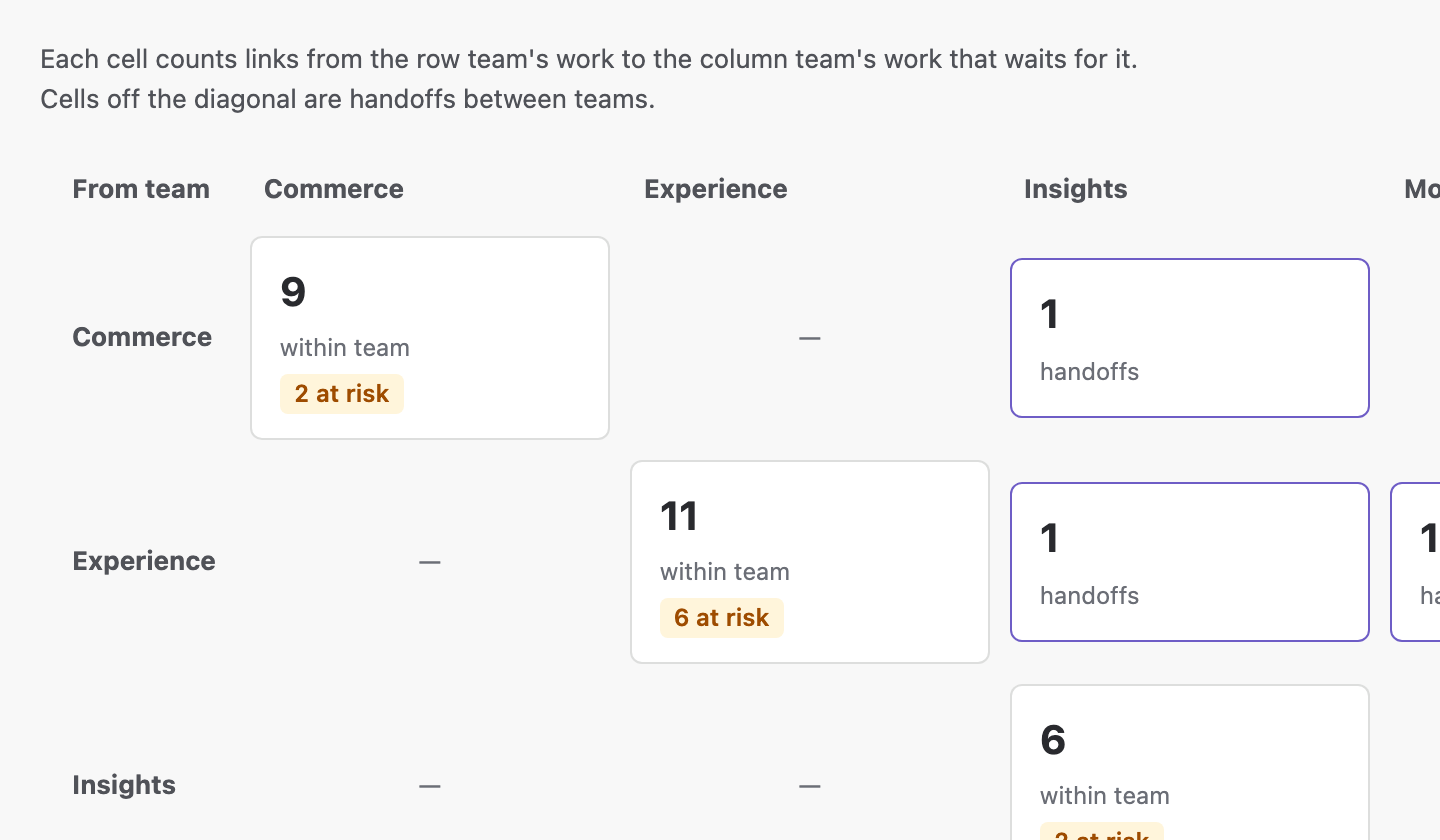
A map of the whole chain
Team lanes over time, links coloured on track, at risk or broken, and handoffs between teams highlighted. The Teams view counts the links between each pair of teams.
How to use it
From the first link to the map.
Step 1
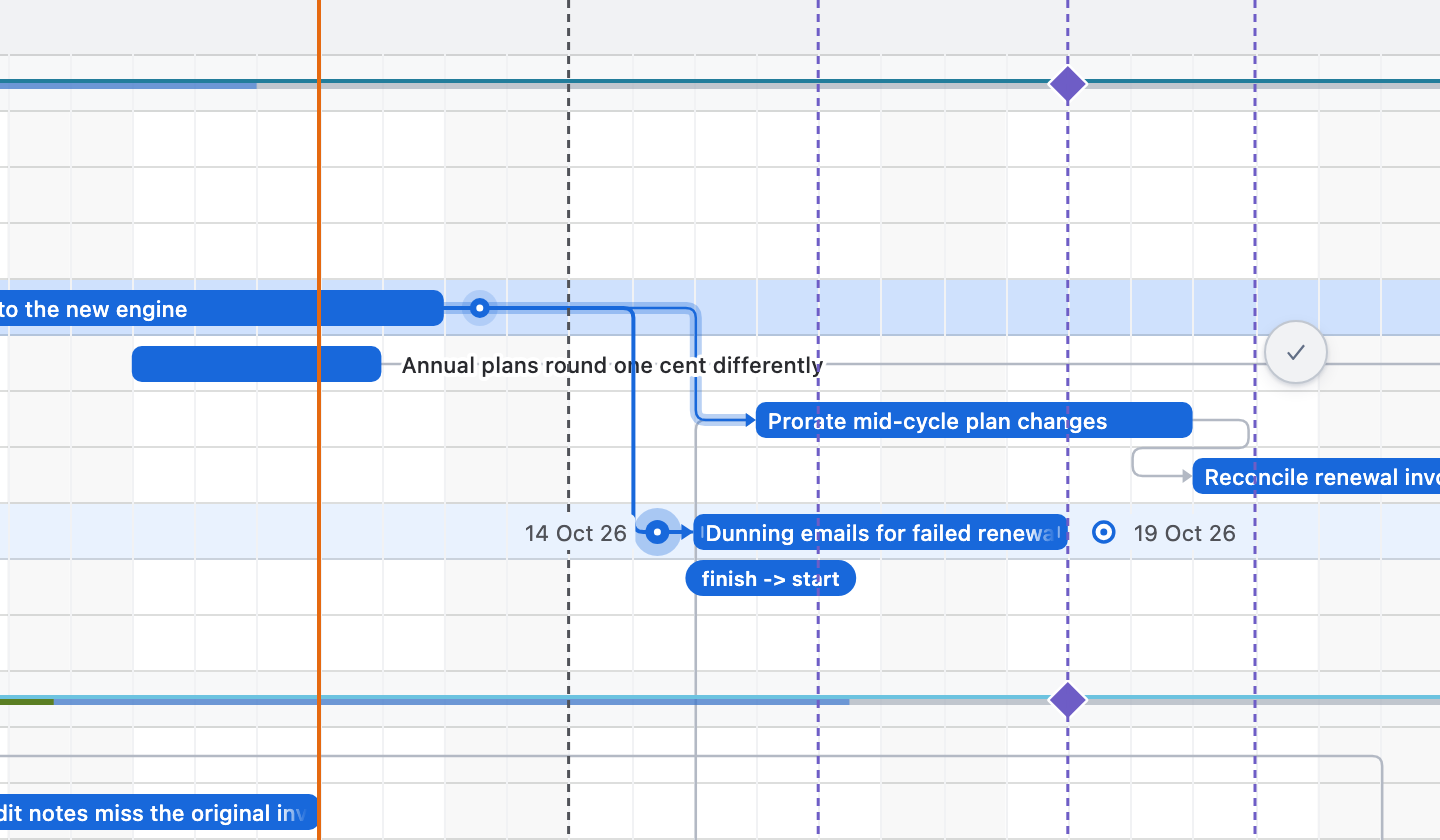
Link two issues
Hover a bar and drag from the handle at its start or end to the handle on another bar. The line stays dashed until it reaches a handle, then shows the route the link will take and names its type.
Step 2
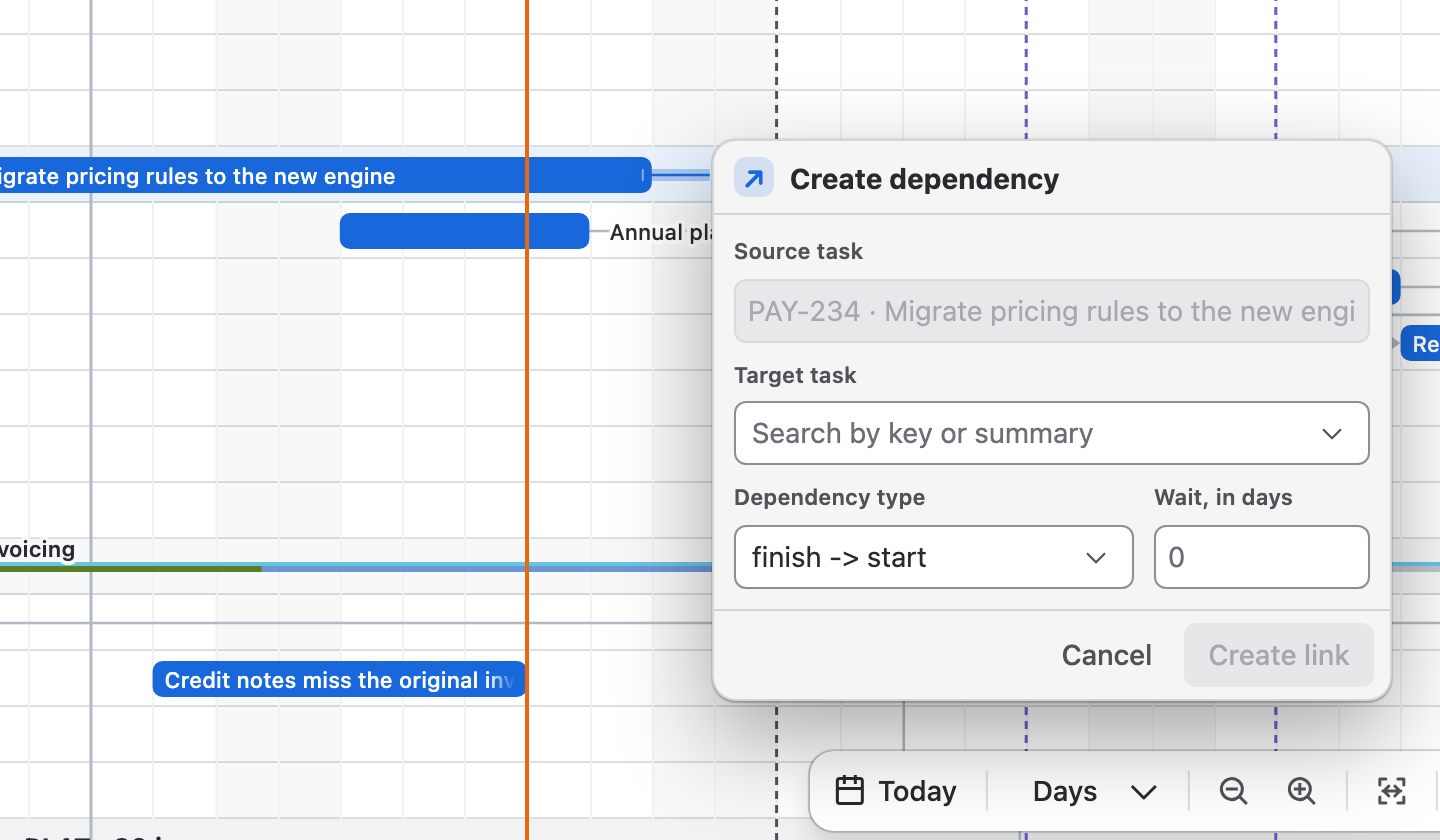
Set the type and the wait
Click a handle instead of dragging. In Create dependency, choose the Target task, the Dependency type and Wait, in days, then Create link.
Step 3
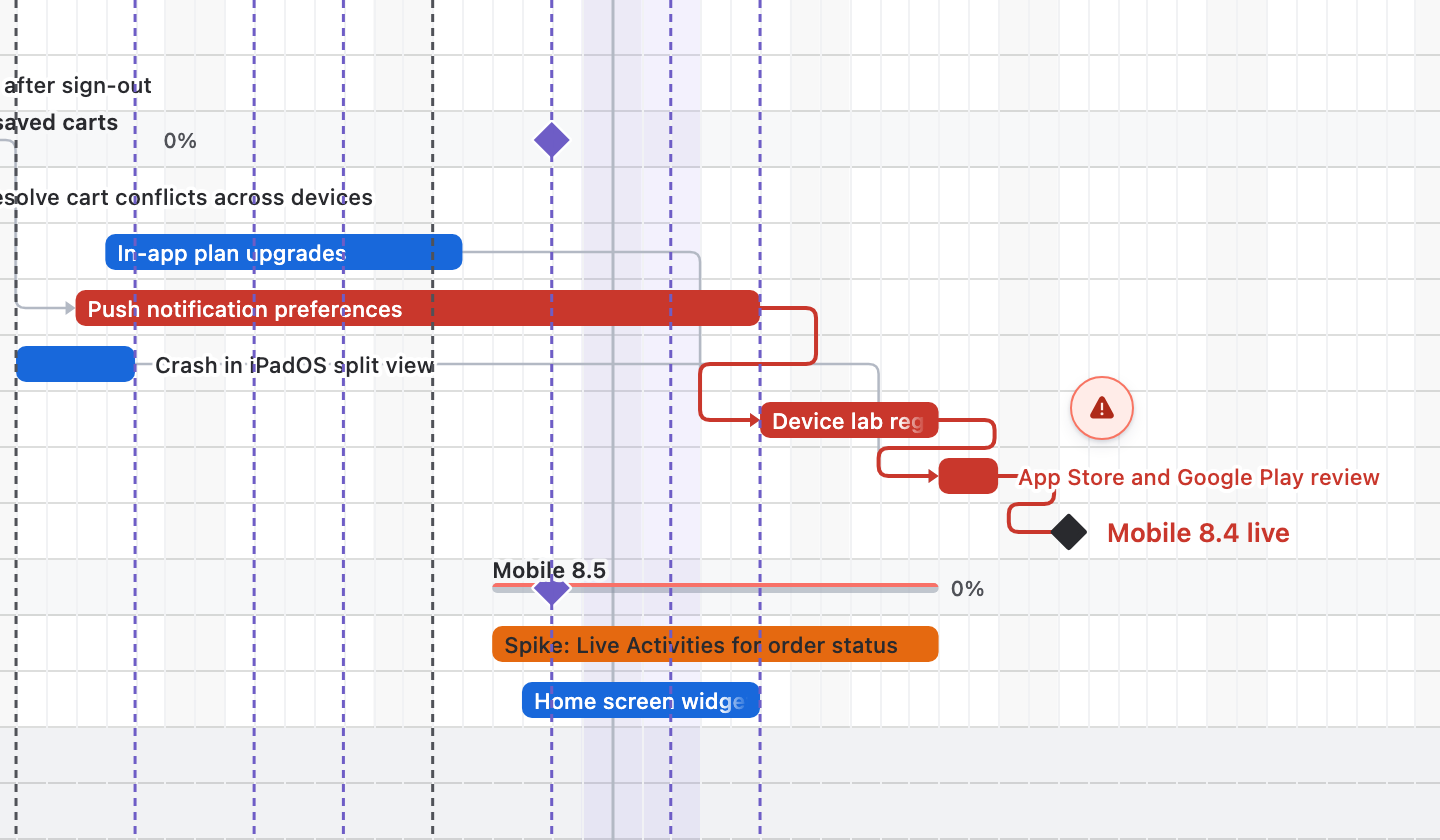
Show the critical path
Open Chart settings and set Critical path (zero slack) to Yes. The work that controls the finish date turns red.
Step 4
Review every link
Open Plan insights and choose Dependencies. Select a link to find it on the chart; More actions edits its type and lag, opens either issue in Jira or removes the link.
Step 5
Open the map
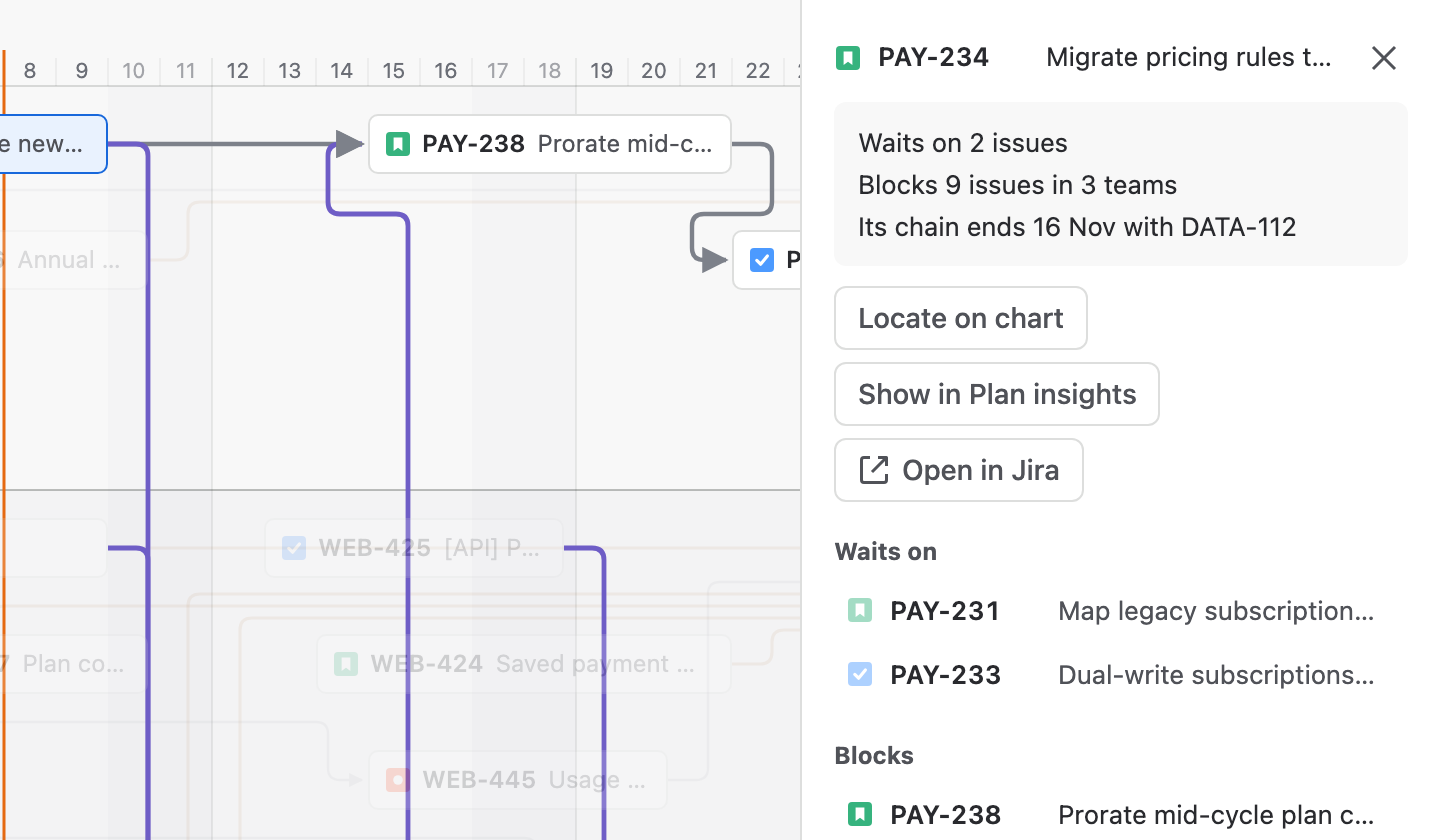
Choose Map in the Dependencies tab. Select an issue to light its whole chain and see what it waits on and what it blocks.
Drawn by Ganttry
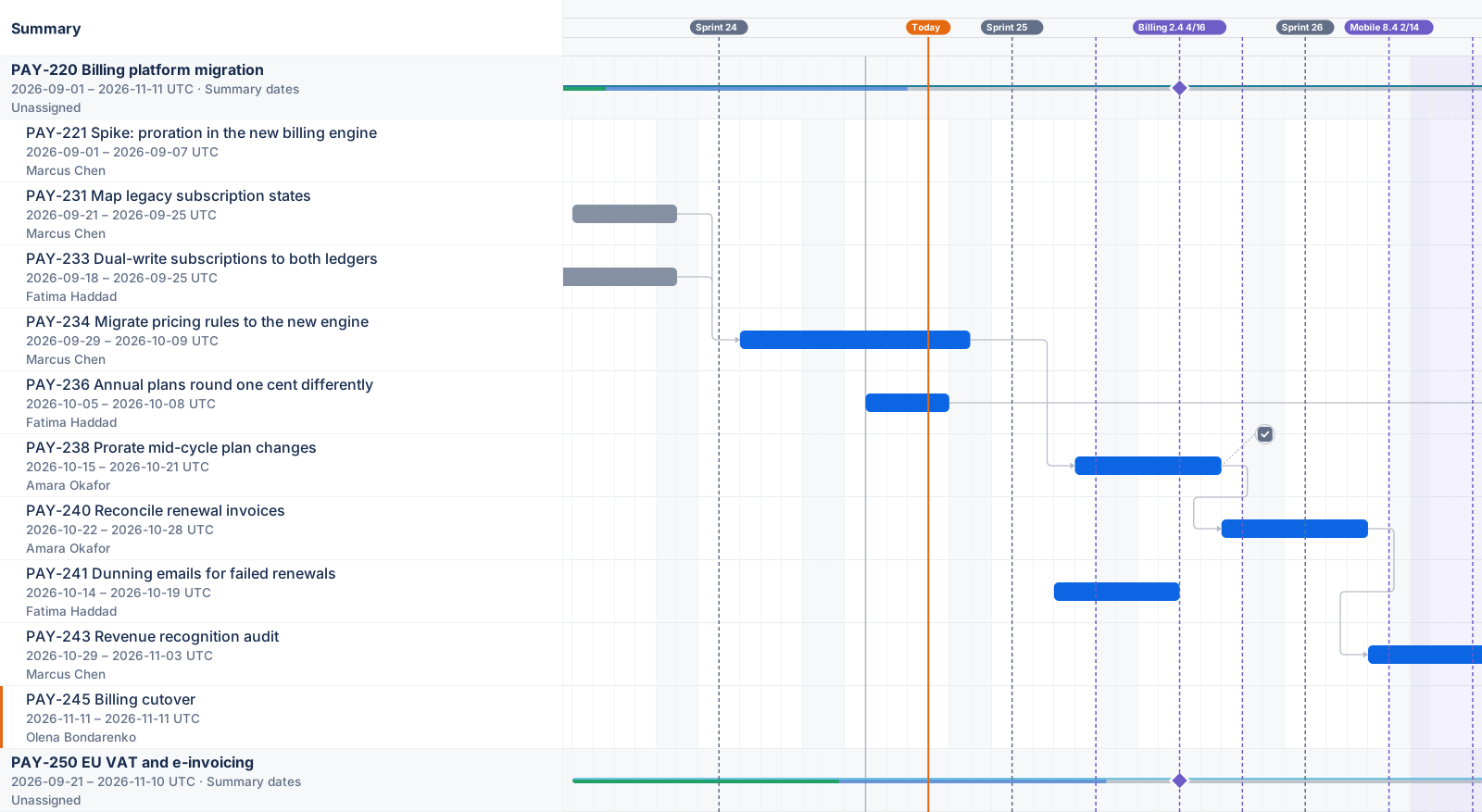
Drawn by Ganttry, not redrawn for this page.
This figure is the app's own export renderer, as a vector: the same bars, link routes, sprints and release markers a PNG or PDF export draws.
Good to know
- Links are Jira issue links
- Creating or removing a link is a Jira edit made with your own permissions. The type and the lag live in Ganttry, because Jira has no field for either.
- Broken stays visibly broken
- When a successor is scheduled earlier than its link allows, the link marches in red dashes from predecessor to successor instead of the bar being squeezed.
- Lag uses working time
- Lag is measured on the successor's working calendar.
- Ask why a bar is where it is
- The scheduling explanation names the link or constraint that placed a bar, with its slack, critical-path state and lateness.
Read more in the docs
Ganttry for Jira Cloud