Dependencies
Link issues and see the chain that sets your finish date. Link types, lag, broken links, the critical path and the dependency map.
9 sections3 min readUpdated October 2026Writes to Jira: Creating and removing links
Link types
A dependency says that one issue waits on another. Ganttry reads Jira's issue links, adds a type and a lag that Jira cannot store, and schedules the successor from them.
| Type | The successor | Typical use |
|---|---|---|
| Finish-to-start | starts after the predecessor finishes. | Most work: build, then test. |
| Start-to-start | starts after the predecessor starts. | Work that can run alongside once it has begun. |
| Finish-to-finish | finishes after the predecessor finishes. | Documentation that ends with the feature. |
| Start-to-finish | finishes after the predecessor starts. | A hand-over: the old rota ends when the new one starts. |
Create a link
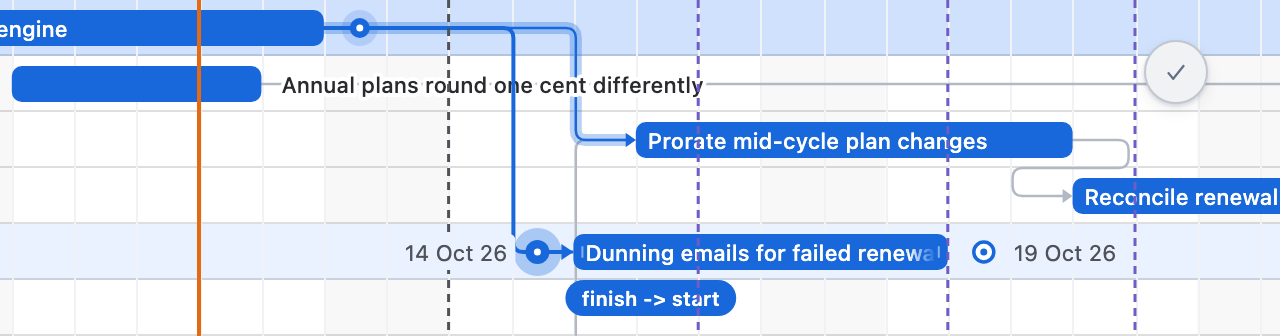
- Hover the predecessor's bar. A handle appears at each end.
- Drag from the end that matters to the start or end of the successor's bar. The line stays dashed until it reaches a handle, then shows the route the link will take and names its type.
- Release. Ganttry creates the Jira issue link as you and schedules the successor.
Set the type and the wait
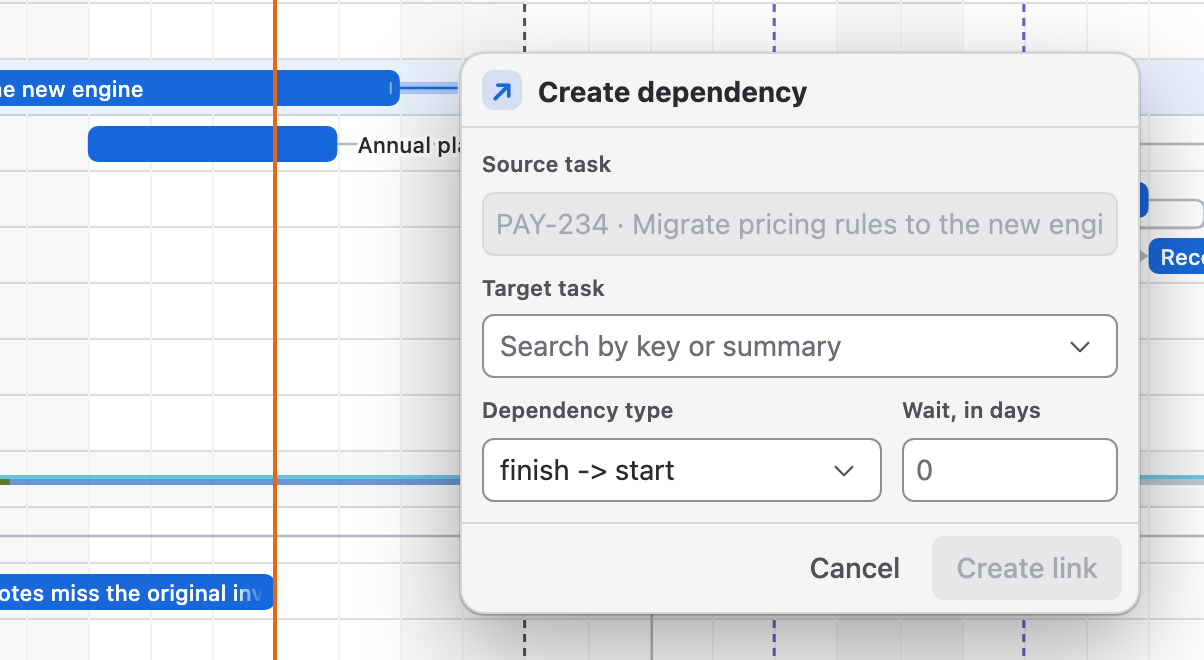
Create dependency opens from the handle you clicked, with that issue as the Source task. Search the Target task by key or summary, choose the Dependency type, enter Wait, in days, then choose Create link. A negative wait lets the successor overlap the predecessor.
Lag is measured on the successor's working calendar.
Review every link
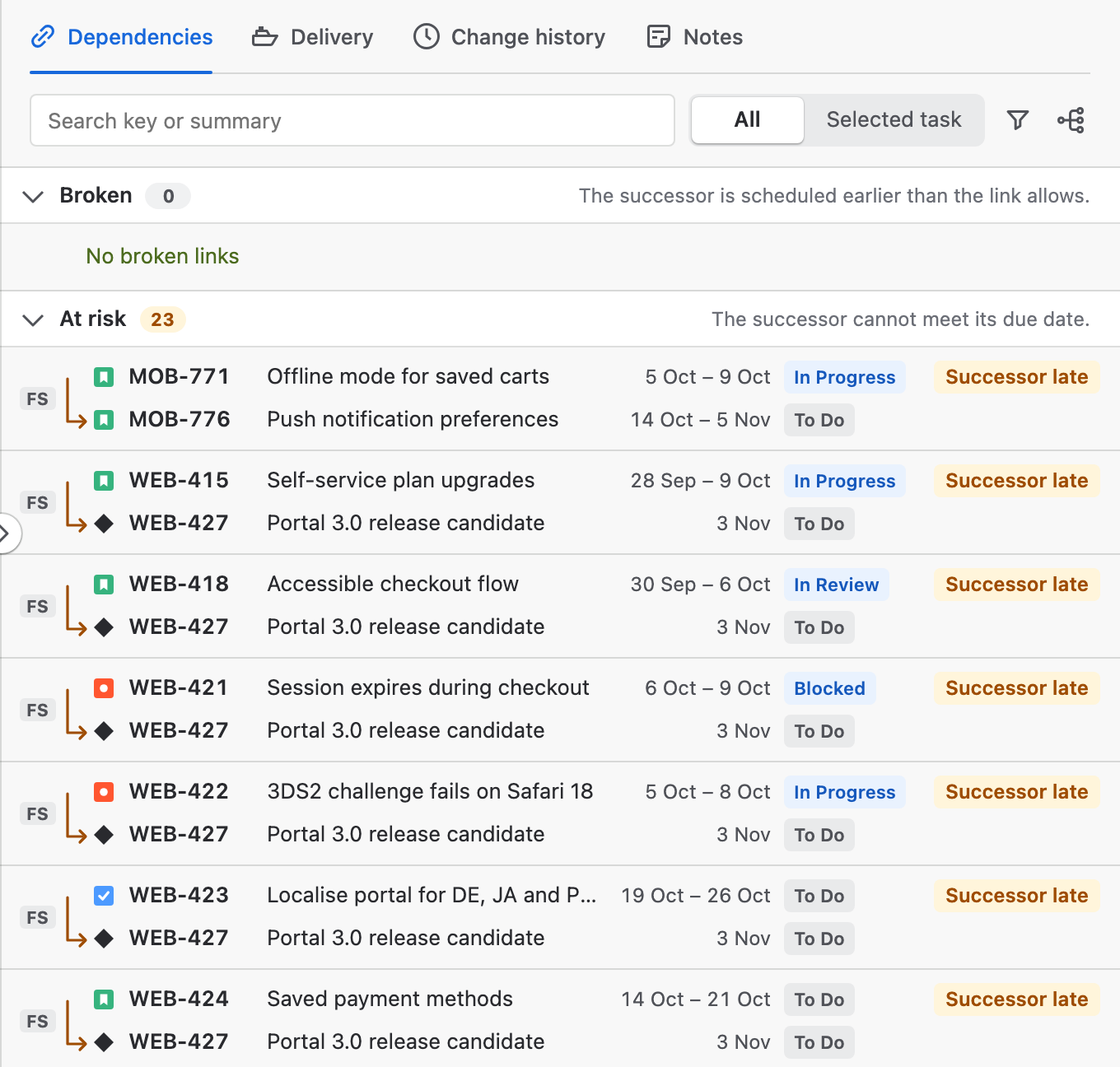
Open Plan insights and choose Dependencies to list every link on the chart, worst first. Search covers both ends of a link, and the filter narrows by link type, project, cross-project links, the critical path and links between finished issues.
| Group | What it means |
|---|---|
| Broken | The successor is scheduled earlier than the link allows. |
| Cycle | The links lead back to an issue already in the chain. |
| Outside chart | One end of the link is not loaded in this chart. |
| At risk | The successor cannot meet its due date. |
| On track | Nothing needs doing. |
Change or remove a link
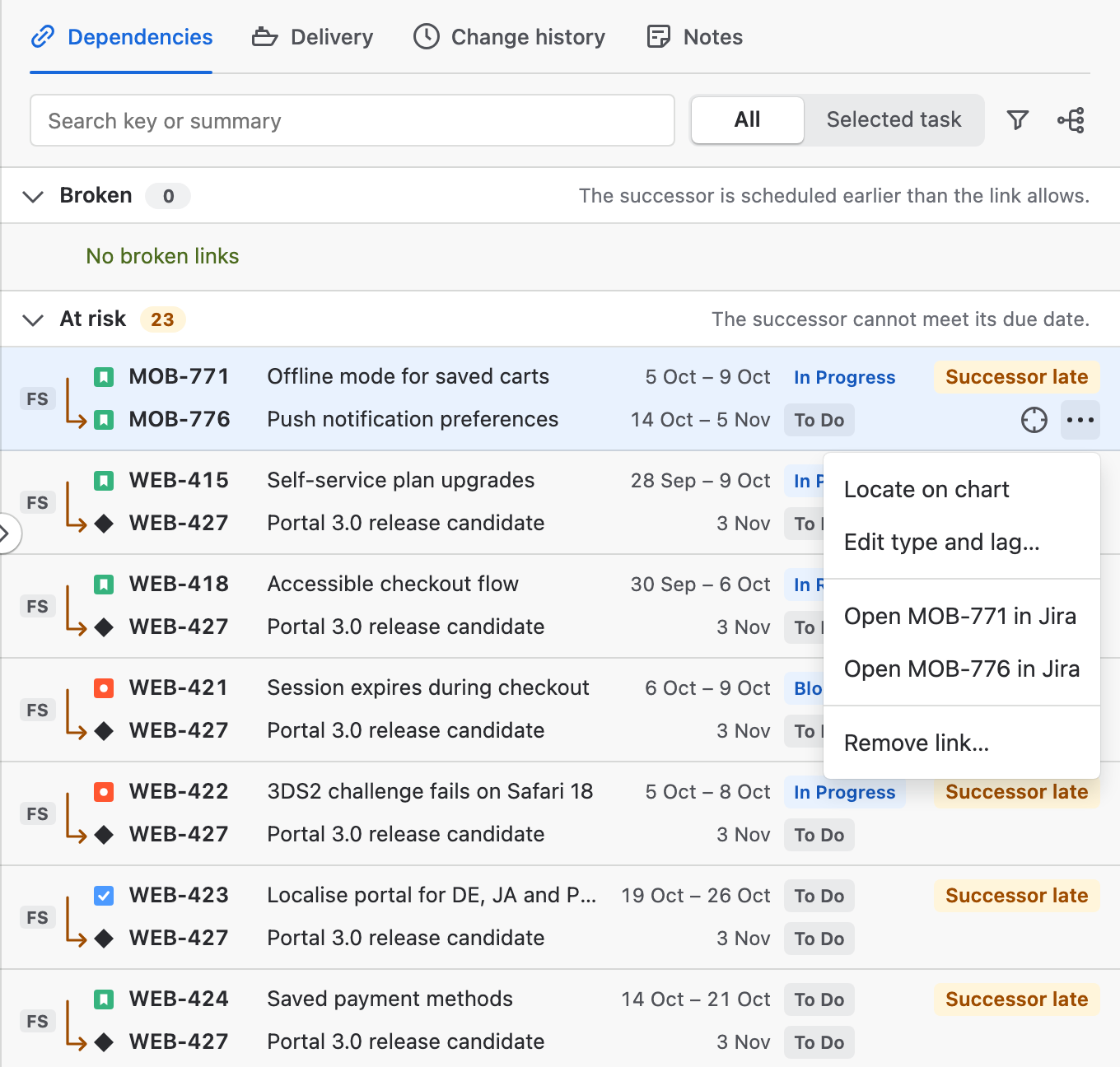
Select a link in Plan insights → Dependencies to find it on the chart. Its More actions menu holds Locate on chart, Edit type and lag…, Open … in Jira for either issue and Remove link…. A broken link also offers Move … later, a plan change that Publish takes to Jira.
Changing the type or lag changes only Ganttry's plan. Removing a link removes the Jira issue link, as you.
Broken links and cycles
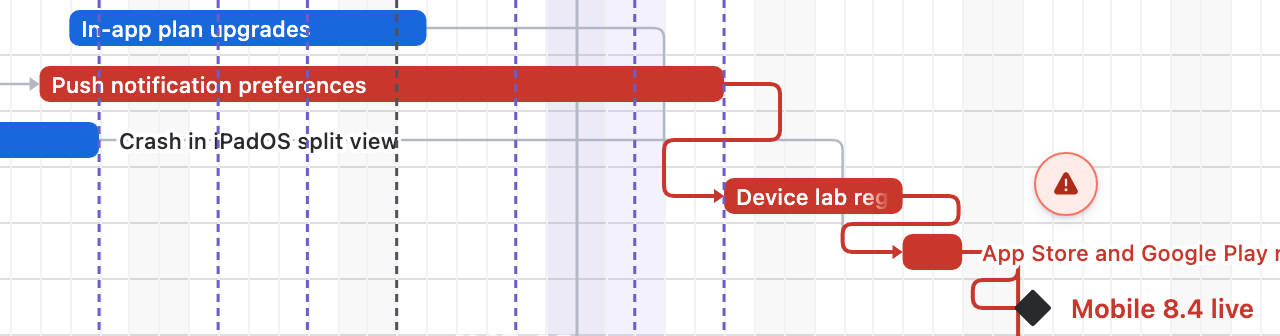
When a successor is scheduled earlier than its link allows, the link marches in red dashes from predecessor to successor. Ganttry draws the conflict rather than squeezing the bar to make the plan look possible.
Links that loop back to an issue already in the chain are listed under Cycle in Plan insights, so the loop can be broken where it makes sense.
Critical path
The critical path is the work that controls the plan's finish date. Open Chart settings and set Critical path (zero slack) to Yes to colour it on the chart. It starts off and is kept in saved views and shared links.
Dependency map
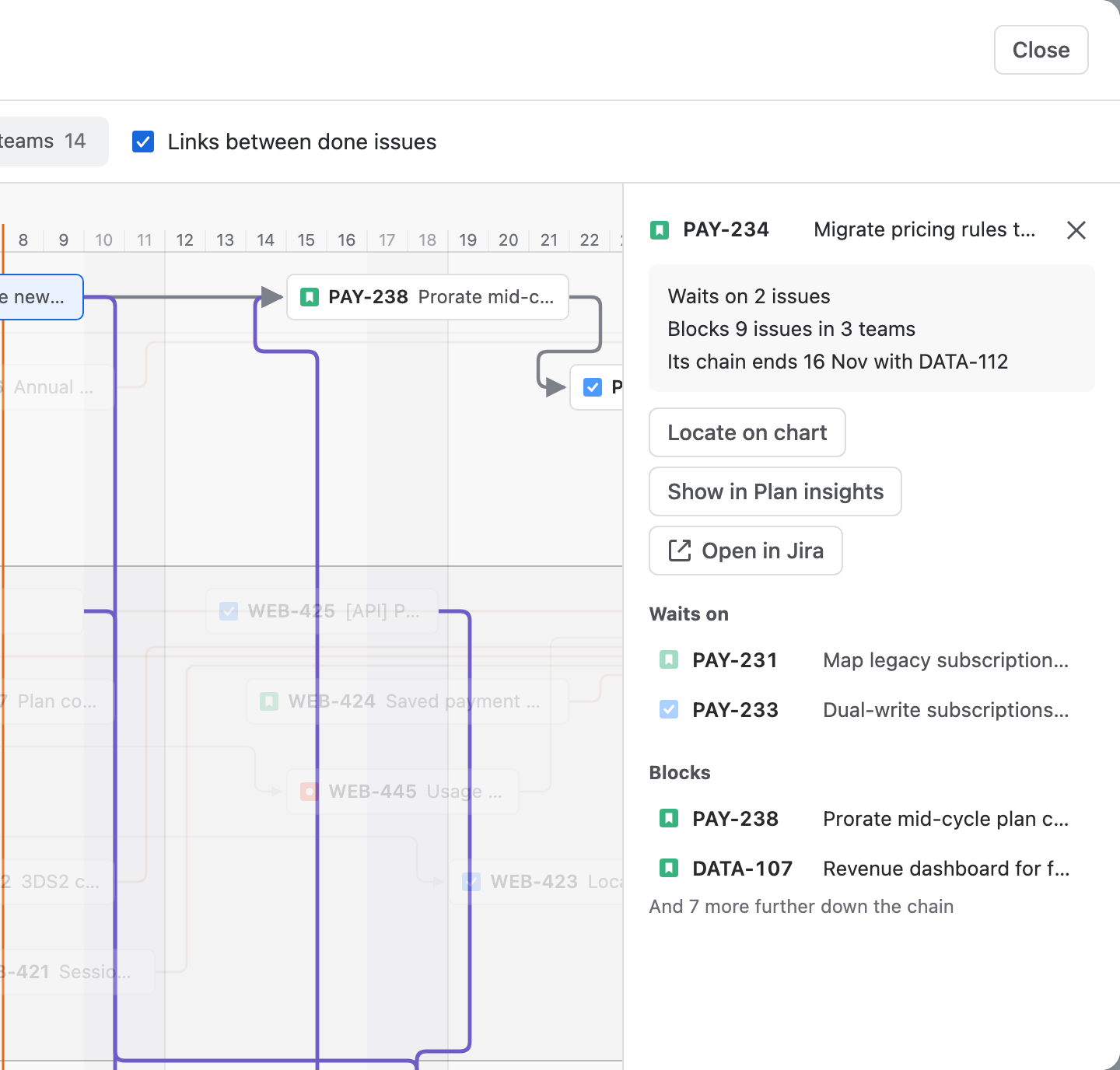
Choose Map in the Dependencies tab to open the map full screen. It shows team lanes over time, with linked issues at their dates and links coloured on track, at risk or broken; handoffs between teams are highlighted. With an issue selected, the map opens on that issue's chain.
Search, Problems and Between teams narrow the links. Selecting an issue lights its whole chain and lists what it waits on and what it blocks, with Locate on chart, Show in Plan insights and Open in Jira. The Teams view counts the links between each pair of teams.
Permissions
- Creating or removing a link is a Jira edit made as you, so Jira checks your own permissions.
- Changing a link's type or lag, and turning on the critical path, change only Ganttry's plan.
Stuck on something this guide skips? Write to the developers →