Scheduling and calendars
Understand how Ganttry places every bar. Working time, holidays, estimates, constraints, dates marked ~ and the scheduling explanation.
11 sections6 min readUpdated October 2026
How Ganttry places a bar
Ganttry schedules the chart from what Jira knows about each issue, its dates, estimates and links, and from the working time you set. Each bar takes the strongest reason it has; Explain schedule on a row names that reason.
Scheduling is Ganttry's plan. It never writes to Jira; Jira's dates change only when you publish the changes you choose.
| What places the bar | What Explain schedule says |
|---|---|
| You moved or resized it | Placed by a manual move in this scenario. |
| As late as possible is set | Placed as late as possible without moving the plan finish. |
| A dependency holds it | Placed by the dependencies listed below. |
| Jira has a Start date | Placed from Jira's Start date. |
| As early as possible is set | Placed as soon as its dependencies allow. |
| Jira has only a due date | Pulled back from Jira's Due date. |
| It is done | Placed from Jira's recorded completion. |
| Its links lead back to it | Placed independently because this task is in a dependency cycle. |
How long a bar is
Ganttry takes the first of these it finds for each issue, measured in working time:
- The span from Jira's start date to its due date. A due date is the last day of the work, so an issue starting Monday and due Friday spans five days.
- The time estimate: the original estimate, or the remaining estimate when there is no original one.
- Story points, at one working day per point.
- One working day.
Dates marked ~
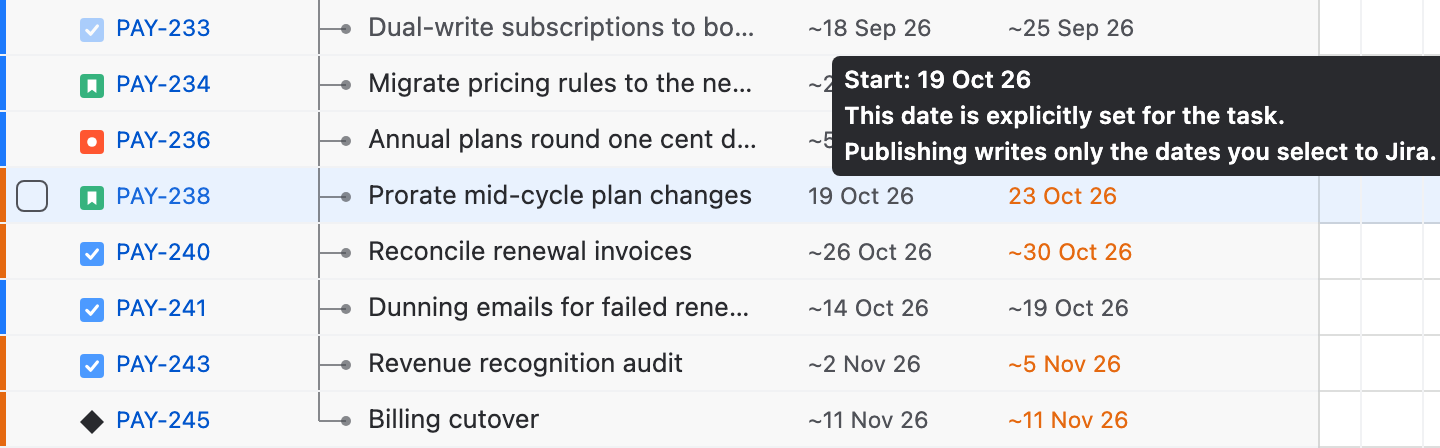
In the Start and End columns a date with a ~ is one Ganttry calculated. A date without one is set: a Jira date the plan lands on, or one you gave the bar by moving it. Hovering a date says which it is, and that publishing writes only the dates you select.
When Jira has no start or due date, a fine line inside that end of the bar marks it, and hovering the bar spells out which date is not set. A bar you have moved or resized shows fine stripes until Jira holds its dates.
Working time and holidays
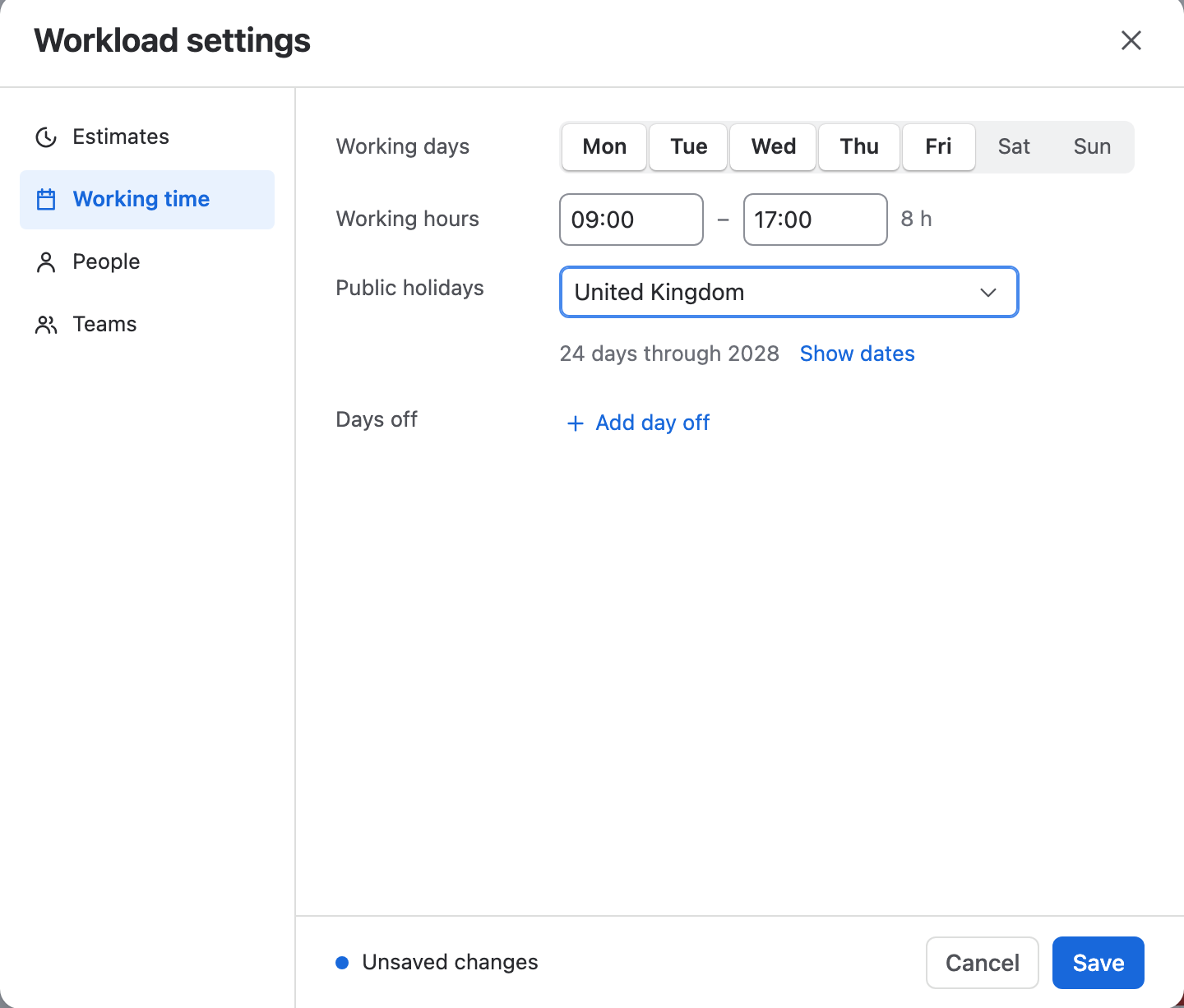
Open Workload at the bottom of the chart, then the gear at the end of its header, and choose Working time. It sets the working week, the working hours, one country's public holidays and the plan's own days off, for everyone on the chart.
Until you set it, a chart counts every day as working time. Saving recalculates the plan's dates and capacity straight away; nothing is written to Jira.
- Under Working days, turn the days your team works on or off.
- Under Working hours, set the start and end of the day. The length of the day is shown beside them.
- Under Public holidays, choose a country. Choosing another country replaces the first one's holidays, and Show dates lists them so you can remove single days.
- Under Days off, choose Add day off for dates that are not a public holiday, such as a company day.
- Choose Save in the bar that appears with your changes.
Each person's own calendar
People in the same dialog lists everyone on the chart with hours a day, share of the plan, working week and days off; values that differ from the chart's are in bold. Click a person to edit them; Reset to default clears their own hours, share and week.
An assigned issue is scheduled on its assignee's working week and days off once that person has their own, and dragging it follows the same days. Hours a day and share of the plan set the person's capacity in Workload.
Estimates and story points
Estimates in the same dialog sets what Workload measures: Measure by Story points, Original estimate or Remaining estimate; how many hours 1 story point is, one working day unless you change it; and what an issue with No estimate counts, its bar length or nothing.
These choices change Workload, not the length of bars. Add the Points and Spent columns to see them in the table; Spent turns orange when the time logged in Jira passes the estimate.
Dependencies and lag
A successor starts or finishes when its link allows: finish-to-start, start-to-start, finish-to-finish or start-to-finish. Lag counts whole working days on the successor's calendar, so one day of lag is one working day.
When a successor is scheduled earlier than its link allows, the link is drawn in red dashes rather than the bar being squeezed. The Dependencies guide covers links in full.
The scheduling explanation
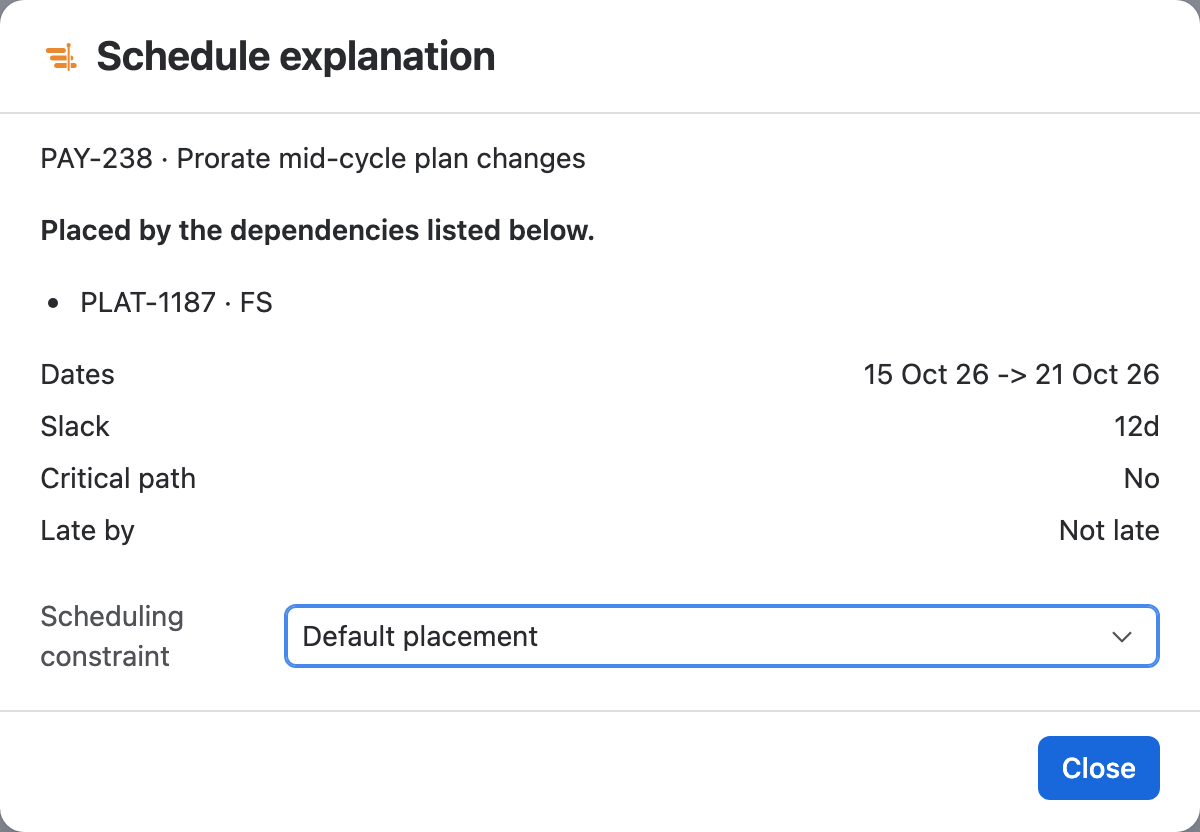
- Right-click a bar or a row and choose Explain schedule.
- Read the reason, and the links that hold the bar, each with the other issue, the link type and any lag.
- Check Dates, Slack (how far the work can slip before it moves the finish), Critical path and Late by.
- Set a Scheduling constraint if you want one, then choose Close.
As early or as late as possible
Scheduling constraint in the explanation offers Default placement, As early as possible and As late as possible. As early as possible places the work as soon as its dependencies allow; as late as possible places it as late as it can go without moving the plan's finish.
The constraint is saved in Ganttry for this chart and recalculates the plan at once. Choose Default placement to clear it. Combined charts do not offer constraints; open the chart on its own to set one.
Change dates by hand
Drag a bar to move it, or one end to change its length. Bars move a day at a time and keep at least one working day, and an end dropped on a non-working day stops at the last working day. The moved dates are yours: they lose the ~ and the plan schedules around them.
- Set dates on the row menu places an issue that has no dates, from a Start date and a Duration (days), with Apply dates.
- Edit estimate on a placed row changes its Duration (days) with Apply.
- Reset dates gives the bar back to the scheduler; for an issue Jira has no dates for, Remove from timeline returns it to an empty row.
- Ctrl/⌘ + V pastes lines with an issue key and dates and moves those bars as one change.
- Undo, or Ctrl/⌘ + Z, reverses the last change.
Late, overdue and critical
| State | How it shows |
|---|---|
| Late | The work finishes after its due date: an orange bar and an orange End date, and Late by in the explanation. |
| Overdue | The End date has passed and the work is not done: the End date turns red with a warning icon, and the bar adds how many days late it is when that fits. |
| Critical | No slack, so a delay moves the plan's finish. With Critical path (zero slack) set to Yes in Chart settings, the work and its links turn red. |
Stuck on something this guide skips? Write to the developers →