Publish to Jira
Plan freely, then send Jira only the dates you choose.
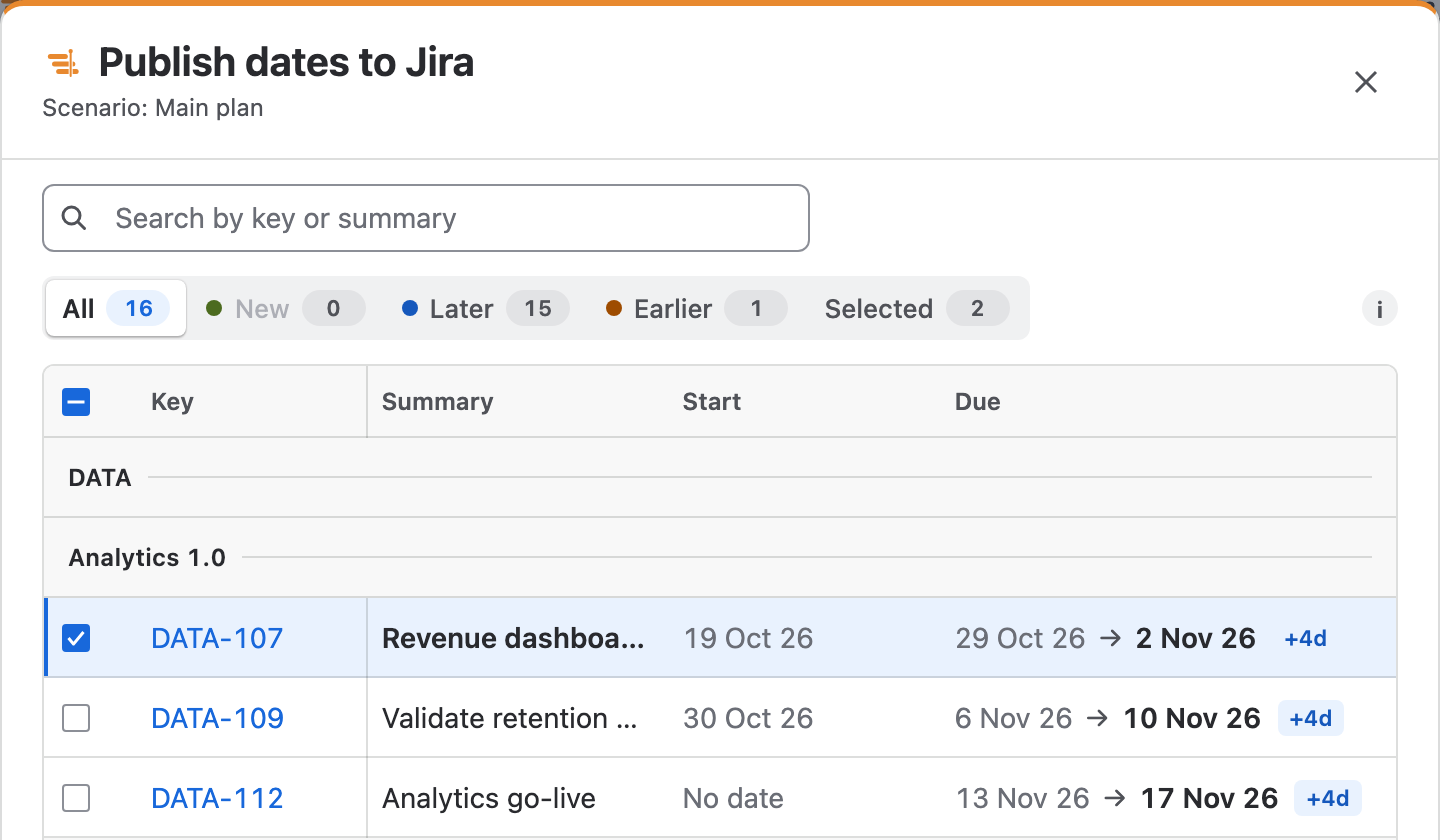
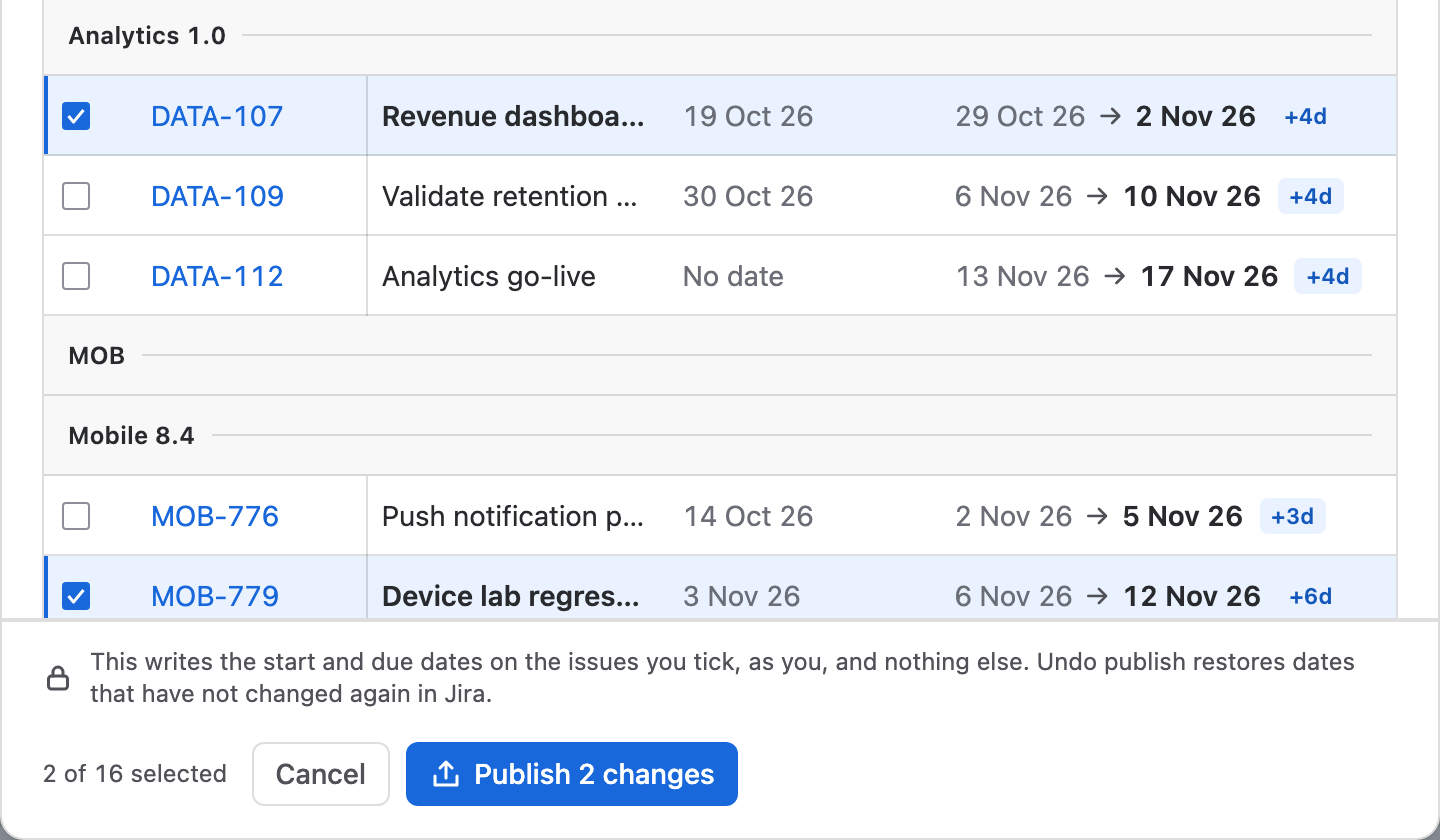
Moving bars changes Ganttry's plan, not Jira. When you are ready, Publish lists every issue whose dates differ from Jira, with the dates Jira has and the dates the plan gives it, and writes only the issues you tick, with your own Jira permissions.
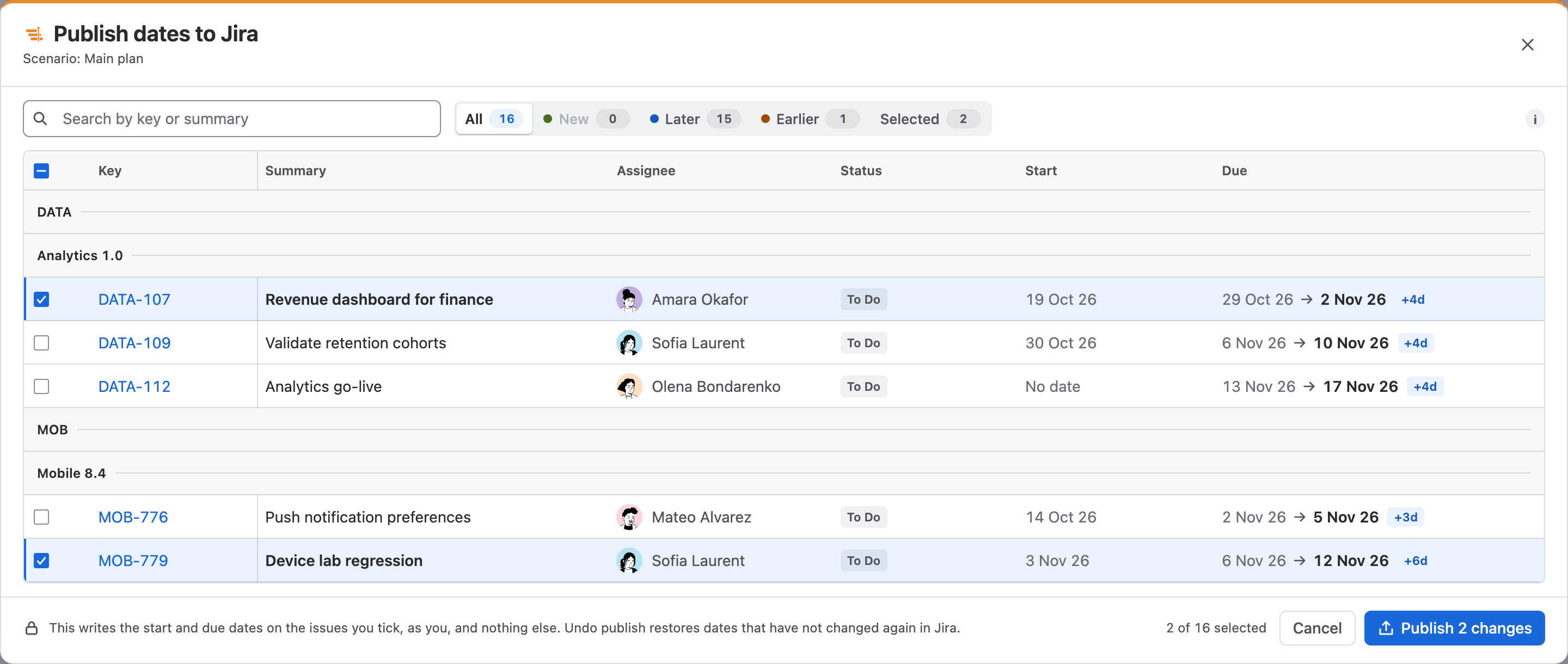
- Nothing reaches Jira before Publish
- Before and after for every date
- Up to 10,000 issues in one publish
- Undo the last publish
What you get
Publish to Jira, part by part.
01
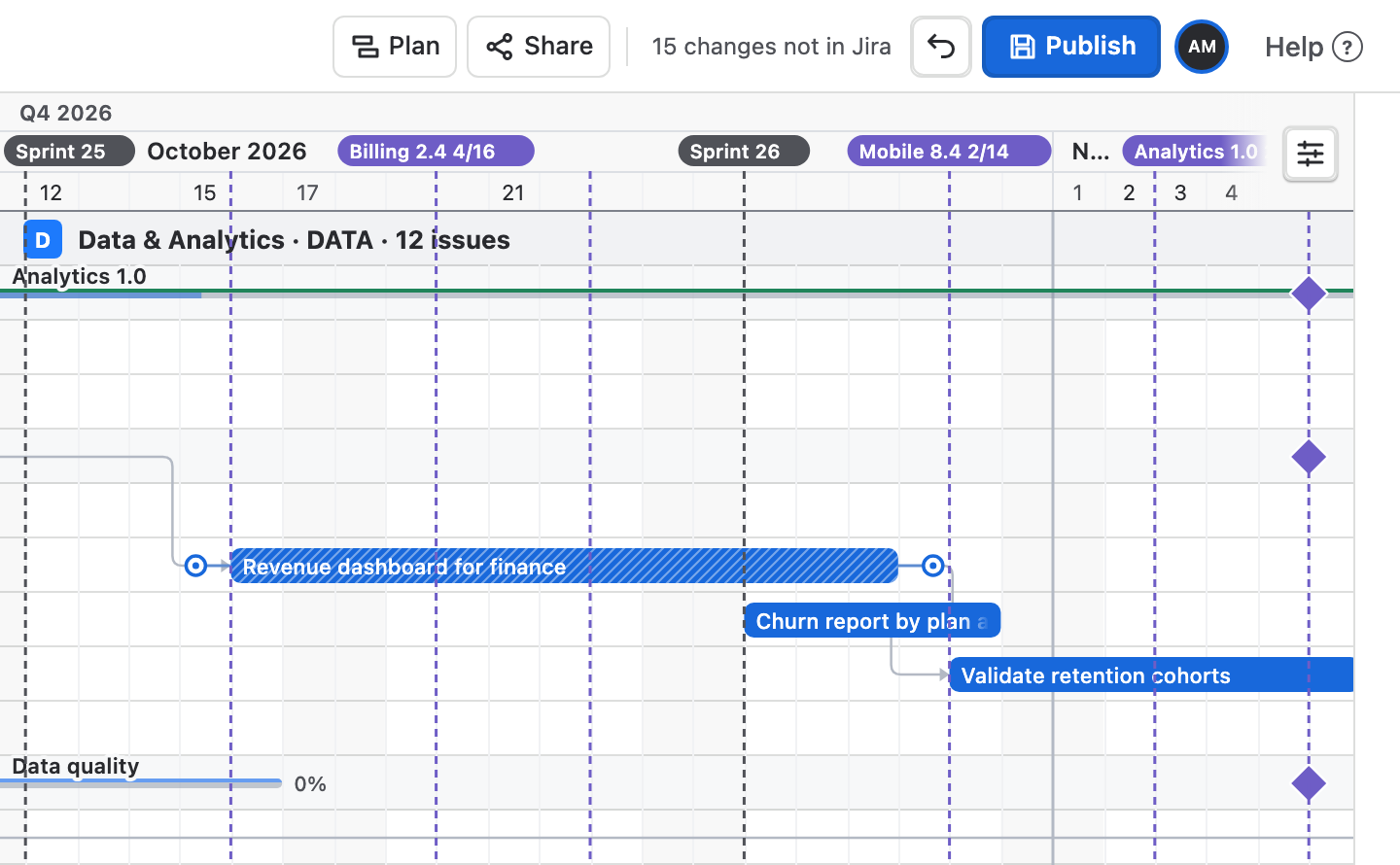
Moves stay in the plan
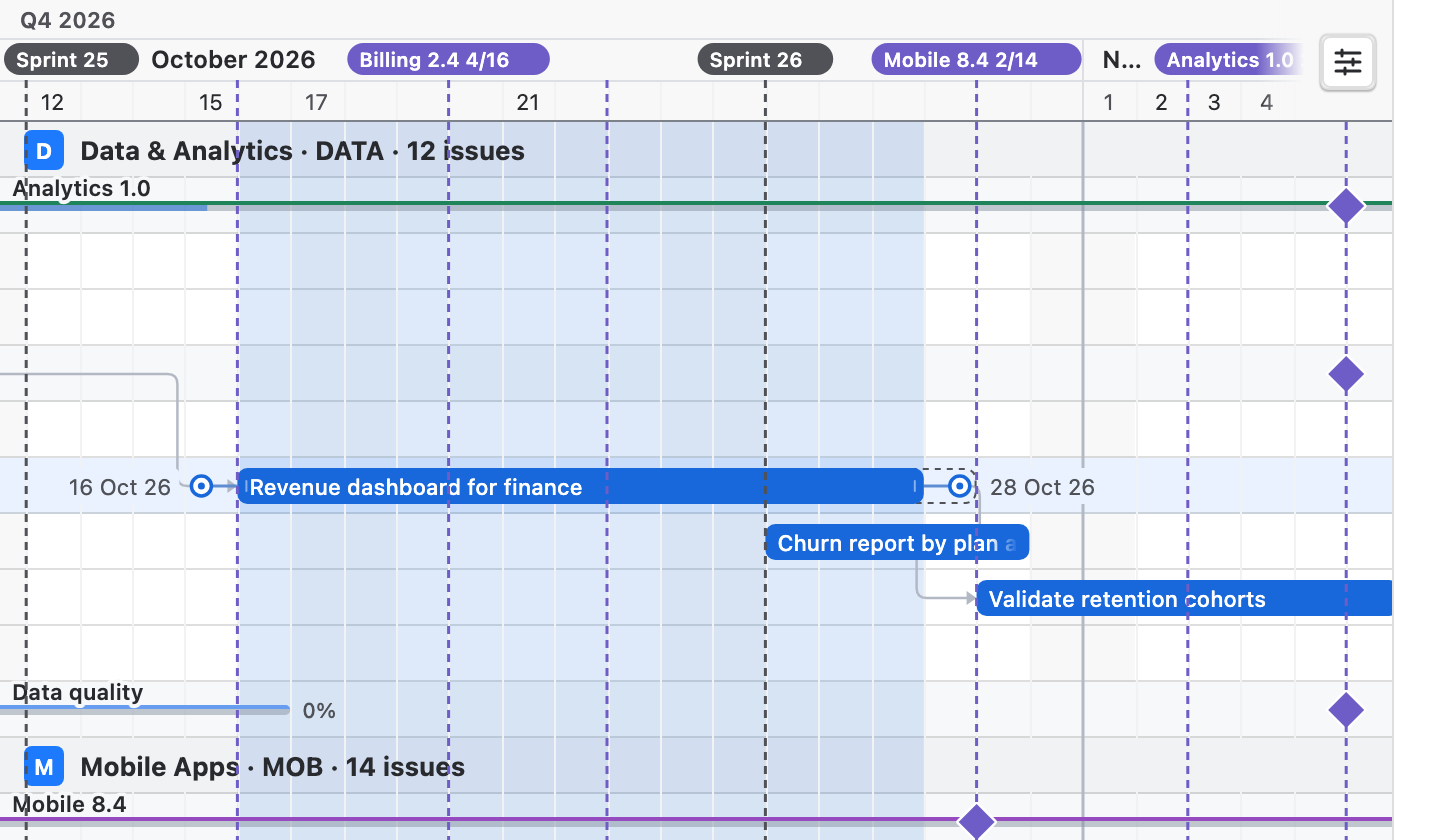
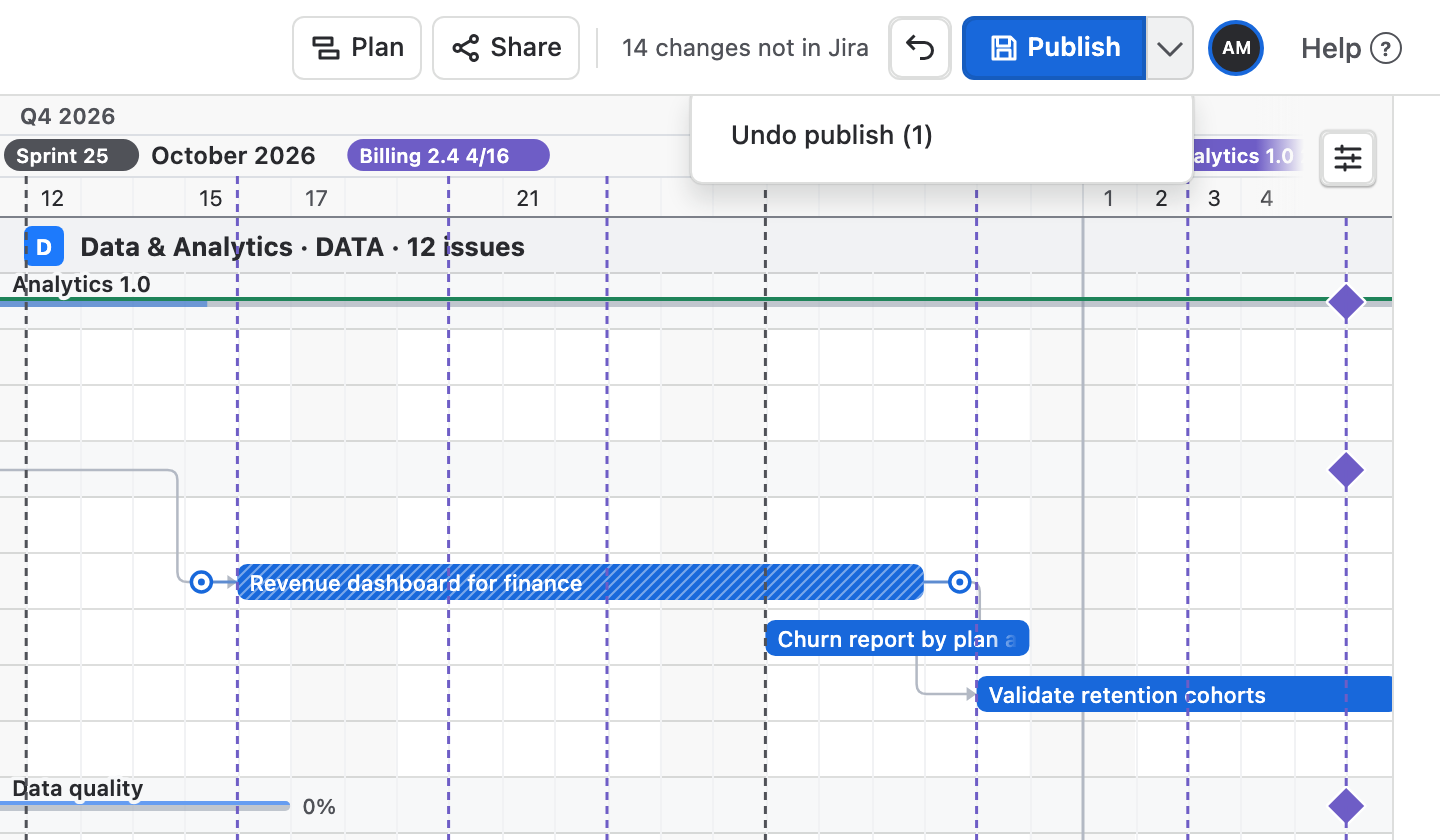
Dragging, resizing and placing issues is saved in Ganttry for everyone on the chart, and the bars you moved are hatched. The header counts the changes not in Jira yet, beside Undo and Publish.
02
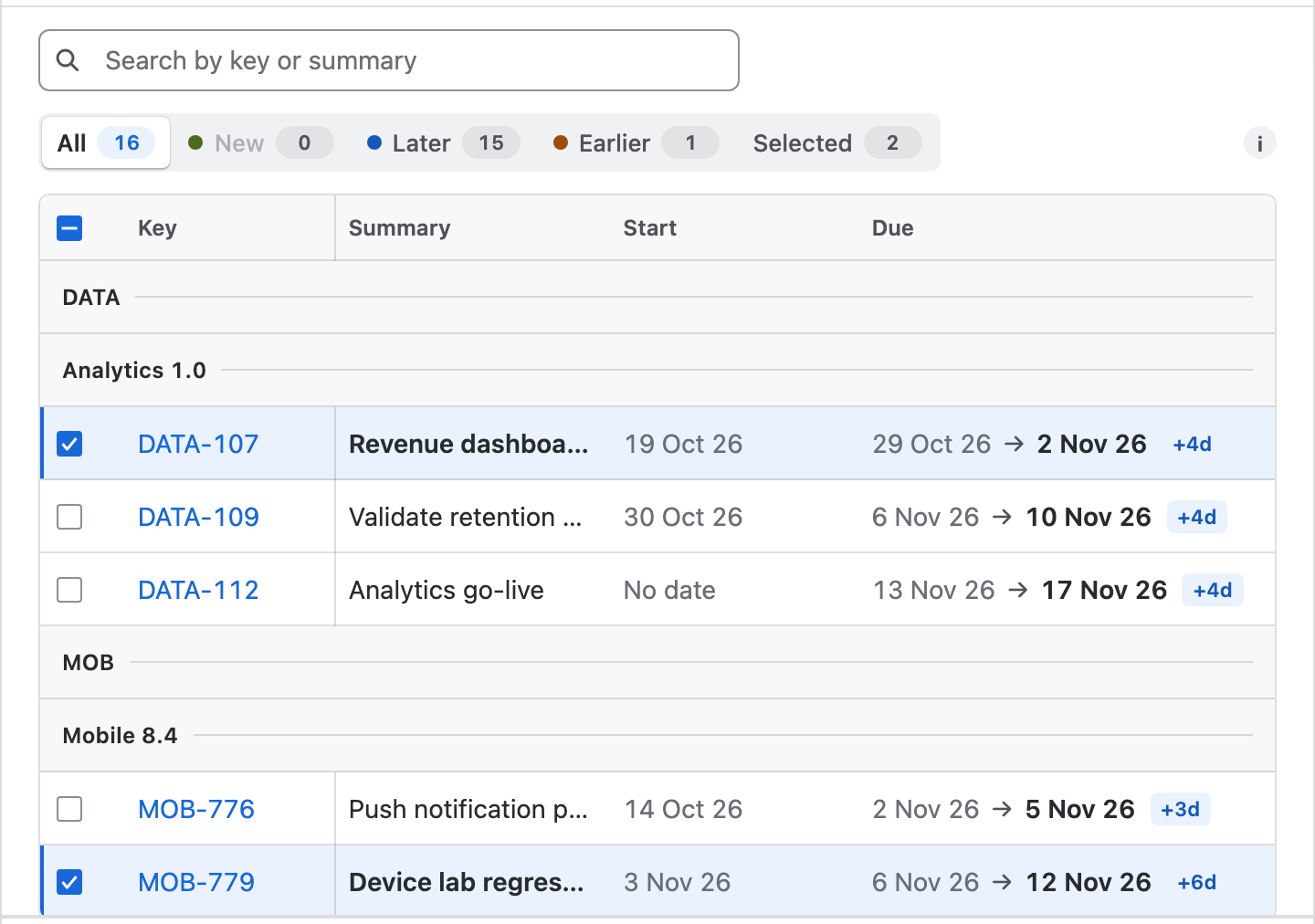
What you moved comes ticked
Issues you moved by hand start ticked and in bold. Dates Ganttry worked out from links and estimates are listed too, but unticked, so nothing goes to Jira that you did not choose.
03
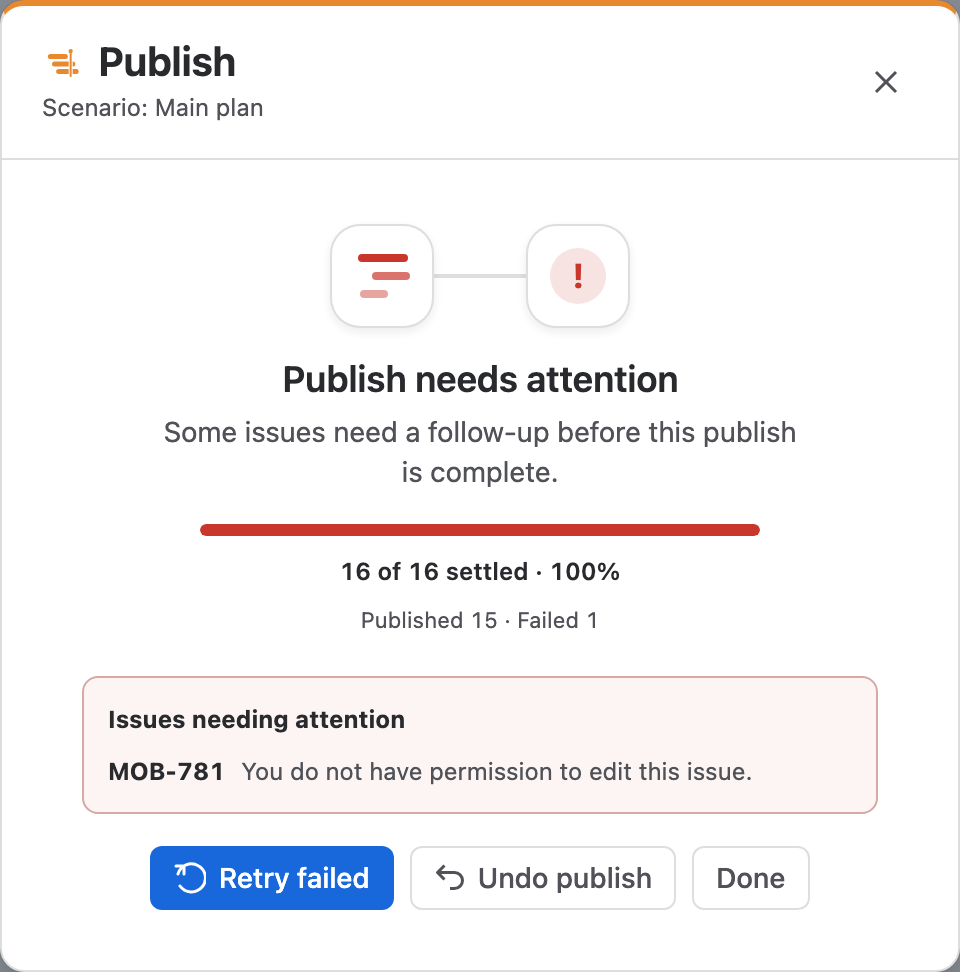
Confirmed issue by issue
Ganttry checks each issue's dates in Jira before writing and counts only what Jira confirms. An issue Jira refuses is listed with the reason, ready for Retry failed, and Undo publish puts back what was written.
04
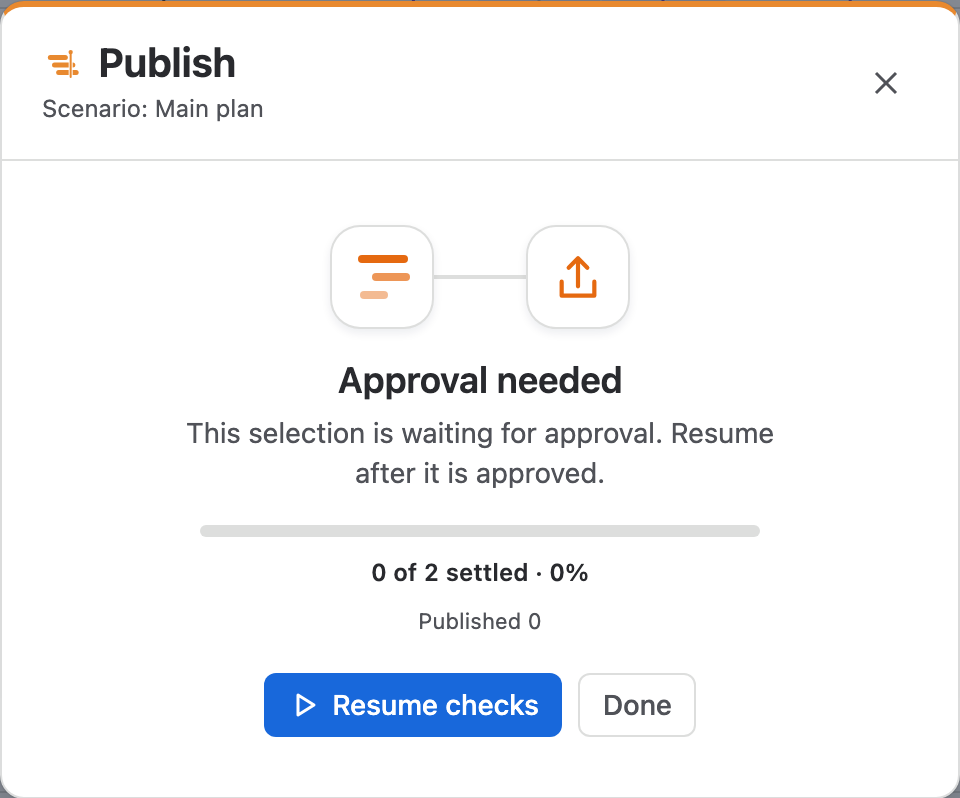
Approval before Jira changes
When a Jira administrator turns on the approval rule, a publish waits until a project administrator approves that exact selection. Nobody can approve their own request.
How to use it
From a moved bar to dates in Jira.
Step 1
Move the plan
Drag a bar, or pull either end. The dates it will take show beside it while you drag, and Ganttry saves the change when you let go. Jira is not touched.
Step 2
Open the review
Choose Publish. Publish dates to Jira lists every issue whose dates differ from Jira, in the order of the table and under its project and parent.
Step 3
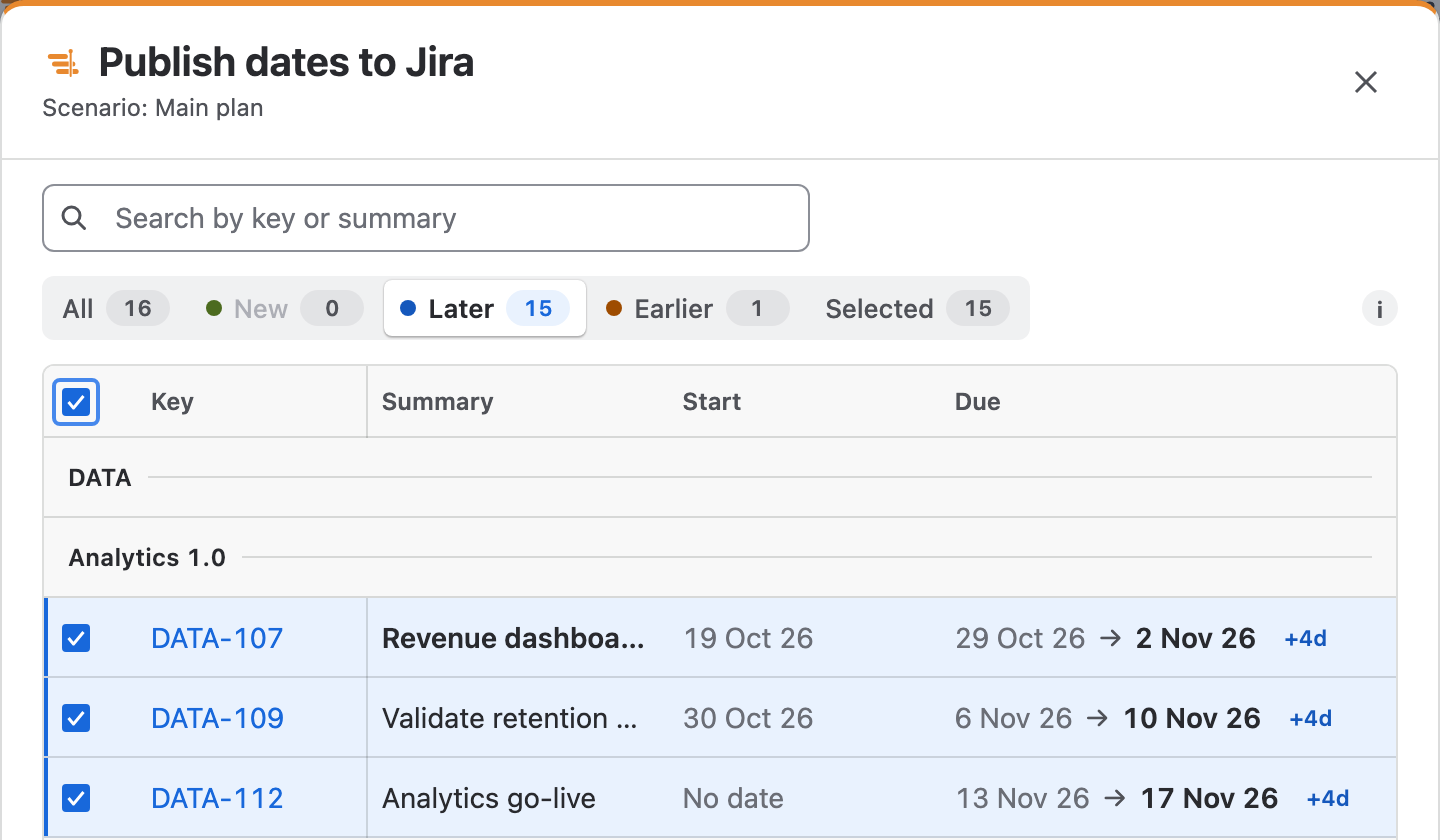
Choose what to send
Search by key or summary, or show only New, Later, Earlier or Selected changes. The checkbox in the heading ticks or clears every change in view.
Step 4
Publish
The footer says what will be written and how many changes are ticked. Publish … changes writes them in short steps that you can pause and resume.
Step 5
Undo if you need to
After a publish, the arrow beside Publish holds Undo publish. It puts back the dates that nobody has changed in Jira since.
Good to know
- Written as you
- Ganttry writes the dates with your own Jira permissions: Edit Issues and Schedule Issues in the issue's project. Issues you cannot edit are not offered.
- Dates and nothing else
- Publish writes start and due dates only. Status, assignee, links, new issues and deletions are separate Jira edits, made when you confirm them in the chart.
- Jira edits are not overwritten
- If someone changes an issue's dates in Jira after your review, Ganttry reports that issue instead of writing over it.
- Only Main publishes
- On a scenario branch the button reads Merge and changes the parent plan instead. Sample plans never change Jira.
Read more in the docs
Ganttry for Jira Cloud