Editing issues in the chart
Change Jira issues without leaving the plan. Status, assignee, creating and deleting issues, and what each edit writes to Jira.
11 sections6 min readUpdated October 2026Writes to Jira: Status, assignee, issue creation and deletion, and issue links, each when you confirm it
Edits that go straight to Jira
Moving bars only changes Ganttry's plan until you publish. The edits in this guide are different: changing a status, assigning, creating or deleting an issue and linking two issues are Jira edits, made the moment you confirm them. They never wait for Publish.
Each edit is made as you, with your own Jira permissions, and Jira's history records your name. A control you have no permission for is not shown.
- While Jira saves a status or assignee change, the chart stays on screen and marks that cell as pending, then shows Jira's result.
- Other people with the chart open see just the changed issue update, without a reload.
- In the Confluence macro the chart is view-only. Open in Jira opens it where you can edit.
Change an issue's status
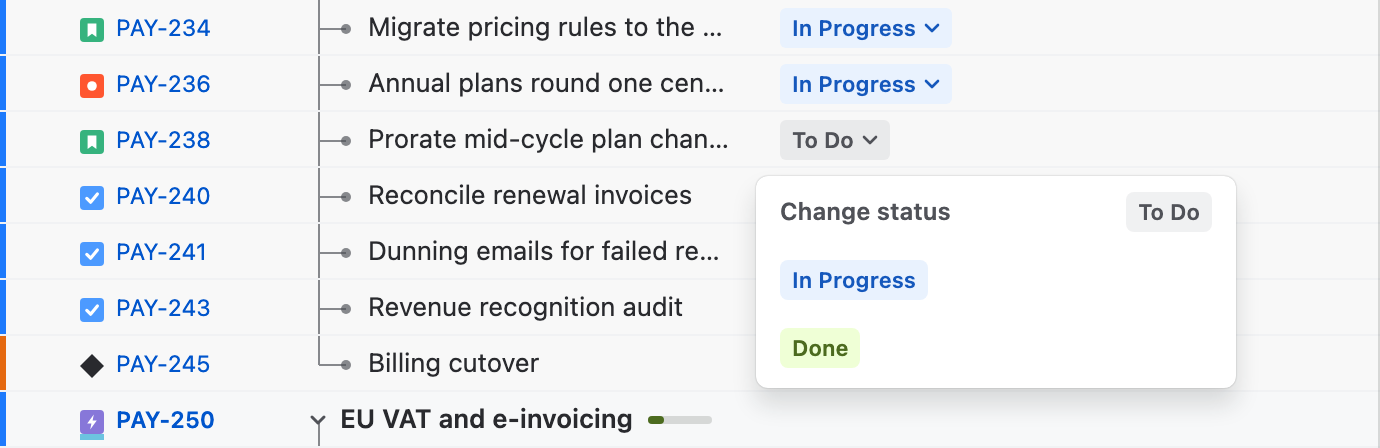
- Click the issue's status in the Status column, or right-click the row and choose Change status.
- The Change status menu shows the current status beside its title and, below it, only the statuses Jira's workflow allows from there.
- Choose one. Jira makes the transition as you and the chart confirms it, for example PAY-238 is now In Progress.
Assign an issue
Click the name in the Assignee column, or right-click the row and choose Assign. Type in Find a person to search the people Jira lets you assign. Unassigned is always first, and a tick marks the current assignee. Choose a person to assign the issue in Jira.
The row menu
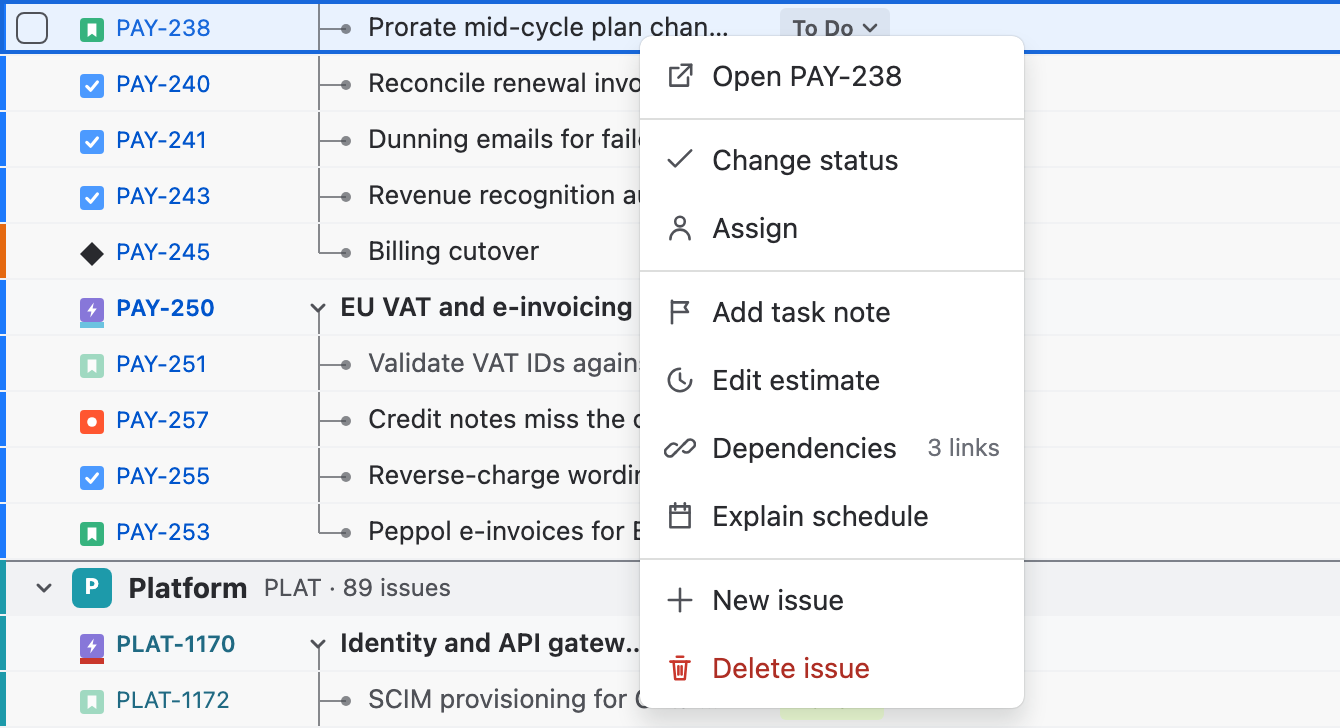
Right-click a row or its bar for everything you can do to that issue. Jira edits come first, then planning, then creating and deleting.
| Item | What it does | Changes Jira |
|---|---|---|
| Open … | Opens the issue in Jira. | No |
| Change status, Assign | Open the same menus as the cells. | Yes |
| Add task note | Adds a note that follows the issue. | No |
| Set dates or Edit estimate | Places an undated issue, or changes its planned duration. | No, until you publish |
| Dependencies | Shows how many links the issue has and opens them in Plan insights. | No |
| Explain schedule | Says why the bar sits where it is. | No |
| Reset dates or Remove from timeline | Drops your placement and returns the issue to its calculated or empty row. | No |
| New issue | Creates a child of this issue. | Yes |
| Delete issue | Deletes this one issue, after a confirmation. | Yes |
Change several issues at once
Hover a row to show its checkbox and tick the issues you want. Shift-click ticks a range, and ⌘-click or Ctrl-click adds one row. A bar above the column headings shows how many are selected, with Change status and Assign, and Plan in Jira on a board chart. The × beside the count clears the selection.
One change covers up to 50 issues. The status menu lists the transitions Jira offers for the first issue and applies your choice to each one. Ganttry then says how many changed and names any issue Jira refused.
Right-clicking inside the selection opens a menu for all of it, with Copy … rows, Time in status, Change status, Assign and Reset dates on ….
Create an issue
- Choose New issue, the + button at the right of the table header, or the Create issue row after the last row.
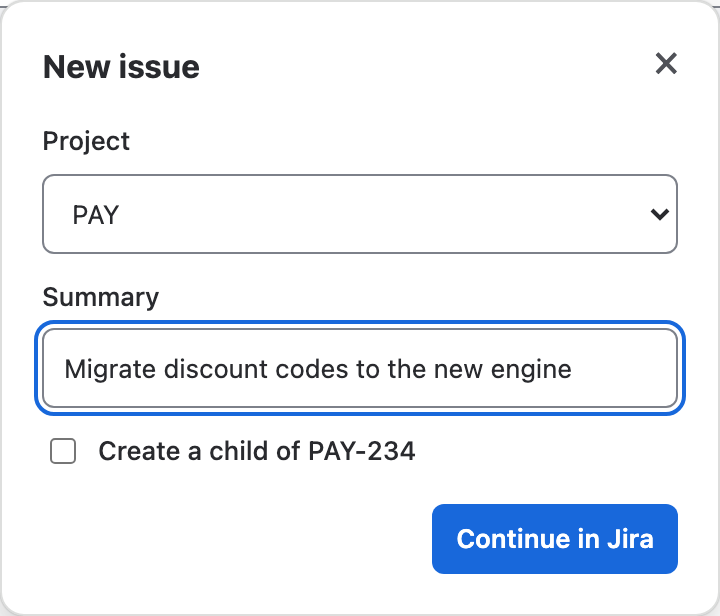
- In the panel, pick the Project when the chart has several, and type the Summary. If an issue is selected and Jira allows children under it, tick Create a child of … to create it there.
- Choose Continue in Jira. Jira's own create form opens with the project and summary filled in, the parent and dates when there are any, and the assignee set to Unassigned. Jira asks for its required fields and takes attachments.
- Create the issue in Jira's form. Ganttry adds the new row without reloading or moving the chart, and says so if your current filter hides it.
Children and sub-tasks
New issue in a row's menu creates a child of that issue, with the parent's planned dates filled in. Ganttry first checks which child types the project offers for it. When there are none it says so instead of opening a form, and in the panel Create a child of … is unavailable and explains why on hover or focus.
A child of a story, task or bug is a sub-task, which Jira's create form in apps cannot make yet. Ganttry opens its own short form instead, with Type, Summary, Parent, Assignee and Optional dates. Create in Jira creates the sub-task at once; there is nothing to publish.
If the project's create screen has no start date field, the issue is created with its due date only, and Ganttry tells you.
Delete one issue
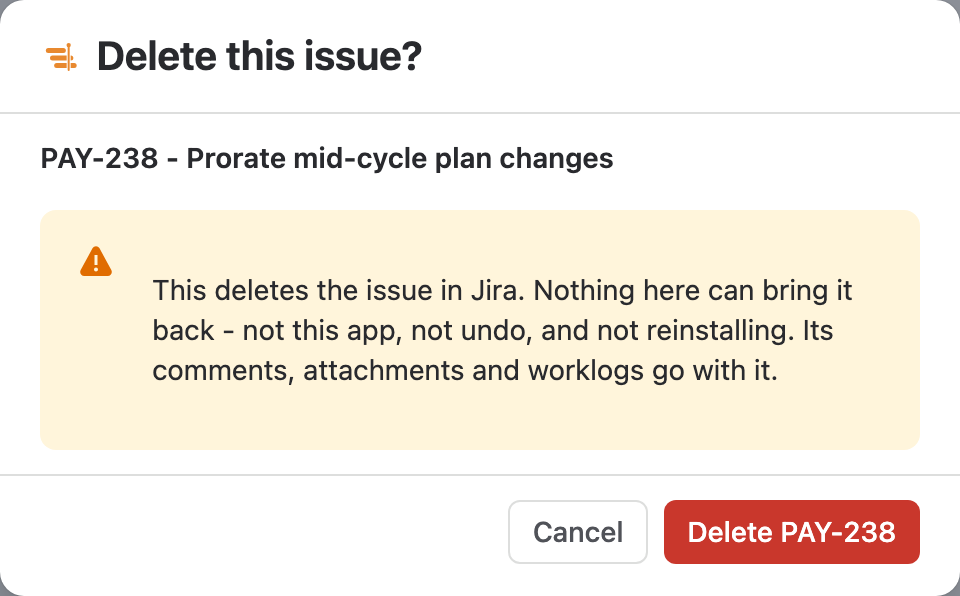
Right-click the row and choose Delete issue. Delete this issue? names the issue and warns that deleting it in Jira cannot be undone, and that its comments, attachments and worklogs go with it. Cancel has the focus; Delete … deletes it as you.
- One issue at a time. Ganttry has no way to delete several issues at once.
- Only an issue in one of the chart's projects, and only with Jira's Delete Issues permission there.
- An issue with sub-tasks is refused: delete its sub-tasks in Jira first. Ganttry never deletes a subtree.
- Nothing in Ganttry brings a deleted issue back, not even Undo.
Links between issues
Dragging from the end of one bar to another, or Create link in Create dependency, creates a Jira issue link as you. Remove dependency on a link, or Remove link… in Plan insights, removes it from Jira.
A link's type and wait in days are kept in Ganttry, because Jira has no field for them, so Change dependency changes only the plan. See Dependencies for the details.
What each edit writes to Jira
| Edit | Where | What Jira gets |
|---|---|---|
| Status | Status cell, row menu, selection bar | A workflow transition Jira offers |
| Assignee | Assignee cell, row menu, selection bar | The new assignee, or none |
| New issue | New issue, Create issue, row menu, timeline | One issue, created in Jira's form or Ganttry's sub-task form |
| Deletion | Row menu | Deletion of that one issue |
| Link | Bar handles, Create dependency, link menus | A Jira issue link created or removed |
| Dates | Publish | Start and due dates of the issues you tick |
| Sprint, Team and rank | Plan in Jira on a board chart | Only the changes you publish there |
| Release | Delivery in Plan insights | A new version, or a version's date after Save to Jira |
| Project details | Plan → Projects → Edit project | The project's name, description and lead after Save |
Permissions
Ganttry asks Jira what you may do in each project on the chart and offers only those edits. Jira checks again on every write.
| To | You need in that project |
|---|---|
| Change status | Transition Issues |
| Assign | Assign Issues |
| Create an issue | Create Issues |
| Delete an issue | Delete Issues |
| Create or remove a link | Link Issues |
| Publish dates | Edit Issues and Schedule Issues |
| Edit a release or a project | Administer Projects |
Stuck on something this guide skips? Write to the developers →