Administration and permissions
Control who can plan, publish and administer. Permissions, roles, approvals, licence, storage and data limits.
10 sections8 min readUpdated October 2026Writes to Jira: Saving a project in Edit project
Where Ganttry keeps data
Jira stays the record of your issues, and Ganttry reads them as the person looking at the chart. What Ganttry adds to a plan is kept in Atlassian Forge storage for your site: moved bars and placements, working calendars and holidays, baselines, scenarios, link types and waits, notes, markers, saved views, Workload settings, change history and the record of each publish.
Ganttry runs entirely on Atlassian Forge, with no server of its own and no connection outside Atlassian. Private notes are stored apart from the shared plan and only their owner can read them. Diagnostics record what failed and where in Ganttry's code, without issue content or account IDs. Files you export leave Atlassian and follow your own rules for handling them.
One installation serves Jira and, optionally, Confluence on the same site. Jira is required; the Confluence macro shows a chart for viewing and changes nothing.
Jira permissions for each action
Ganttry has no user list of its own. Every action checks the Jira permissions of the person doing it, on the server, so a hidden button is not the only safeguard. Every Jira change is made as that person, and Jira checks it again.
| Action | What Jira must allow |
|---|---|
| Open a chart | Browse Projects in every project on the chart. A board or saved filter chart also needs access to that board or filter. You see only the issues Jira lets you see. |
| Change the plan | Edit Issues and Schedule Issues in every project on the chart. This covers moving bars, calendars, baselines, scenarios, notes, markers, Workload settings and Reset changes. |
| Publish dates | Edit Issues and Schedule Issues. Publish is hidden when no project on the chart gives you both. |
| Change status | Transition Issues. The menu offers only the transitions Jira offers you. |
| Change assignee | Assign Issues. |
| Create an issue | Create Issues. |
| Delete an issue | Delete Issues. One issue at a time, and never a parent that has sub-tasks. |
| Links | Link Issues, to create or remove a link. |
| Releases | Administer Projects, or Jira administration, to create a release or change its date. |
| Plan in Jira | Plan edit rights in Ganttry, to move issues to a sprint, the backlog or a team. Jira checks each sprint, Team and rank change as you. |
| Approvals | Administer Projects in every project on the chart, to approve or reject a publish request. Nobody can approve their own request. |
| Projects | Administer Projects in every project concerned, or Jira administration, to restore a chart backup or use Projects, Edit project, Remove from Ganttry and Restore project. |
| Governance | Jira administration (the Administer Jira global permission), for approval rules, site policy, audit export and configuration packages. |
Planner, Publisher, Approver and Administrator
Ganttry names four duties so that planning, approval and publishing can be separated. You do not assign them in Ganttry: each one follows from Jira permissions, so changing a team or removing a person in Jira changes what they can do in Ganttry too. Jira administrators see the same list under Governance → Role permissions.
| Duty | Comes from | Can |
|---|---|---|
| Planner | Edit Issues and Schedule Issues in every project on the chart | Change the shared plan, branch and merge scenarios, restore revisions from change history. |
| Publisher | The Jira permission for the write in question | Publish dates and make the Jira edits listed above. |
| Approver | Administer Projects in every project on the chart | Approve or reject publish requests made by someone else. |
| Administrator | Jira's global Administer permission | Set approval rules and site policy, export the audit trail and move settings between sites. |
Require approval before publishing
Approval rules make a second person confirm a change before it reaches Jira. They are set per chart by a Jira administrator.
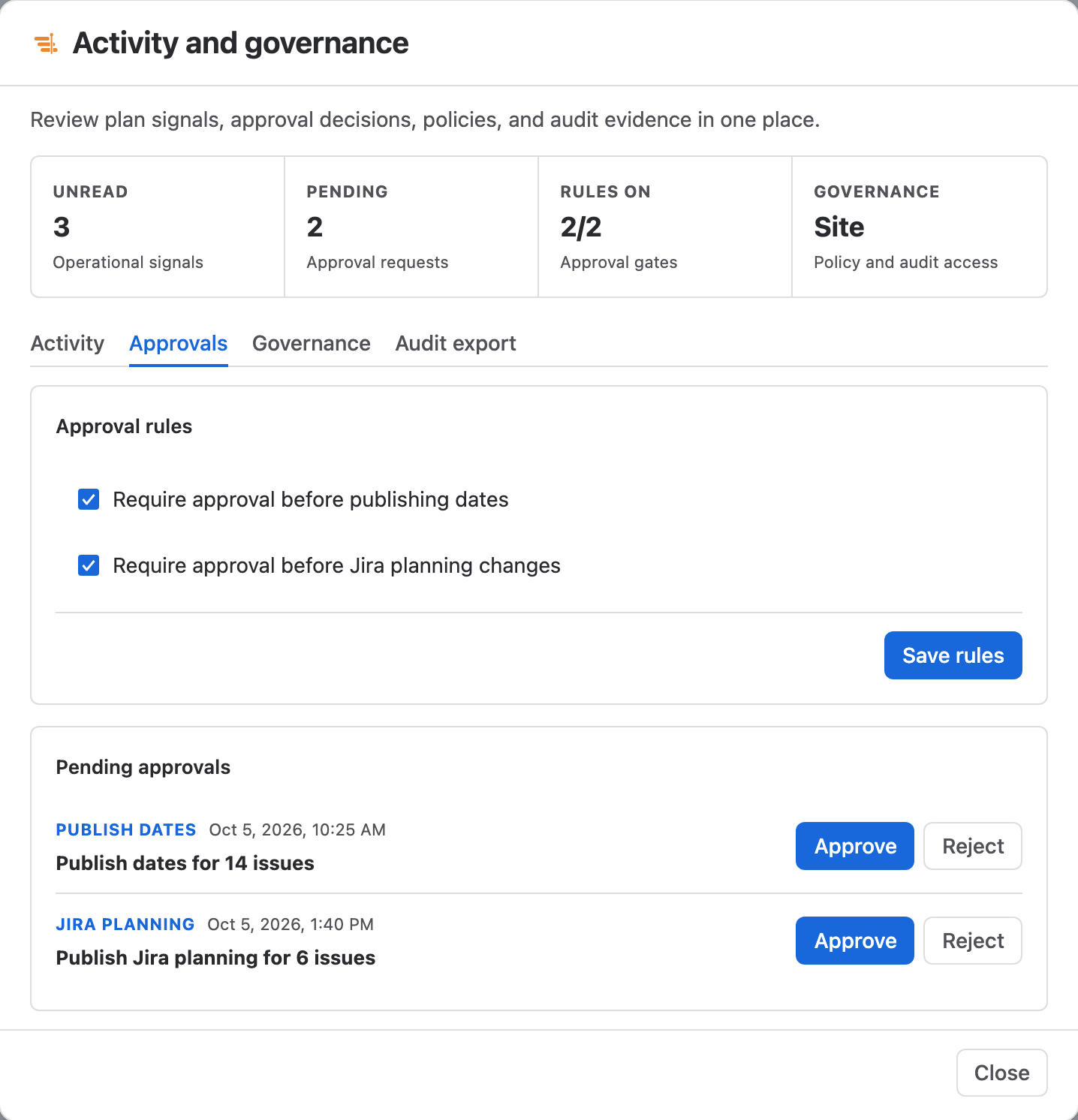
- Open Plan, choose Activity and go to the Approvals tab of Activity and governance.
- Under Approval rules, tick the rule for publishing dates, the rule for Jira planning changes, or both, then choose Save rules.
- When someone publishes, the publish dialog shows Approval needed and a request appears under Pending approvals. People who cannot approve see it marked Awaiting a reviewer.
- An approver opens the same tab and chooses Approve or Reject.
- The person who published chooses Resume checks in the publish dialog. An approval is used once, for exactly the changes that were requested; a different selection needs a new approval.
Site policy and audit export
Jira administrators see two more tabs in Activity and governance. Governance holds the site-wide policy: tick Enable site policy, set Site defaults for approvals, notifications, the calendar, the Scheduling policy and which exports are allowed, then choose Save site policy.
Under Policy inheritance and locks, each area of a chart is set to Inherit the site value or Override it, saved with Save plan inheritance. A lock such as Lock approvals to site policy forces the site value on every chart. If Ganttry cannot verify a stored policy or its history, actions that depend on it stop rather than fall back to a looser default.
Audit export downloads the audit trail for a period. Set Audit period start (UTC) and Audit period end (UTC), then choose Download audit page and Download next audit page until it reads Audit export complete. Each page holds up to 500 plan entries and 500 site-policy entries, and Ganttry warns when a period has a gap or fails its integrity check.
Issue security
Each viewer sees only the issues Jira lets them browse, with their current issue security level. The same rule applies to everything Ganttry stores about an issue: task notes and their replies, baselines, placements, allocations, risks, estimates, objectives, change history details, exports, live updates and analysis.
When someone saves a plan that holds issues they cannot see, Ganttry keeps those entries as they were and refuses edits to them. Replacing or clearing a baseline needs access to every issue it affects. A shared link opens the same plan, and its recipient still sees only what Jira allows them.
Subscription
When the site's Ganttry subscription is not active, a chart stops before it reads anything from Jira and shows Ganttry is not subscribed on this site. A Jira administrator can start or renew the subscription under Apps → Manage apps; then Reload chart opens the chart again. Your issues and saved plans are left as they were.
Limits for large plans
Ganttry loads every open issue of a chart first, then reads issues finished in the last two years in the background. When you choose a source in Choose what to plan, Ganttry shows Jira's approximate count of open issues and warns above 20,000 that the first load can take several minutes.
| What | Limit |
|---|---|
| Finished issues | Issues moved to a done status in the last two years are loaded; older ones are not. |
| One publish | Up to 10,000 issues, written in short steps of up to four Jira updates at a time. |
| Change history | The latest 200 meaningful changes per plan. |
| Baselines | Up to 8 per chart. |
| Notes | Up to 100 per chart across public notes and your private notes, 250 characters each. |
| Note replies | Up to 50 per note, 500 characters each. |
| Scenarios | Three levels deep, with up to five alternatives under each parent. |
| Combined charts | Two or three charts. |
| PDF export | Up to 250 pages. A larger report is refused rather than cut short. |
Jira rate limits
Jira limits how much one app can read on a site in an hour, across all its users. Ganttry paces its reads by Jira's own rate headers and, as the limit nears, gives way to the reads and edits people are waiting for over large background loads.
When Jira asks Ganttry to wait, every chart and tab on the site waits together. An open chart shows one notice for the whole pause; a chart that is still loading shows a card with a countdown. See the FAQ for what each one means and what to do.
Backups, moving settings and uninstalling
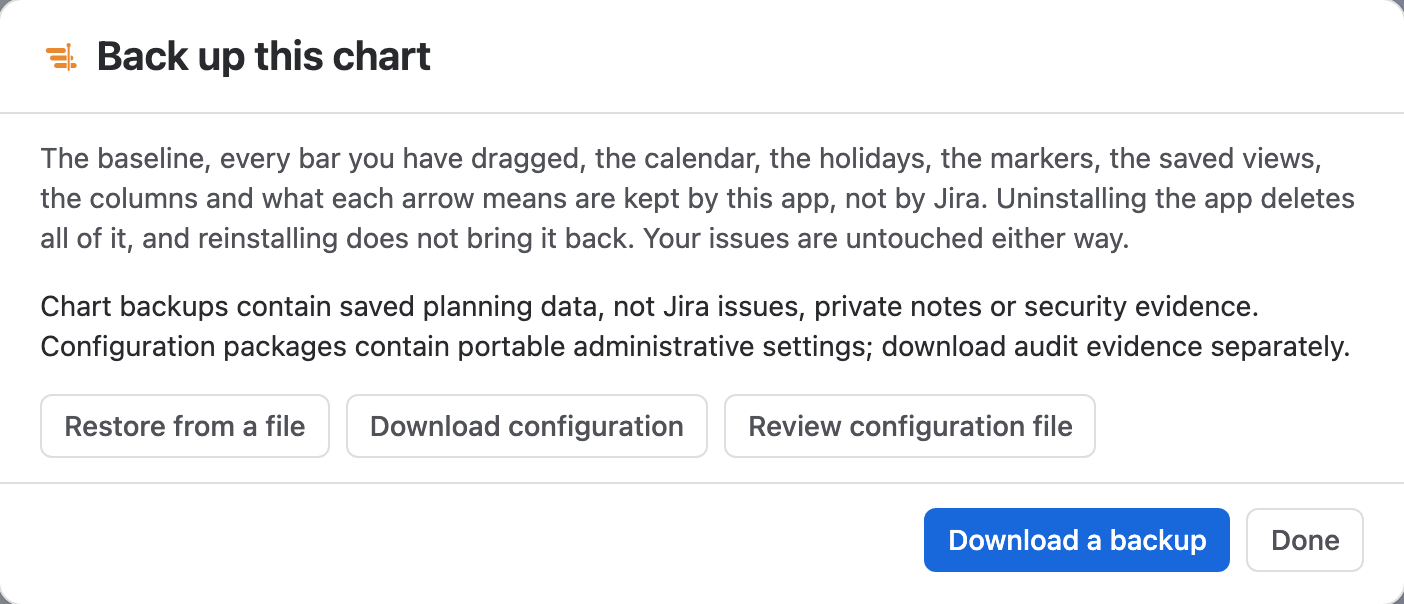
Open Plan and choose Backups to open Back up this chart. Anyone who can open the chart can choose Download a backup, unless site policy turns chart backup off. A backup holds the chart's saved planning data; it does not hold Jira issues, private notes, approval settings or audit evidence.
Restore from a file replaces the chart's saved planning data with a backup and needs Administer Projects in every project on the chart, or Jira administration. Jira administrators also see Download configuration and Review configuration file: a configuration package carries settings without issue content, shows what would change before Apply reviewed configuration, and asks for matching field and account IDs when it comes from another site.
Uninstalling Ganttry removes its saved planning data, and reinstalling does not bring it back. Your Jira issues are not affected. Download a backup of every chart you want to keep before you uninstall, and check that the files open.
Stuck on something this guide skips? Write to the developers →