Scenarios & baselines
Try another plan without touching the real one.
Branch from Main to test a slip, a cut or an extra pair of hands. Move work in the branch, see how far it differs from Main, and merge it only when the team agrees. Baselines keep the dates you committed to, so you can show what moved since.
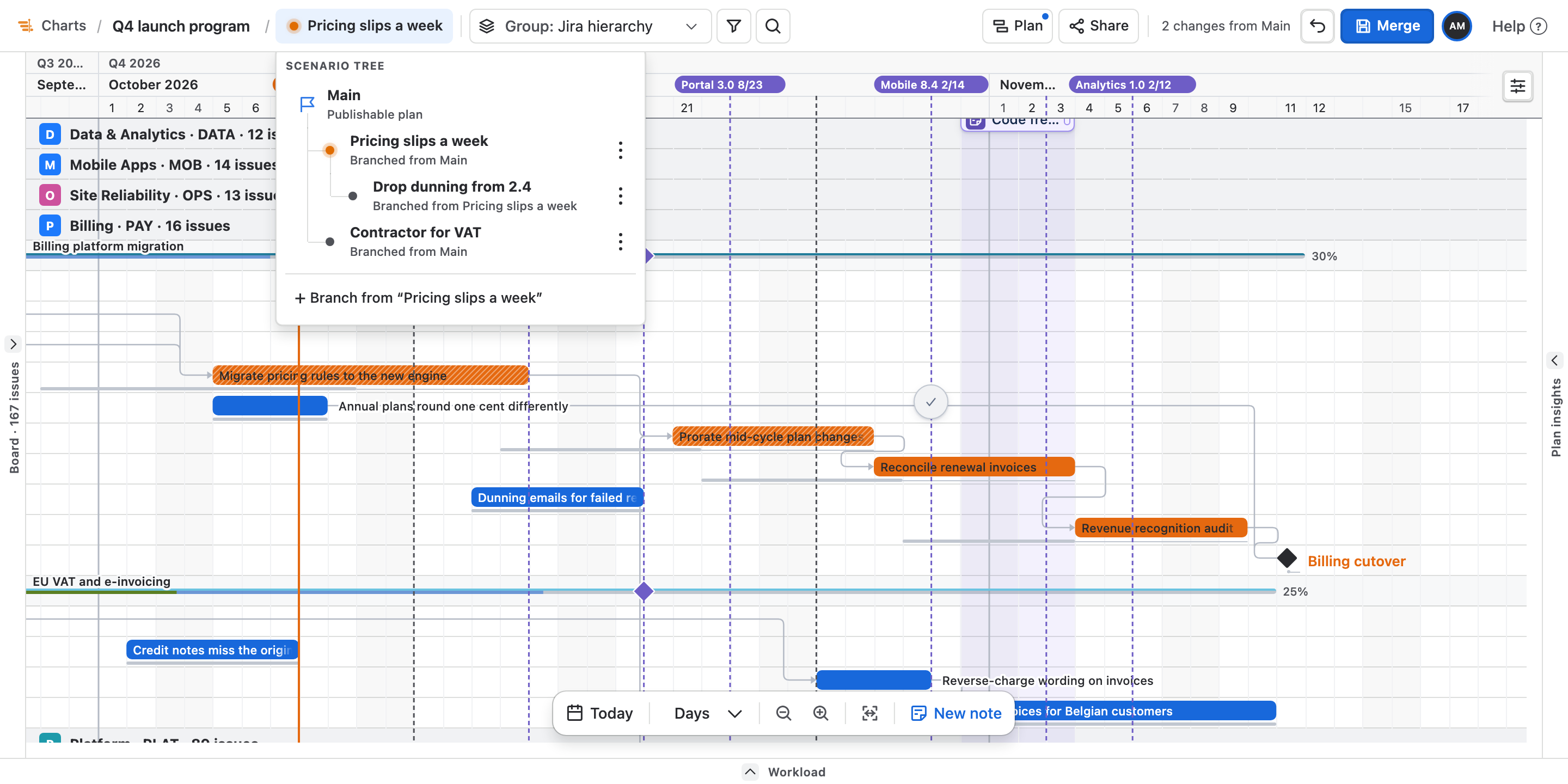
- Main and up to 11 branches
- Three levels of branches
- Merge one level at a time
- Up to eight baselines
What you get
Scenarios & baselines, part by part.
01
A tree of what-ifs
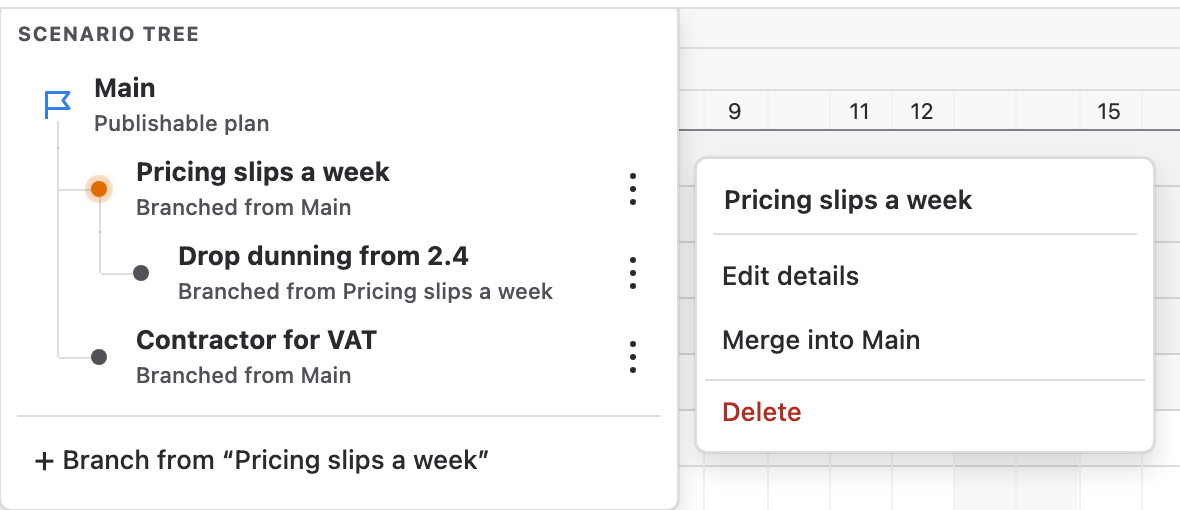
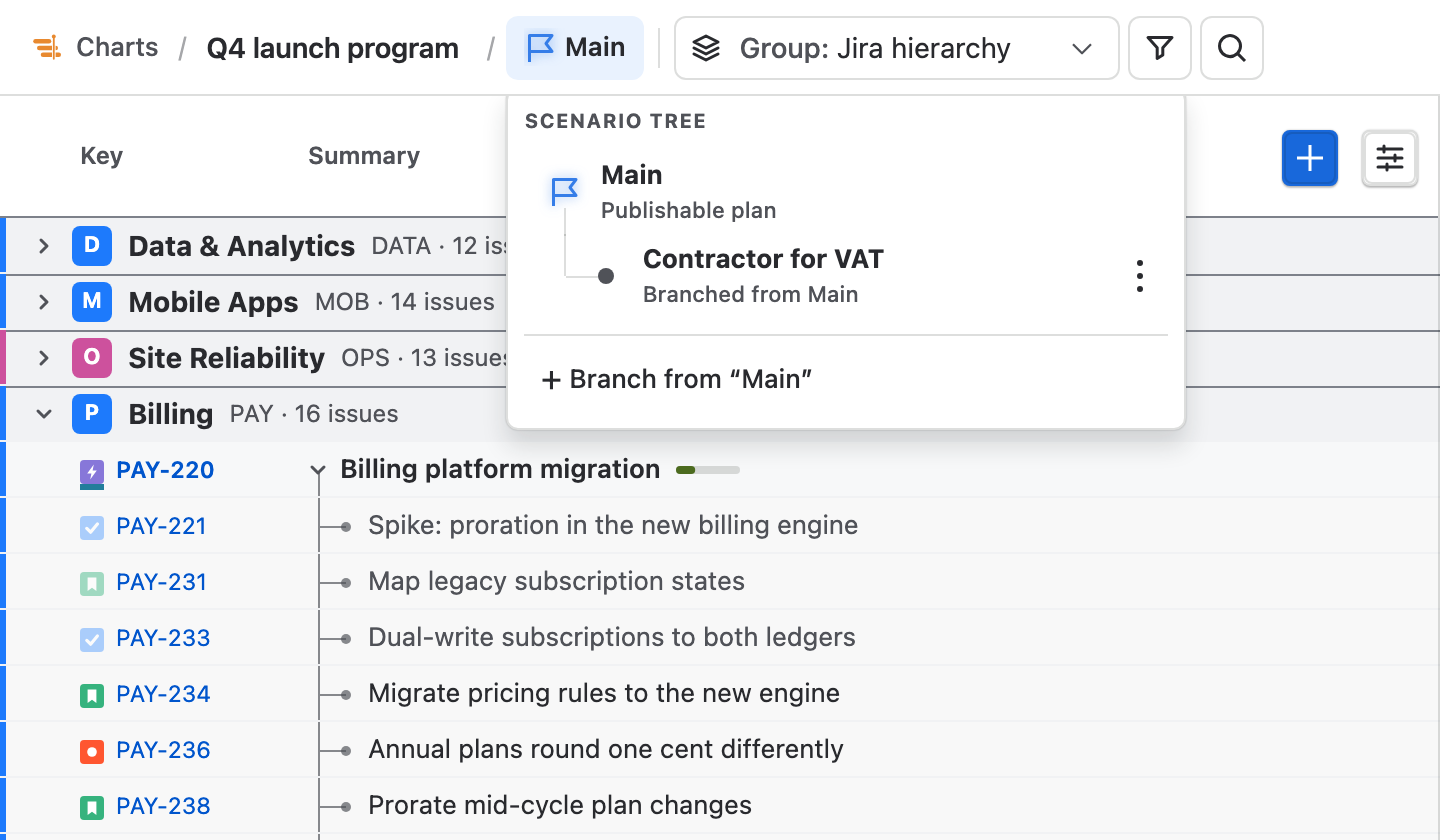
Click the branch name in the header to open the scenario tree. Main is the plan you publish; every branch starts as a copy of the plan it came from and then changes on its own. Its More actions menu holds Edit details, Merge into Main and Delete.

02
Main's dates under every move
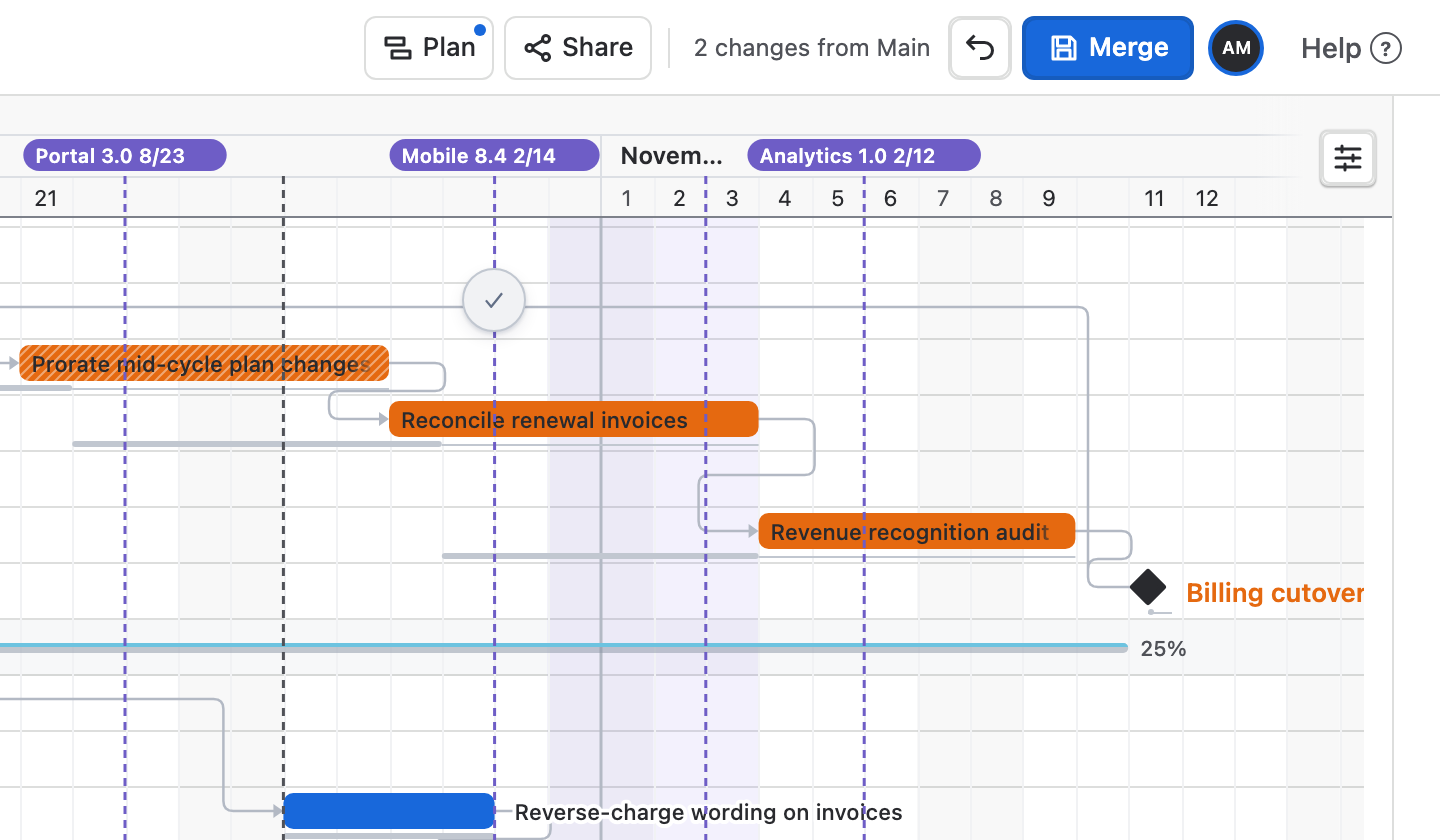
Baselines belong to the chart, not to a branch. Add one on Main before you branch, and its grey tracks stay under every bar the branch moves. Work that now finishes after its due date turns orange.
03
Merge when the team agrees
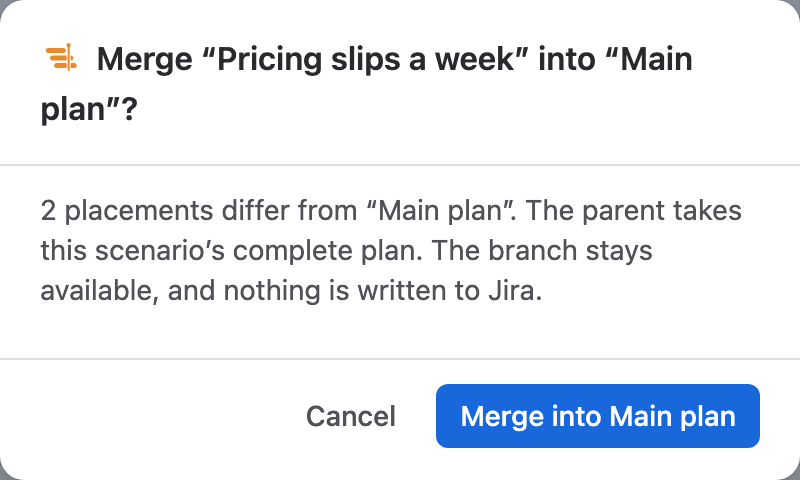
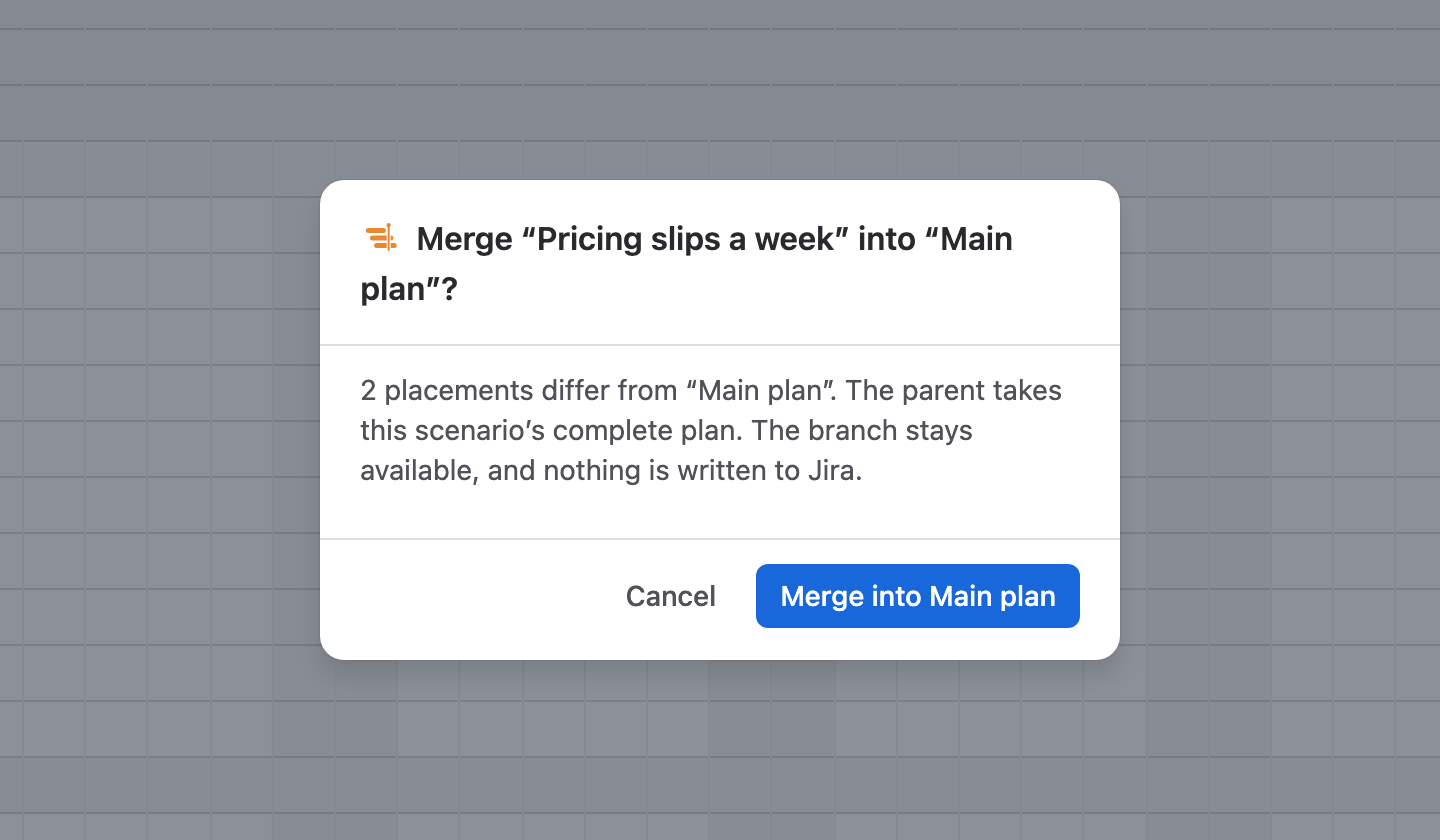
On a branch, Publish becomes Merge. The dialog says how many placements differ from the parent before the parent takes the branch's plan. Jira is not touched, and Undo on the parent reverses the merge.
04
Baselines you can name
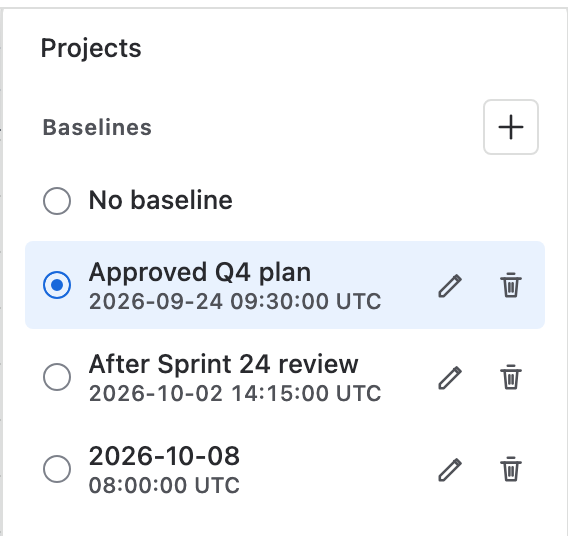
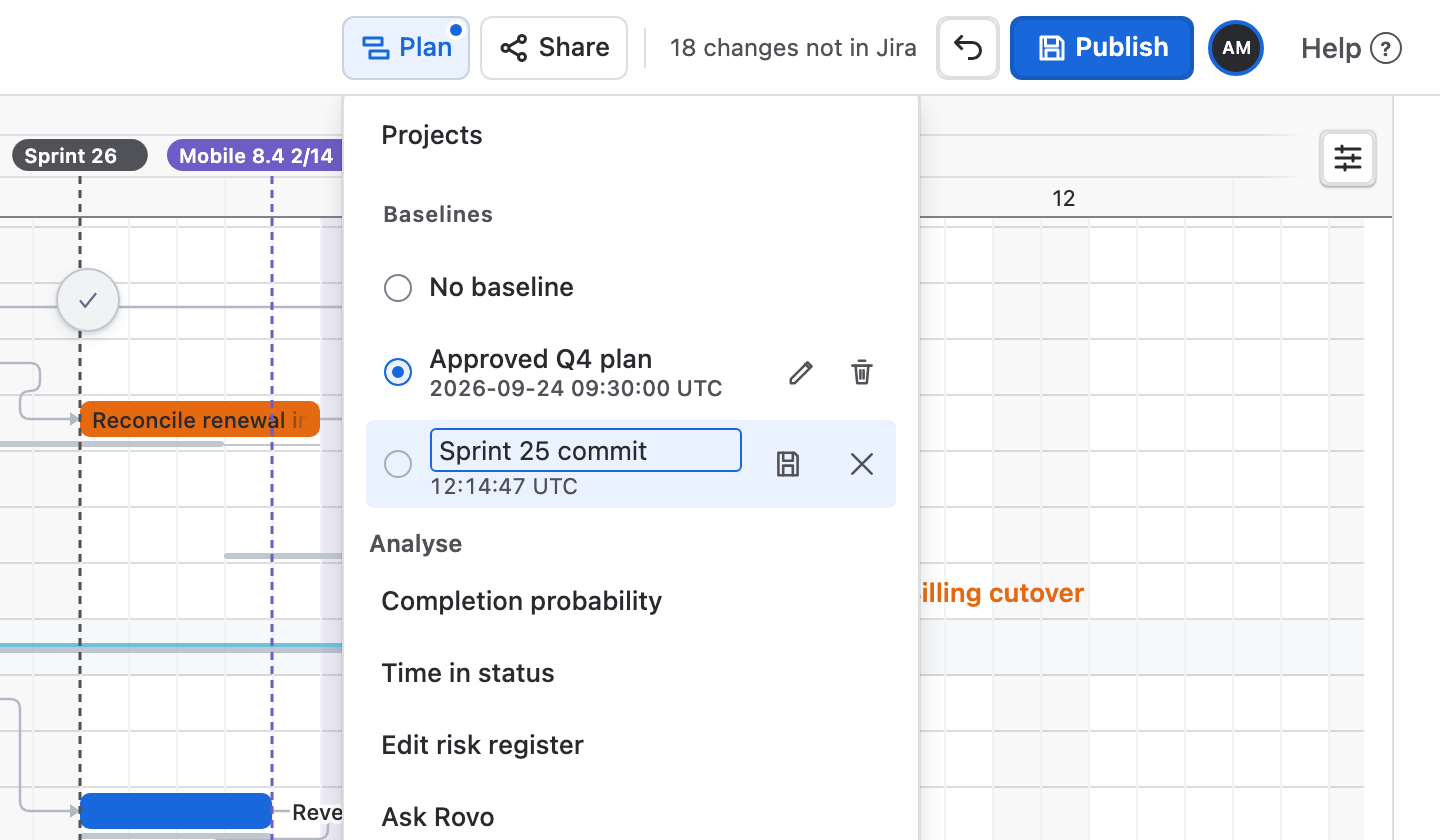
Keep up to eight snapshots in Plan, each with a name or its UTC capture time. Choose the one drawn on the chart, rename or delete it, and add a Slip column that measures every finish against it.
How to use it
From a what-if to the dates in Jira.
Step 1
Open the scenario tree
Click the branch name after the chart name in the header. It reads Main until you work on a branch.
Step 2
Branch and name it
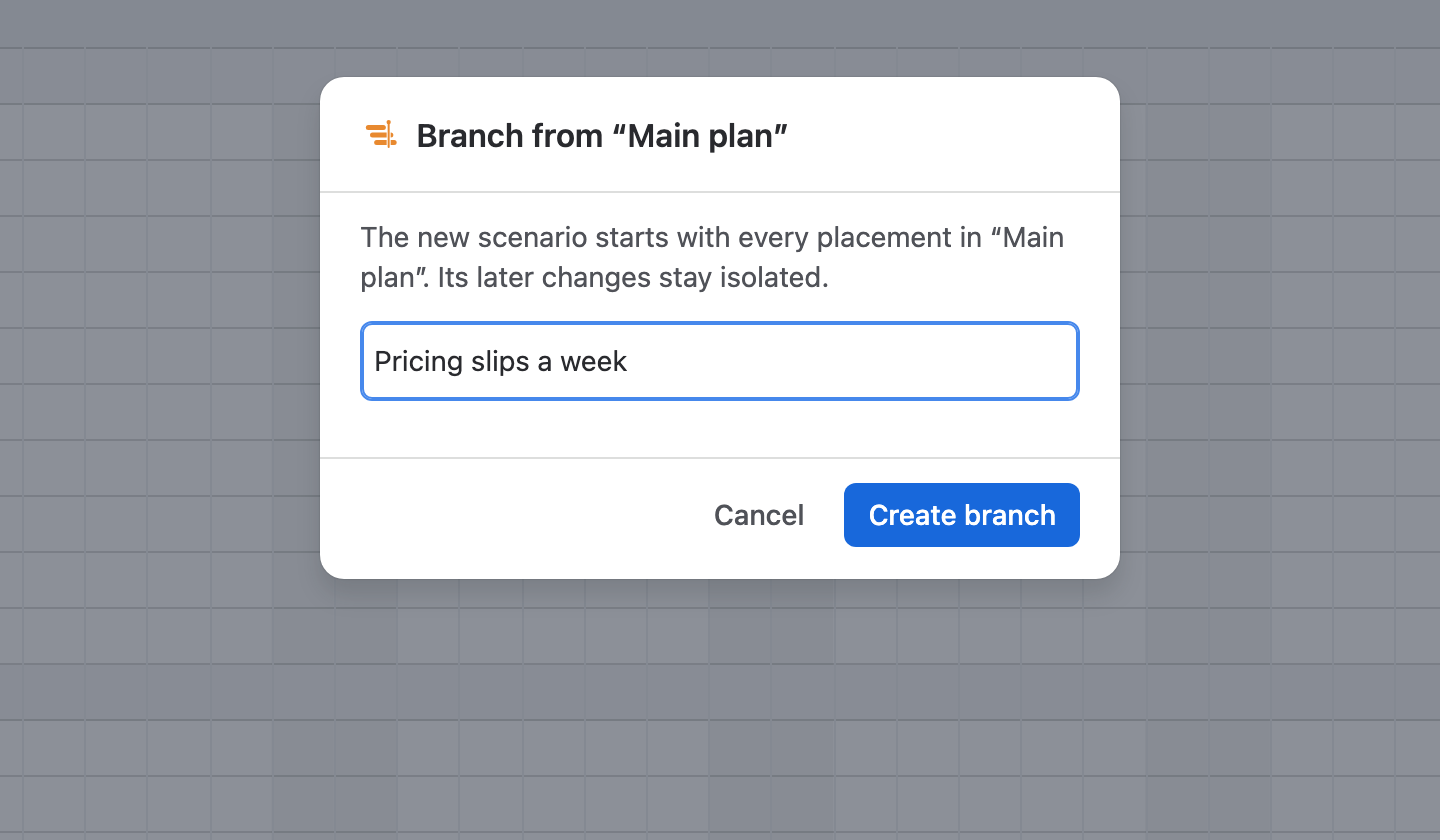
Choose Branch from “Main”, type a name and choose Create branch. The branch opens at once with every placement Main has.
Step 3
Move work in the branch
Drag and resize bars as usual. The header counts the changes from Main and the Publish button reads Merge. Main and Jira stay as they were.
Step 4
Merge into Main
Choose Merge and confirm. Main takes the branch's plan, Ganttry switches to Main, and the branch stays in the tree.
Step 5
Publish from Main
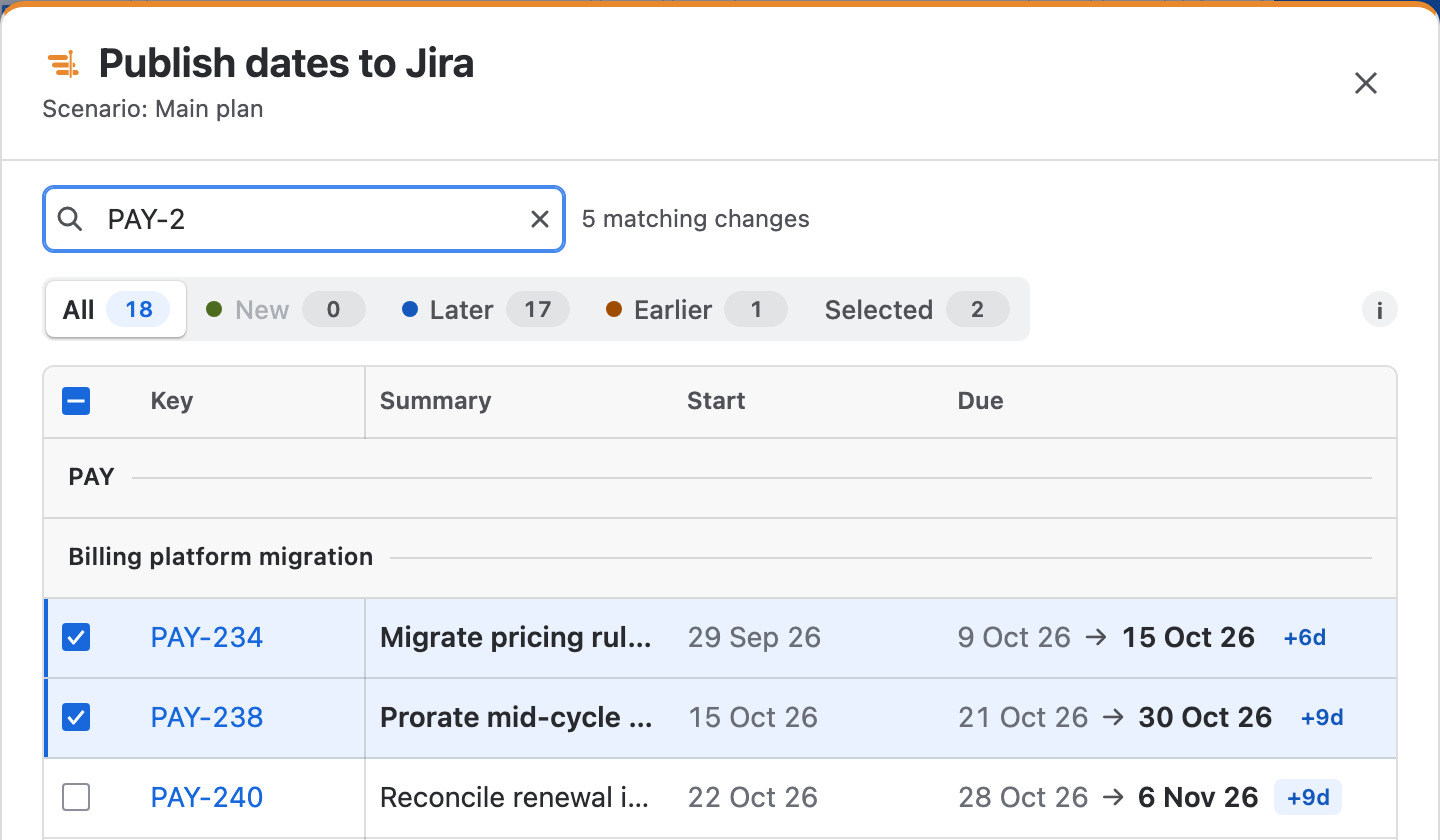
On Main, choose Publish to review every date that differs from Jira. Only the changes you tick are written, with your own Jira permissions.
Step 6
Keep a baseline
Open Plan, choose Add baseline beside Baselines, name it if you like and save. The new snapshot is drawn under the bars straight away.
Good to know
- Nothing reaches Jira until you publish
- Branches, moved work, merges and baselines are Ganttry's plan data. Only Publish, which Main alone offers, writes start and due dates to Jira.
- Everyone picks their own branch
- The branch you work on stays in your browser, so colleagues keep their own. Links from Share carry the branch and warn when it is not Main.
- Notes stay where they were written
- A new branch copies the public notes and your private notes, and later note changes stay in that branch. A merge moves bar placements, not notes.
- Limits
- Main and up to 11 branches per chart, three levels below Main and five branches under any one plan. Main can't be renamed or deleted, and deleting a branch also deletes the branches under it.
Read more in the docs
Ganttry for Jira Cloud