Change history and backups
See who changed the plan and restore earlier states. Change history, restoring a revision, Reset changes and backups.
11 sections5 min readUpdated October 2026
What Change history records
Ganttry keeps each chart's shared plan data in its own storage: where bars sit on Main and on every branch, baselines, notes, calendars and settings. Every save that changes this data adds an entry with the person's Jira name and avatar and the time in UTC. A save that changes nothing adds no entry.
The latest 200 changes of each chart are kept, and older ones are deleted automatically.
- Private notes and note replies never appear.
- Moving, resizing or recolouring a note adds no entry; creating, deleting and editing one does.
- Changes written to Jira, such as published dates, status and assignee, are kept in Jira's own issue history.
| Category | Covers |
|---|---|
| Schedule | Scenario schedules (bar placements), baselines and three-point estimates |
| Capacity | The working calendar, people away, resource allocations, teams and sprints, and workload estimates |
| Structure | Scenarios, public notes, markers, saved views, chart columns, dependency options, risks, program releases, scheduling settings, the portfolio hierarchy, and priorities and OKRs |
| Governance | Automation settings and plan policy |
Open Change history
- Open Plan insights from its tab at the right edge of the chart.
- Choose Change history.
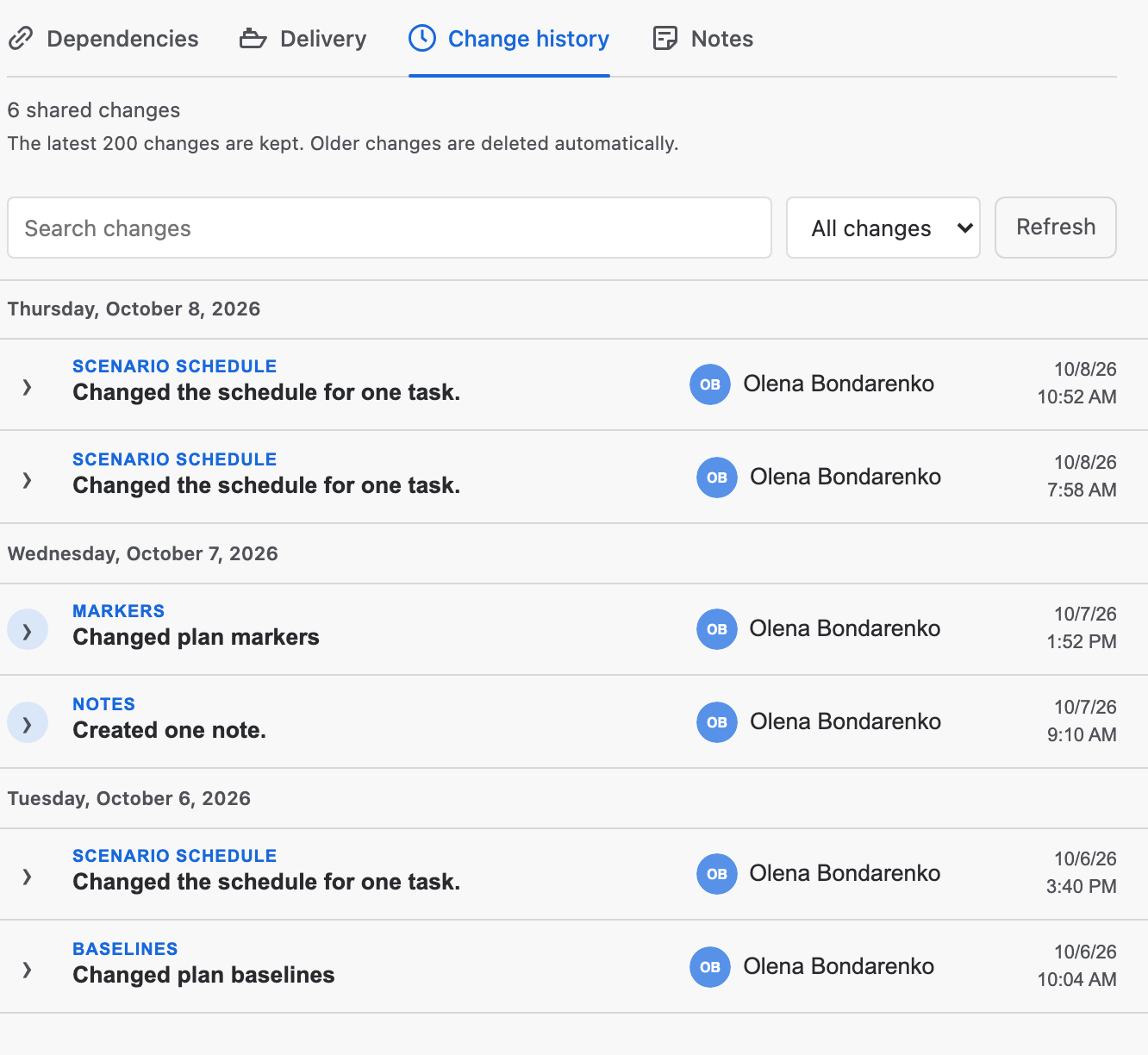
- Read the entries, newest first under a heading for each UTC day. Each shows the area that changed, a summary, who made it and when.
Find a change
- Search changes narrows the list by text.
- The category list shows All changes, or only Schedule, Capacity, Structure or Governance.
- The list updates by itself after each shared save and briefly highlights the new entry. Refresh reloads it.
See what changed
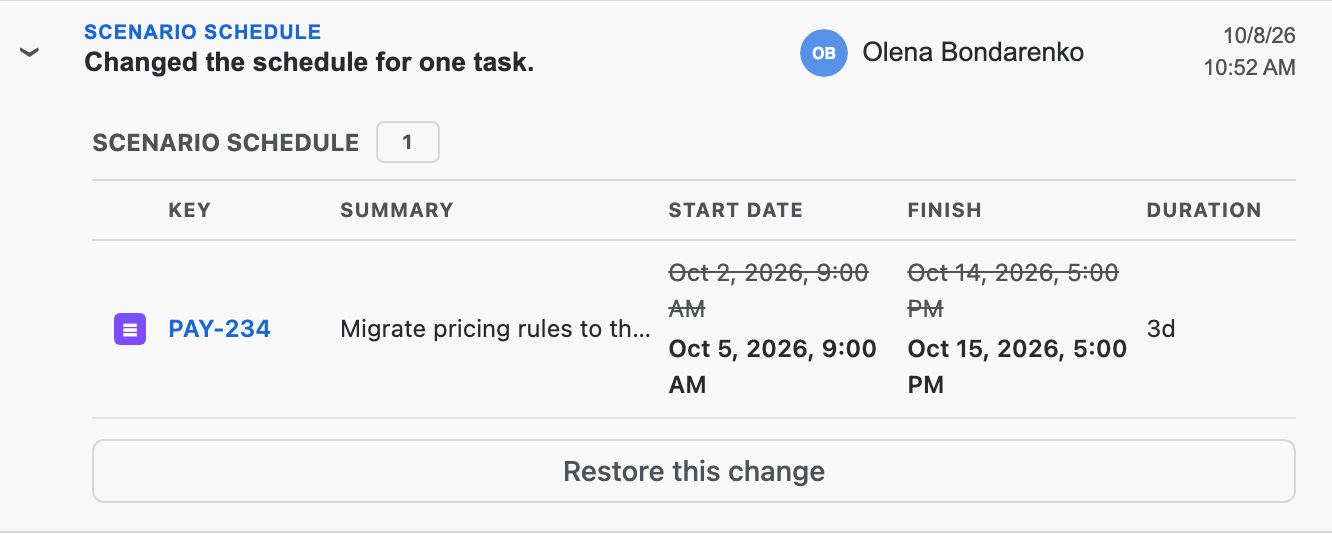
Click an entry to open it. A schedule change lists each issue with its key, summary, start date, finish and duration, the old value struck through above the new one. Other changes list each field before and after. A long change shows its first rows and how many more there are.
Locate task beside an issue finds it on the chart. If a filter hides it, Ganttry says so.
When the details of a change were too large to store, the entry says that the plan was saved without them. Such an entry has no details and cannot be restored.
Restore a change
Restoring puts back the values a change saved, for the items it touched. Work on anything else is kept.
- Open the entry in Change history.
- Choose Restore this change.
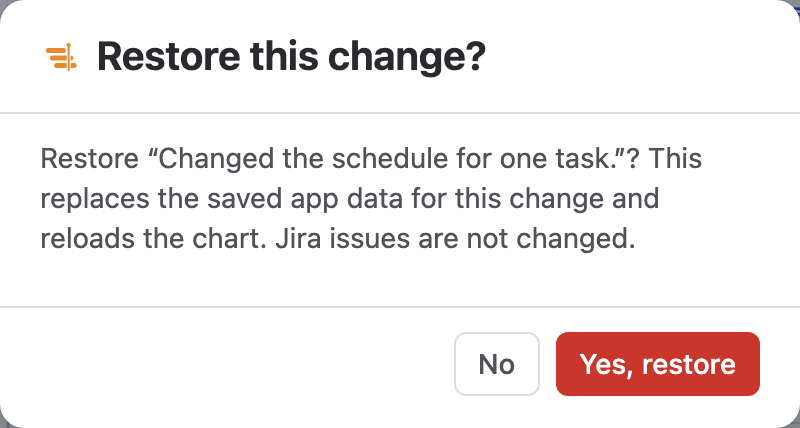
- Read the dialog and choose Yes, restore, or No to leave the plan as it is.
- The chart reloads with the restored data. The restore itself appears as a new entry, and Jira issues are not changed.
Undo, reset or restore
Ganttry has several ways back. None of them changes Jira.
| Tool | Takes back | Where |
|---|---|---|
| Undo | Your recent planning changes in the plan you are on, while the chart is open | The header |
| Reset dates | The placement of one issue, or Reset dates on … for the selected rows | The row menu |
| Reset changes | Every manual placement in the plan you are on | Plan |
| Restore this change | One saved change by anyone, from the latest 200 | Plan insights → Change history |
| Restore from a file | The chart's planning data from a backup file | Plan → Backups |
Reset changes
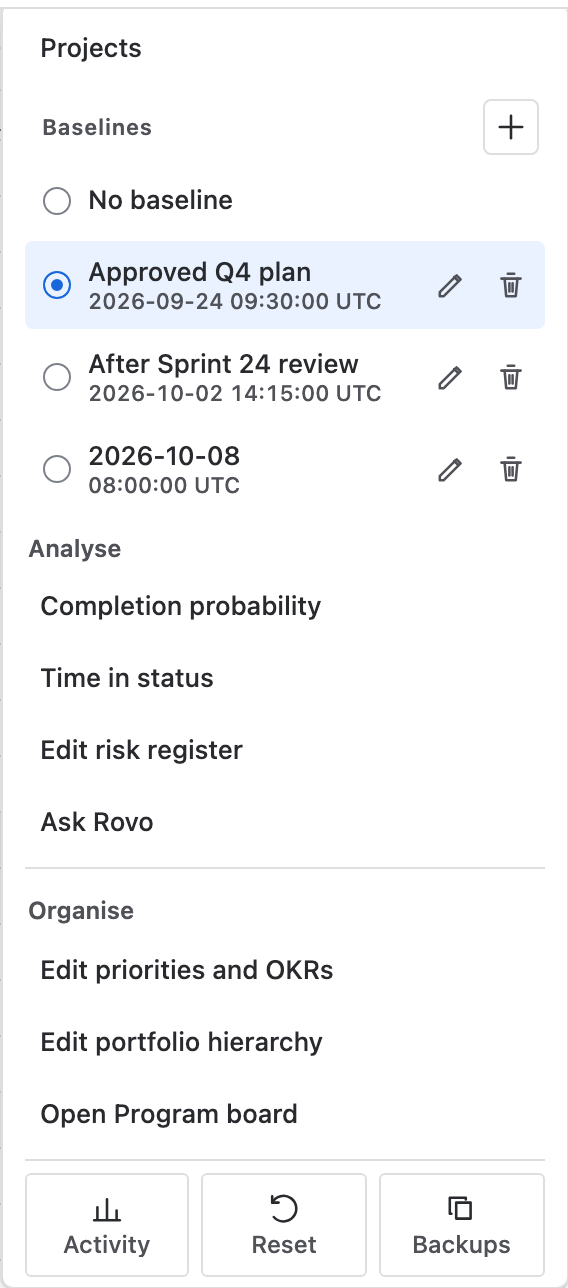
Plan → Reset changes, the Reset button at the foot of the menu, clears every bar placed by hand in the plan you are on, Main or a branch. Ganttry then schedules that plan again from Jira dates, estimates and links. Undo brings the placements back.
It is available when the plan has manual changes and the whole plan has loaded. To reset a single issue, open its row menu and choose Reset dates; an issue you placed from no dates offers Remove from timeline instead. With several rows selected, the menu offers Reset dates on ….
Back up a chart
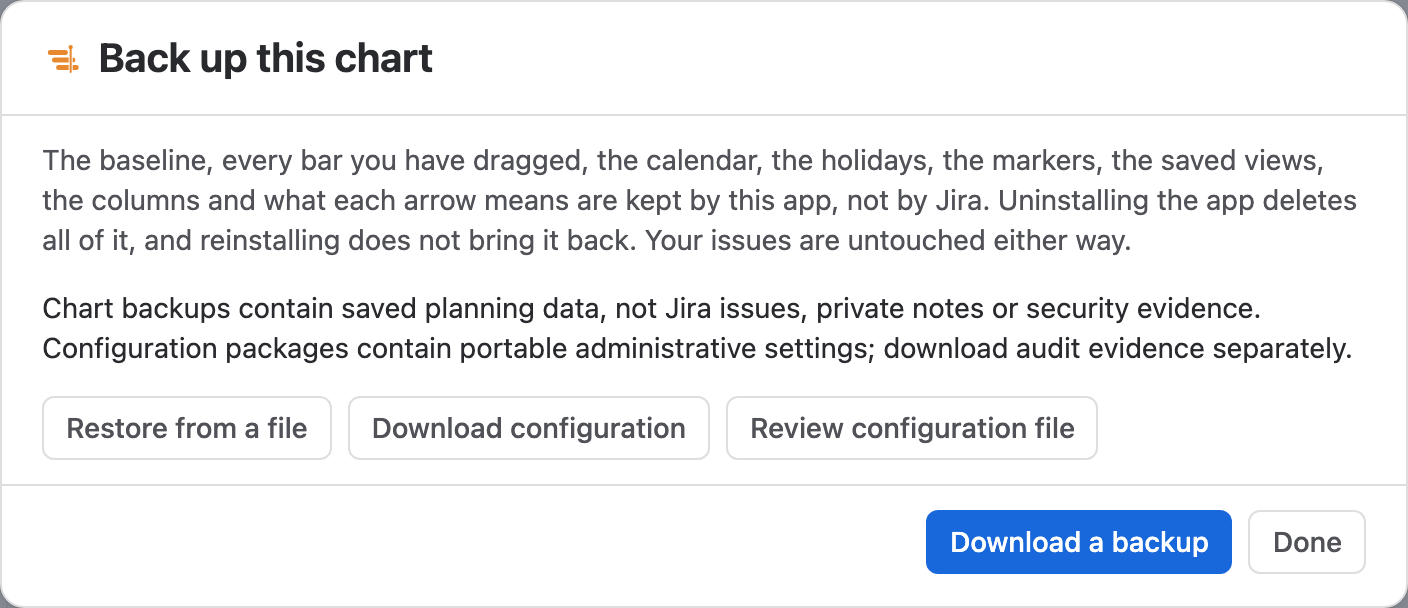
A backup is a JSON file of one chart's planning data that you keep yourself. Take one before large changes, before restoring an older one, and before uninstalling Ganttry: uninstalling deletes everything Ganttry stores, and reinstalling does not bring it back.
- Open Plan and choose Backups at the foot of the menu.
- In Back up this chart, choose Download a backup.
- Keep the file somewhere safe.
What a backup holds
A backup holds only the rows for issues you can see in Jira.
| Data | In a backup |
|---|---|
| Bar placements on Main and every branch, and the scenario tree | Yes |
| Baselines | Yes |
| Public notes | Yes |
| Working calendar, holidays, people's availability, allocations, teams and workload estimates | Yes |
| Markers, saved views, columns, and dependency types and lag | Yes |
| Risks, program releases, three-point estimates, scheduling settings, portfolio levels, and priorities and OKRs | Yes |
| The last publish, so it can still be undone after a restore | Yes |
| Jira issues and their fields | No, they stay in Jira |
| Private notes and note replies | No |
| Change history | No |
| Approval policy, approval decisions and security evidence | No |
| Site configuration | No, it has its own configuration package |
Restore a backup
- Open Plan → Backups.
- Choose Restore from a file and pick the backup file.
- Ganttry writes every part of the file it can read, reports how many parts it restored and which it could not read, and reloads the chart.
- A restore replaces the chart's data with the parts in the file. Download a fresh backup first if you may want to go back.
- A file taken from another chart is restored into the open chart, and the report names both charts.
- Each restore is recorded in the plan's audit log. Jira issues are not changed.
Permissions
- Anyone who can open the chart can read Change history. Details about issues hidden from you by Jira issue security are left out.
- Restoring a change and resetting changes need Edit Issues and Schedule Issues in every project on the chart. Only Jira administrators can restore automation and plan policy changes.
- Anyone who can open the chart can download a backup. Restore from a file needs Jira administration or project administration in every project on the chart. Download configuration and Review configuration file are for Jira administrators.
- A site policy can turn chart backups off. In the Confluence macro, Change history is read-only.
Stuck on something this guide skips? Write to the developers →