Share & export
Send the plan as a link, a report or a file.
Share holds the board link, a link to your exact view, the Executive Summary, the Status report and every export. A link opens the same plan under each person's own Jira permissions; a file is a snapshot of Ganttry's dates, with a preview before you download.
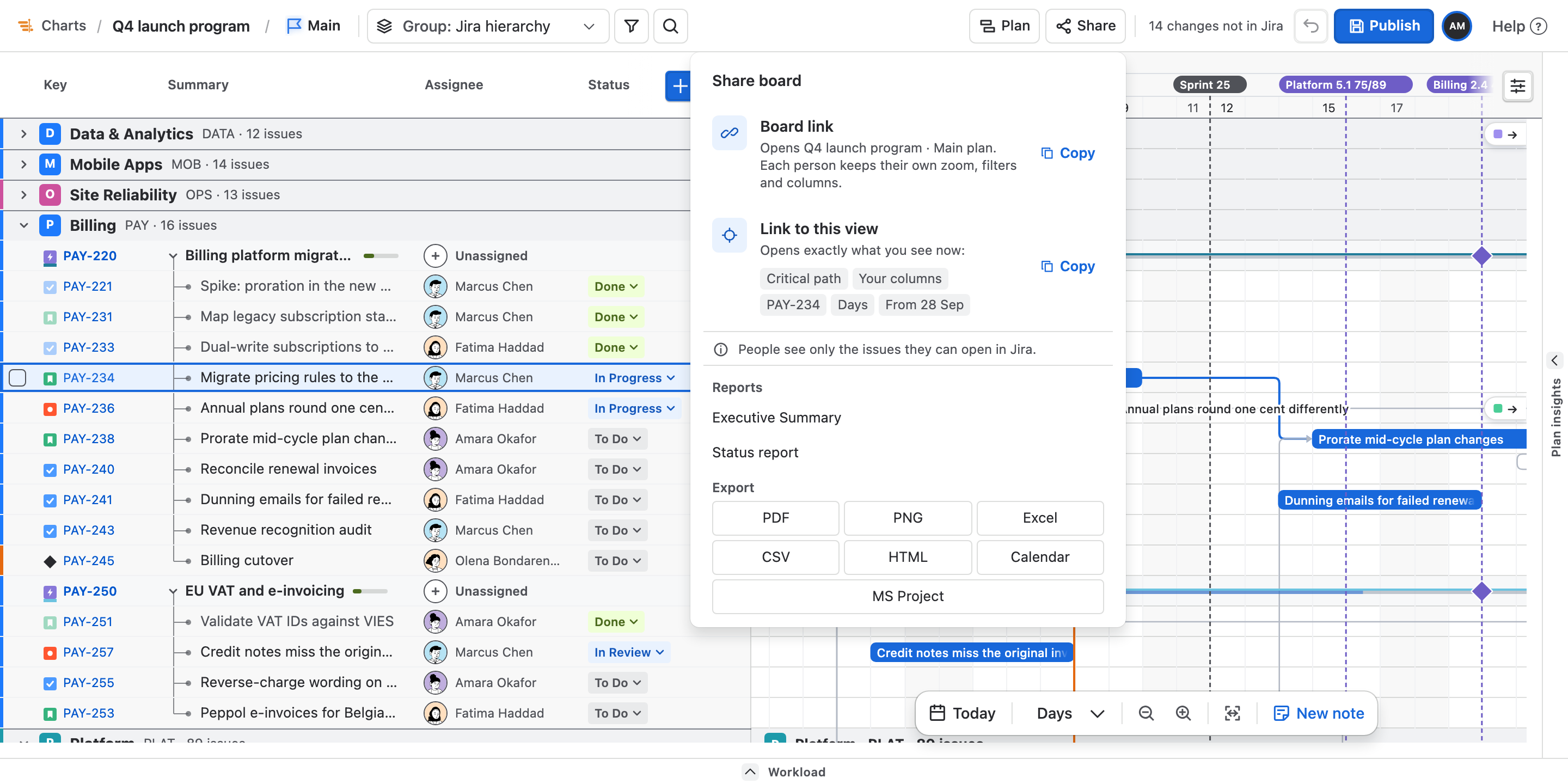
- Board and view links
- Executive Summary
- PDF, PNG and HTML preview
- Excel, CSV, calendar, MS Project
What you get
Share & export, part by part.
01
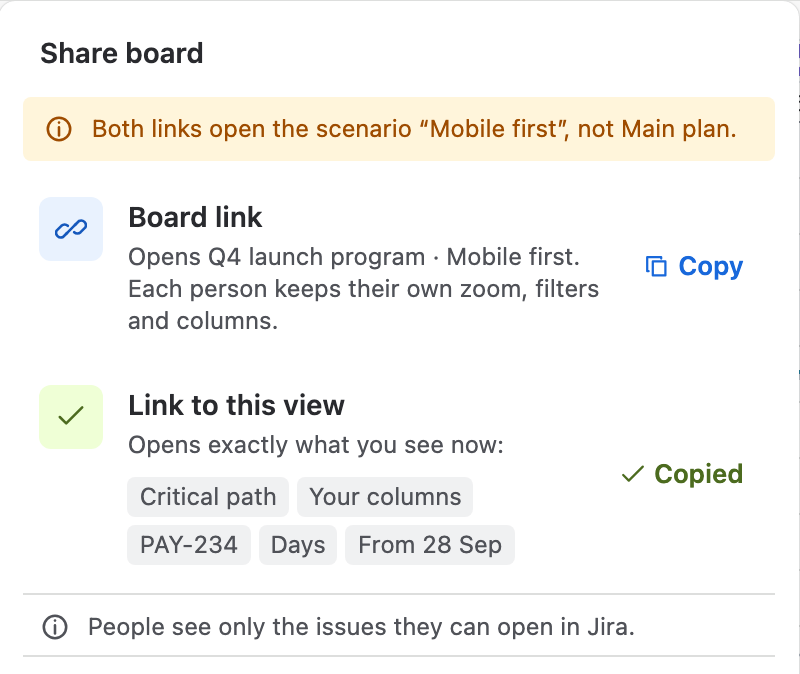
Links that say what they open
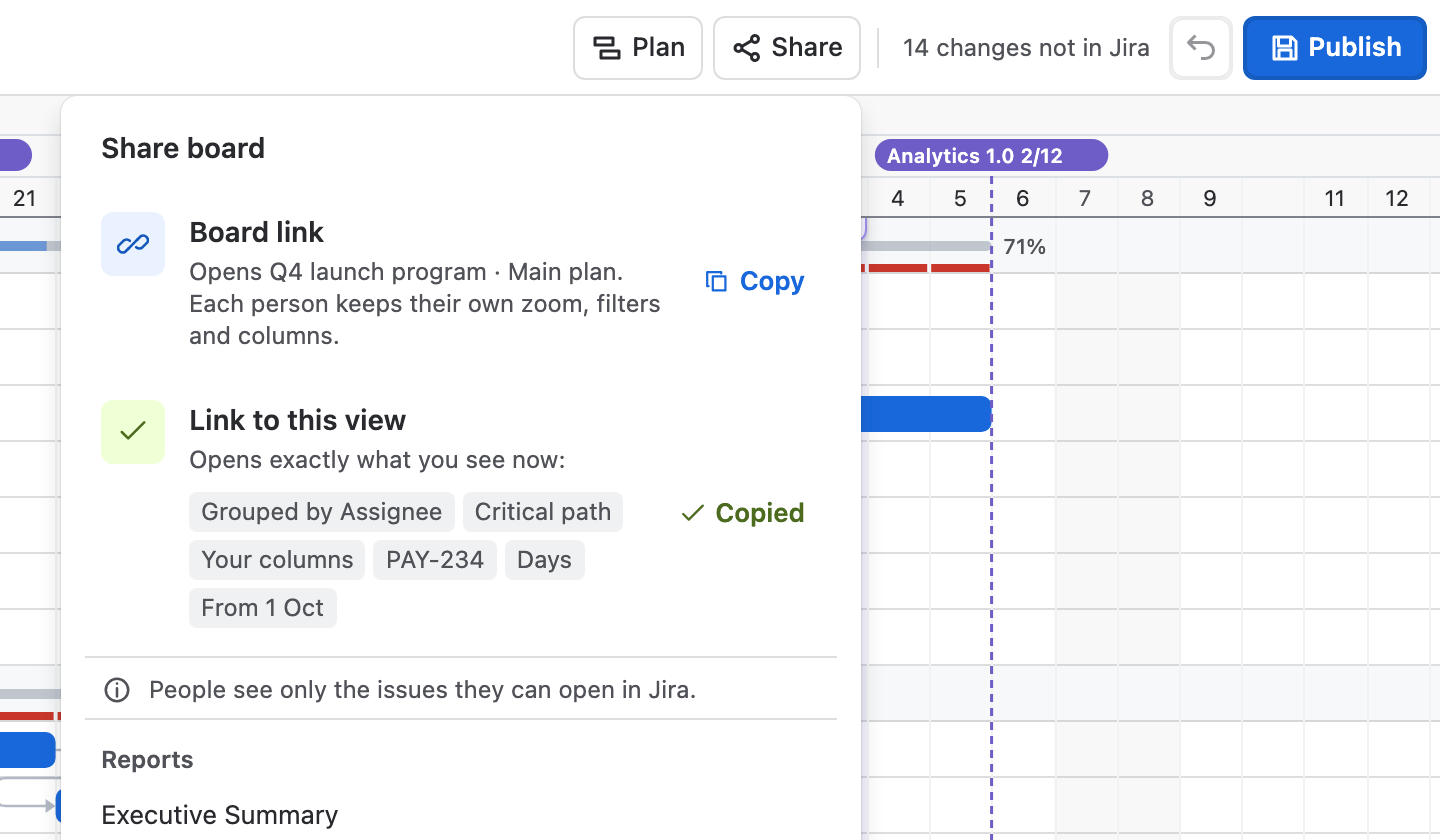
Board link opens the chart and its scenario, and each person keeps their own zoom, filters and columns. Link to this view also carries the grouping, filters, search, selected issue, zoom and position, and lists them before you copy. On a scenario, both links warn that they open it instead of Main plan.
02
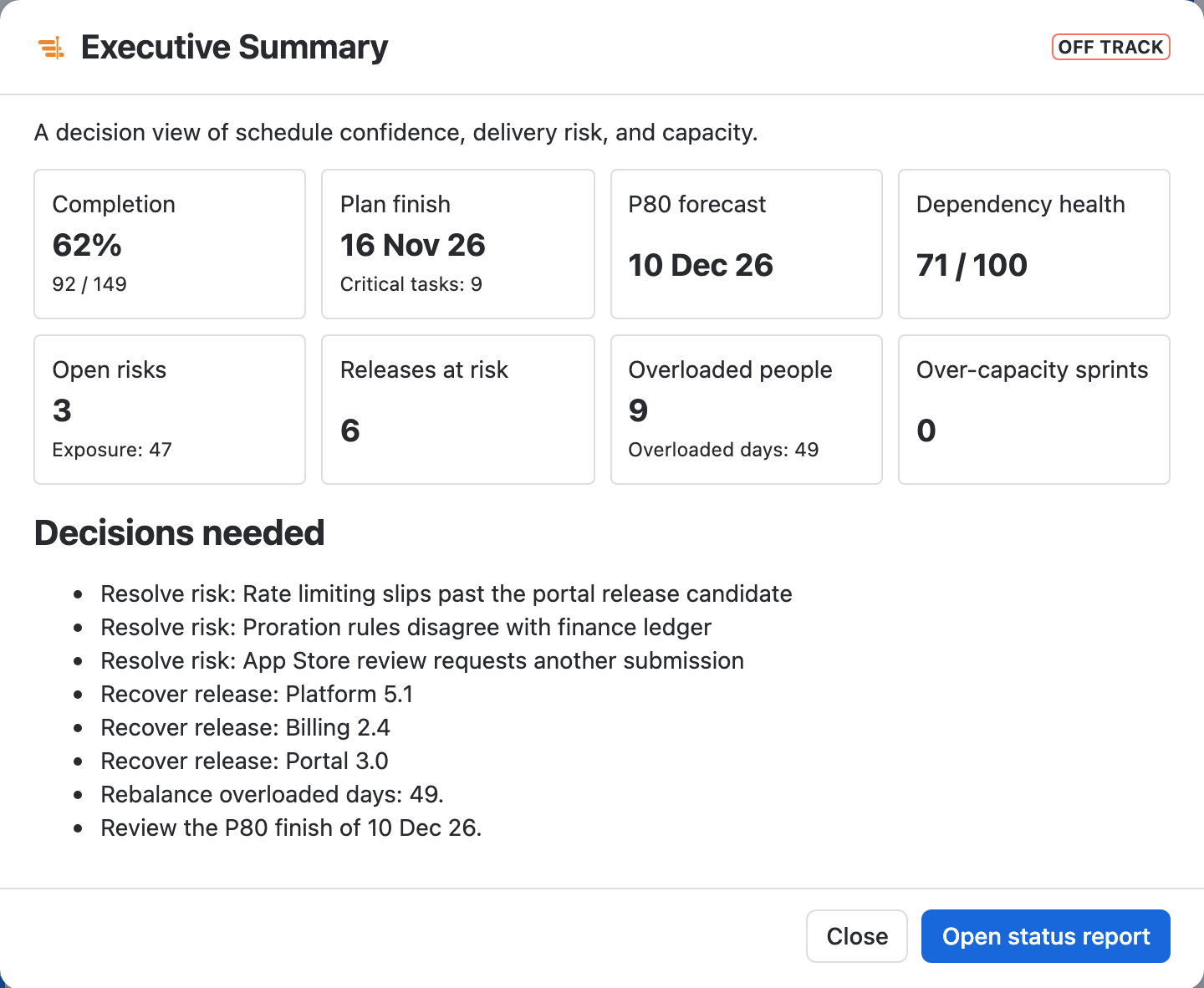
A summary for the people who decide
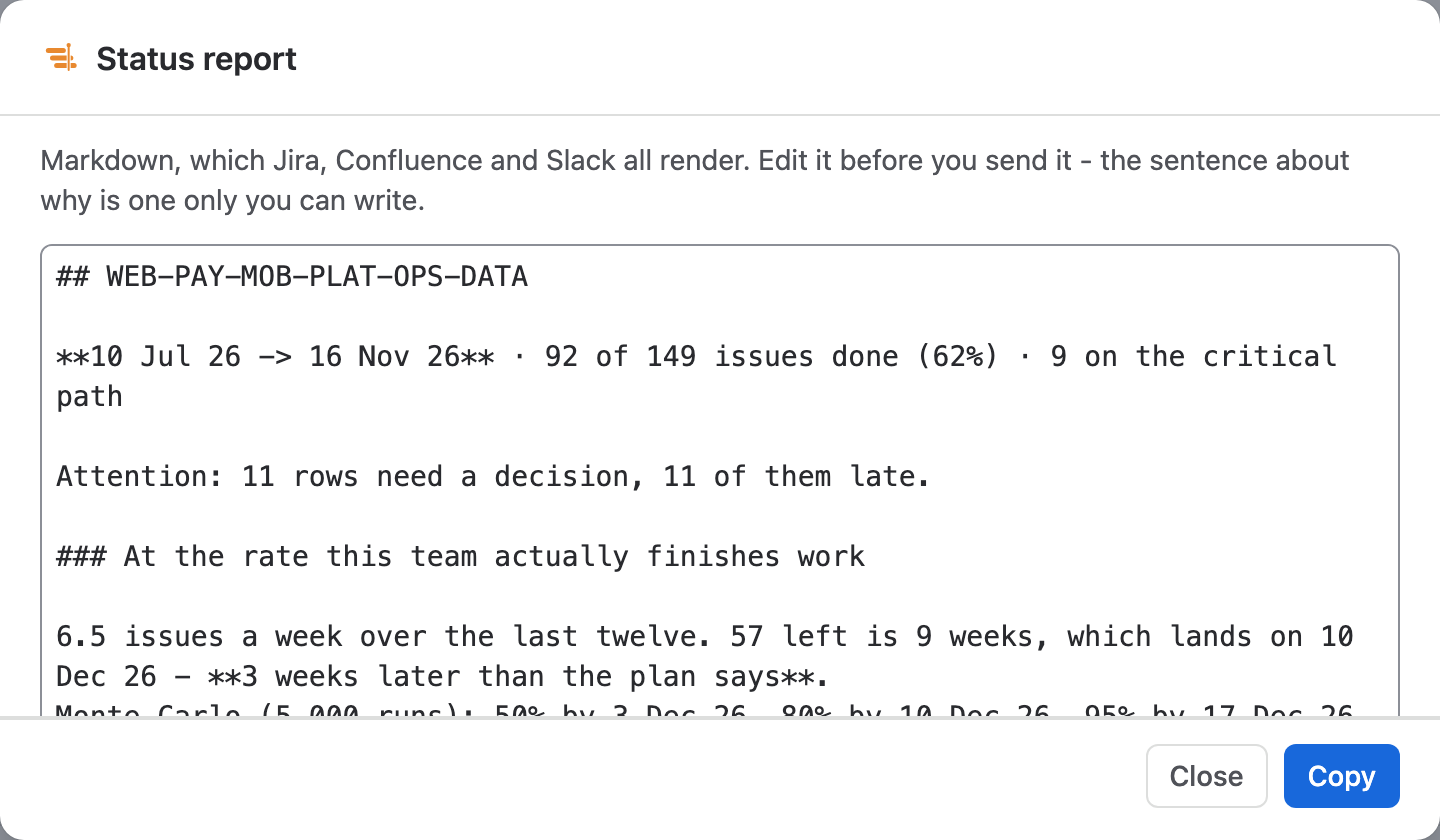
Executive Summary puts completion, the plan finish, the P80 forecast, dependency health, risks, releases at risk and capacity on one screen, rates the plan On track, At risk or Off track, and lists the decisions needed. Status report gives the same plan as Markdown to edit and paste into Jira, Confluence or Slack.
03
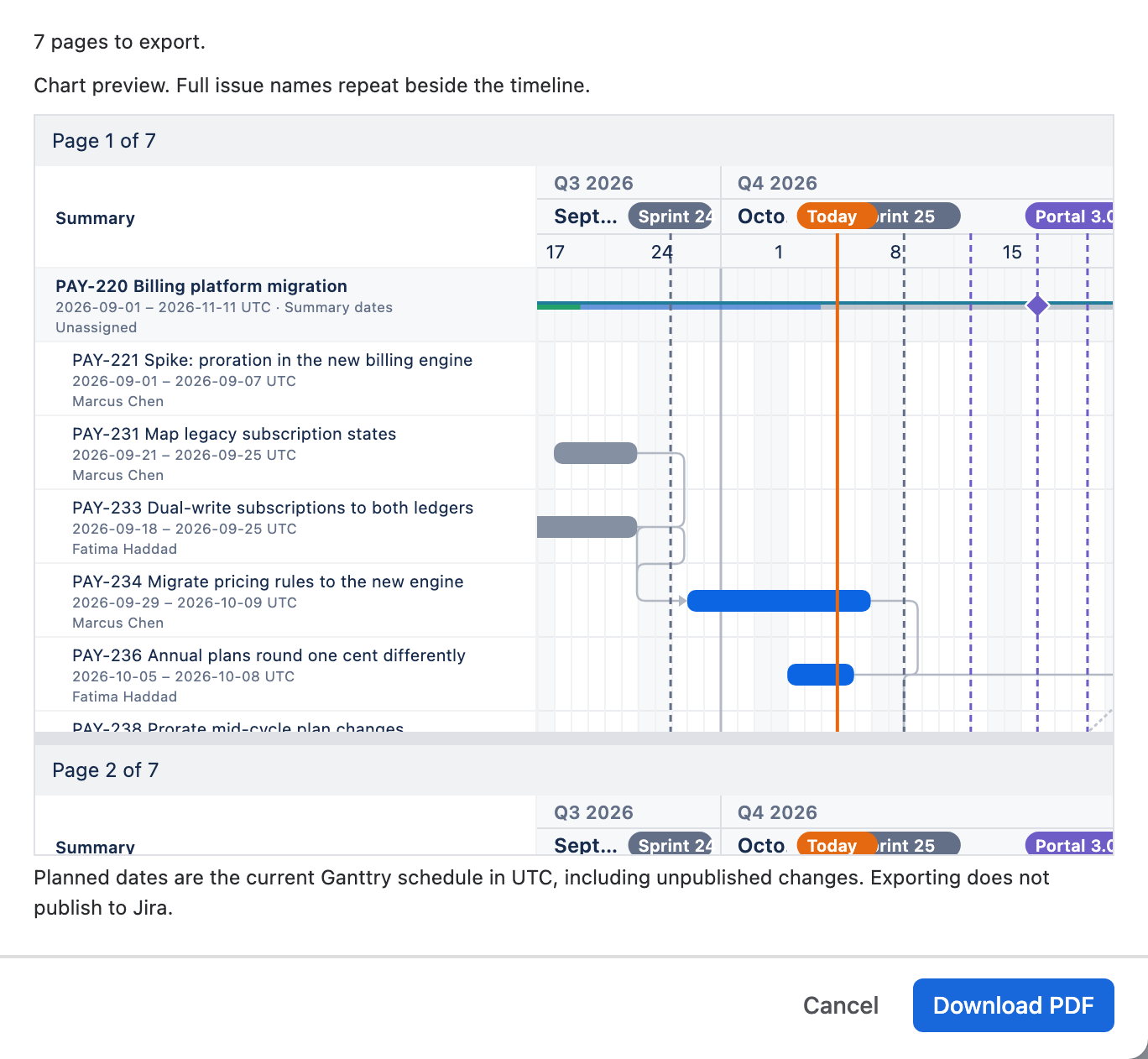
See every page before you download
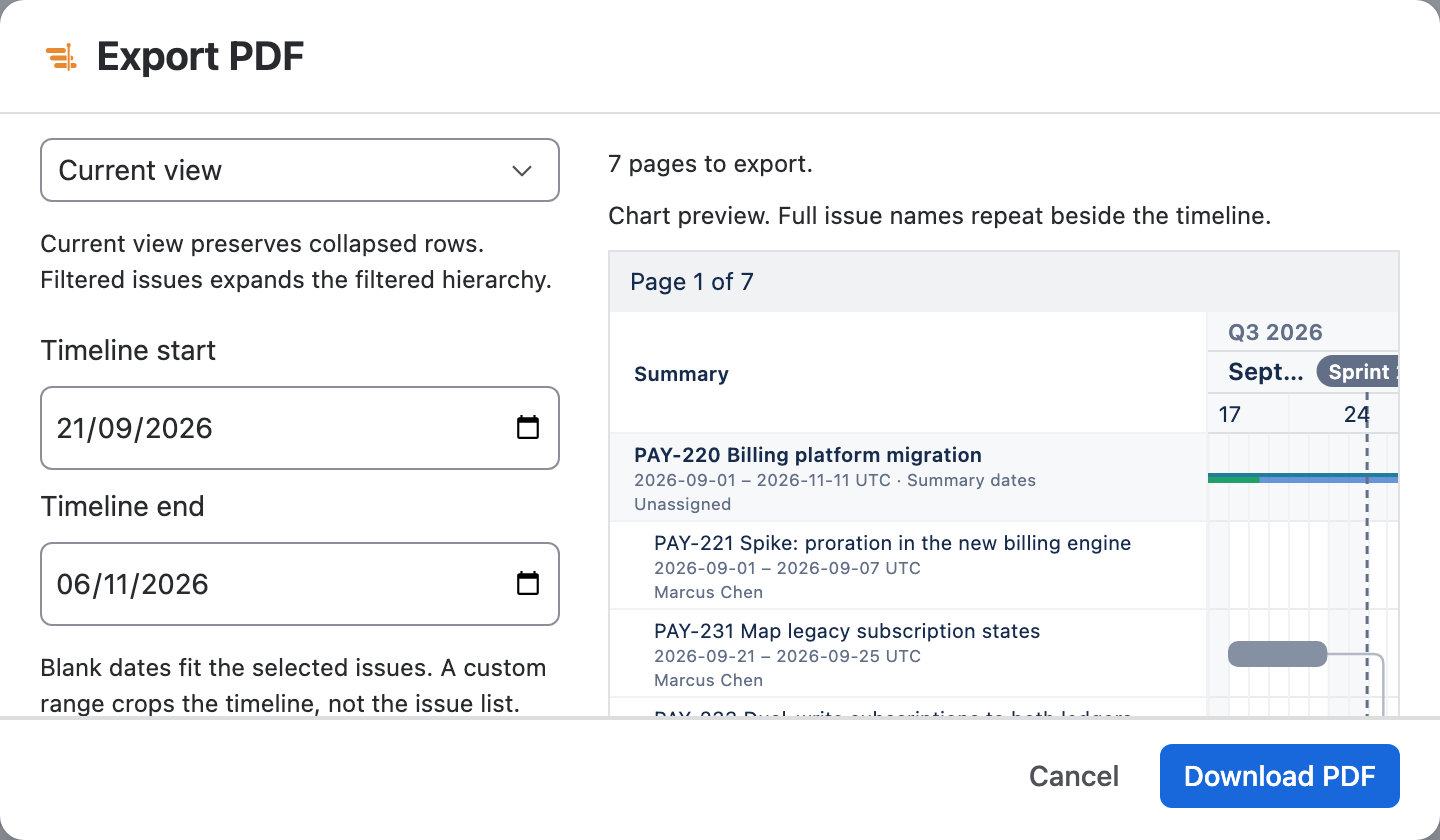
PDF, PNG and HTML exports draw a preview of the report as it will be saved, with full issue names, dates, owners and the timeline range you chose. The PDF dialog counts the pages and blocks a report over 250 pages instead of cutting it short; a large PNG downloads as numbered images in one ZIP.
04
Spreadsheets, calendars and Microsoft Project
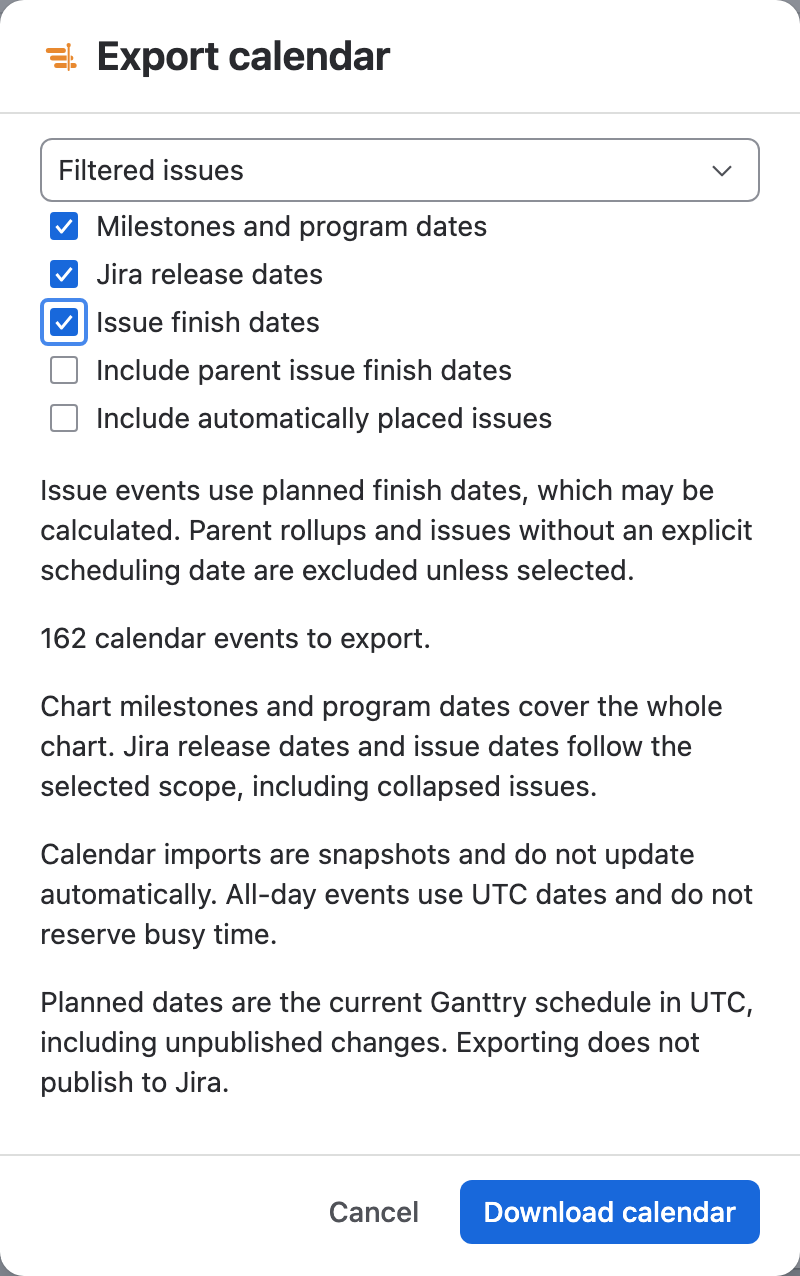
Excel and CSV give one row per issue with planned UTC dates, Jira links and your custom columns. A calendar file holds milestones, release dates and, if you choose, issue finish dates. Microsoft Project gets the hierarchy, calendars, resources, baselines and dependency lags.
How to use it
From a copied link to a downloaded report.
Step 1
Copy a link
Choose Share in the chart header. Under Board link or Link to this view, choose Copy; it turns to Copied. If the browser refuses the clipboard, the link appears selected for you to copy.
Step 2
Write the status update
Under Reports, choose Status report. Edit the Markdown and add the reason only you can give, then choose Copy and paste it into Jira, Confluence or Slack.
Step 3
Choose an export
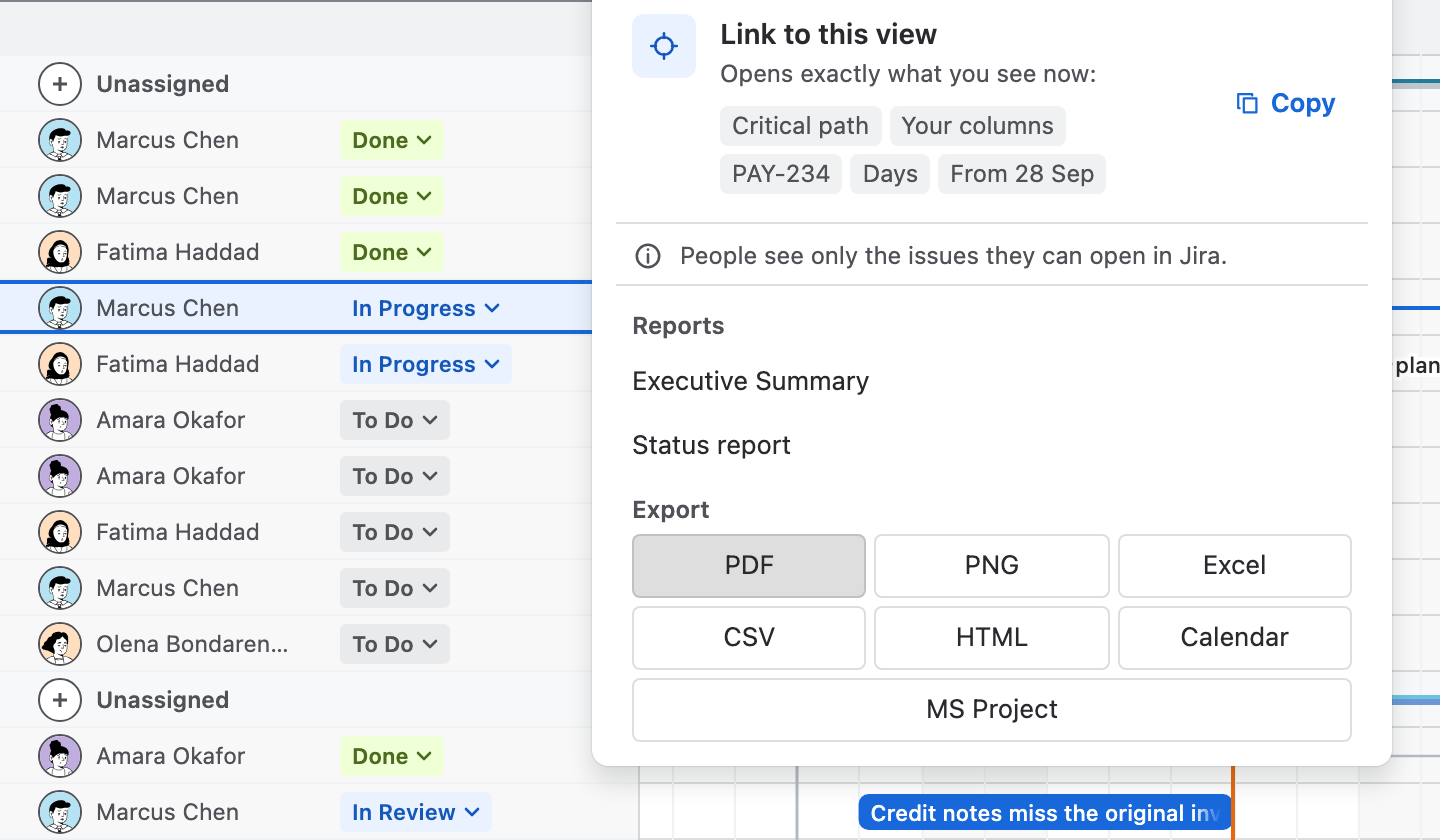
Under Export, choose PDF, PNG, Excel, CSV, HTML, Calendar or MS Project. Reports and exports become available once the whole plan has loaded.
Step 4
Set the range and download
Choose the Export scope, set Timeline start and Timeline end, and pick what to show. The preview redraws as you change them; then choose Download PDF.
Step 5
Save the view for everyone
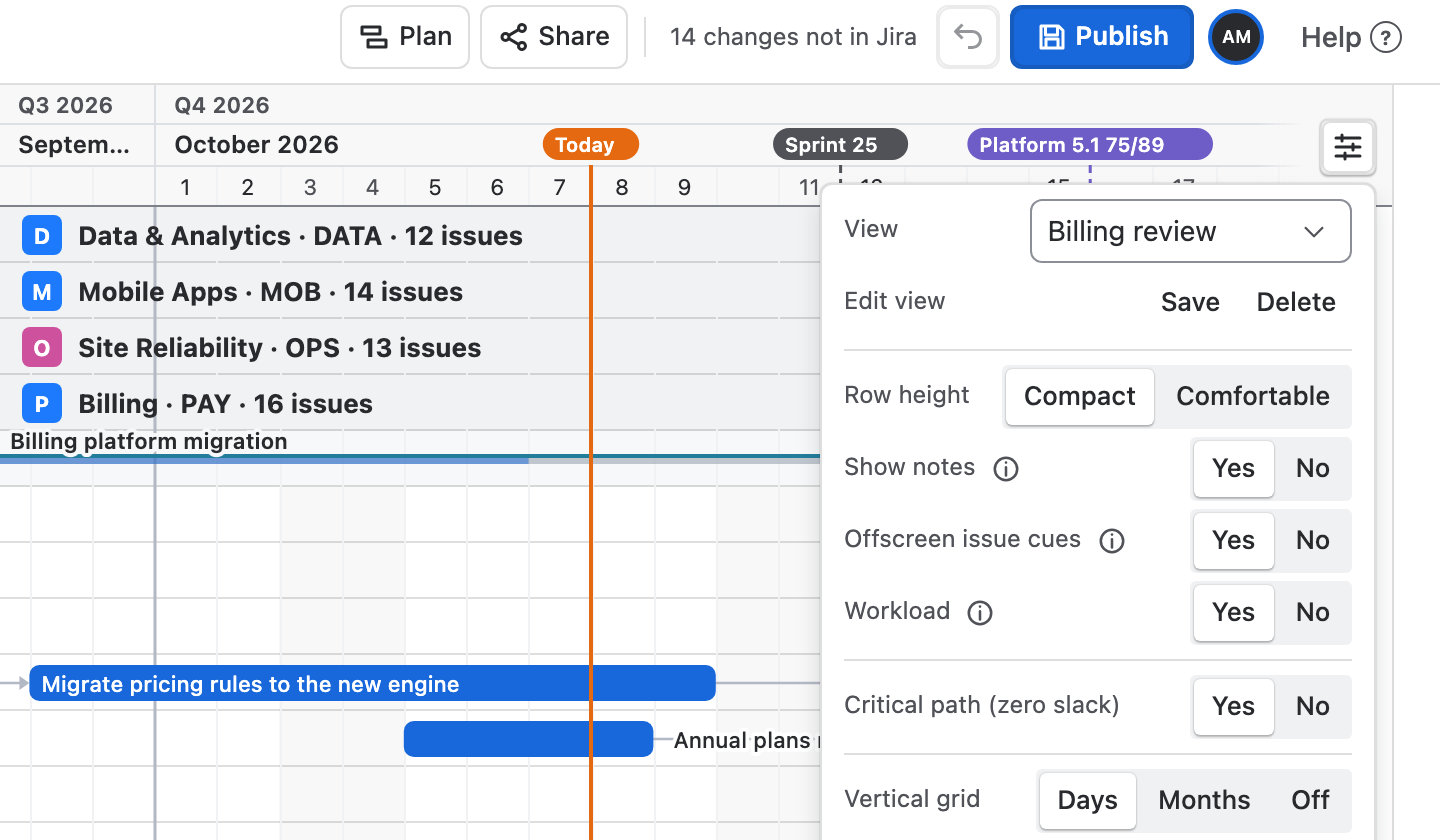
Open Chart settings at the right of the timeline header, choose Save beside Edit view and name the view. It joins the View list for everyone who opens the chart.
Drawn by Ganttry
The export renderer, as a vector.
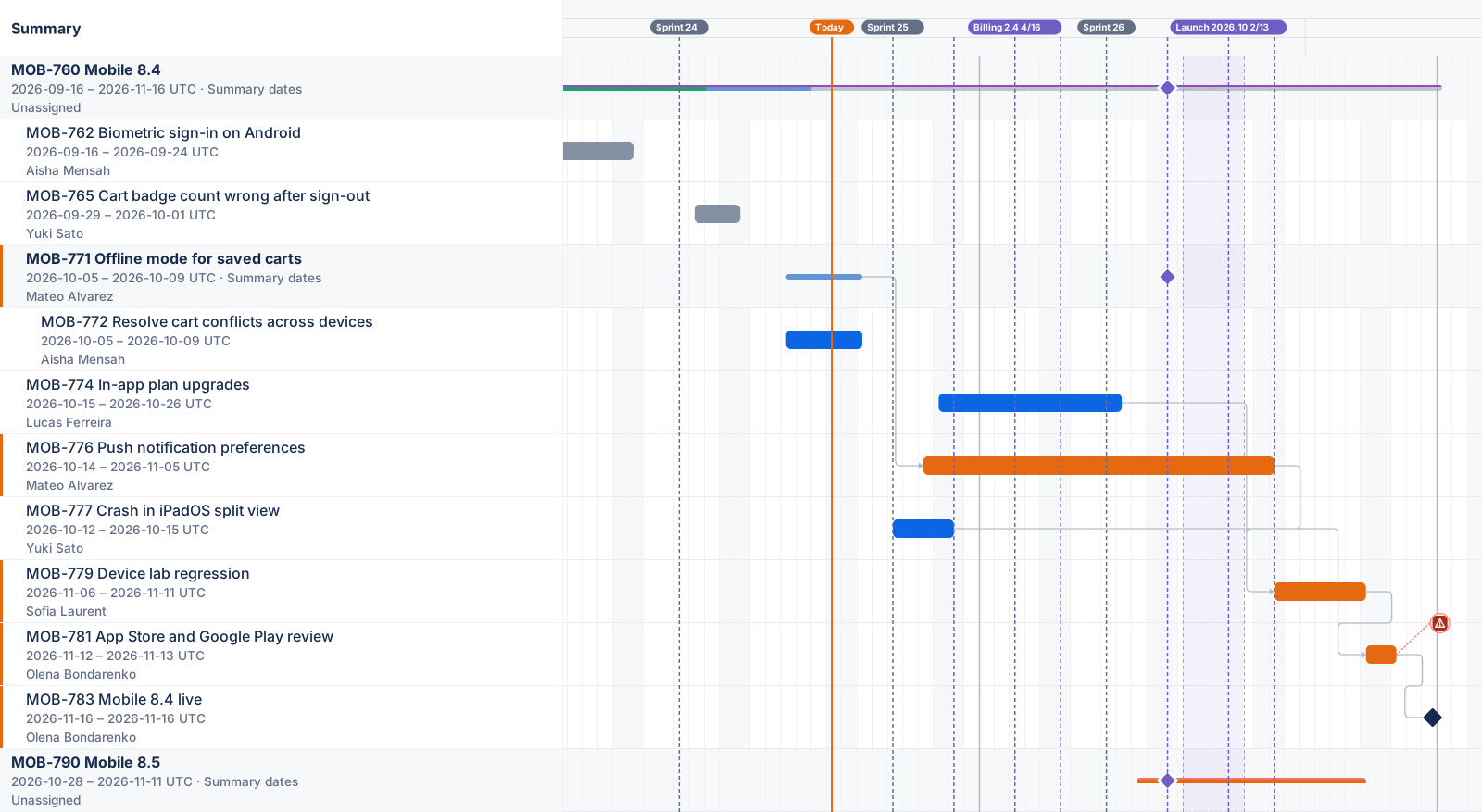
PNG and PDF exports are drawn by this renderer. Here it draws the Mobile 8.4 epic: each issue's dates and assignee beside the timeline, links, critical work, sprints, release markers and a risk note.
Good to know
- A link grants nothing
- A link opens the plan inside Jira. People see only the issues they can open in Jira, and no public page is created.
- A file is a snapshot
- Exports hold the Ganttry schedule in UTC when you download, including changes not yet in Jira. They do not update, and exporting never writes to Jira.
- Only public notes travel
- PDF and PNG include public notes when Show notes is ticked. Private notes are never exported, and HTML exports leave notes out.
- Emails only where Jira allows
- Include assignee emails adds an address only where Jira makes it readable. Other addresses stay blank, and clearing Include assignees removes them all.
Read more in the docs
Ganttry for Jira Cloud