Ganttry in Confluence
Put a live chart on a Confluence page. Set up the macro, what viewers can do and how it follows the Jira plan.
9 sections3 min readUpdated October 2026
What you need
Ganttry is installed for Jira, and Confluence is an optional part of the same installation. The macro works on a Confluence site that shares the Jira site where Ganttry is installed; there is no separate Confluence-only Ganttry.
- Confluence connected to the Ganttry installation on your Jira site.
- Permission to edit the Confluence page that will hold the chart.
- For everyone who views the page, access in Jira to the issues the chart shows.
Add a chart to a page
- Edit the Confluence page and insert the Ganttry macro, described as The plan, on a page.
- Which work to draw opens straight away. Enter a Jira query, for example project = PLAT, project = PLAT AND fixVersion = 2.10 or filter = 10021.
- Choose Save, then publish the page. The chart loads the issues that match the query.
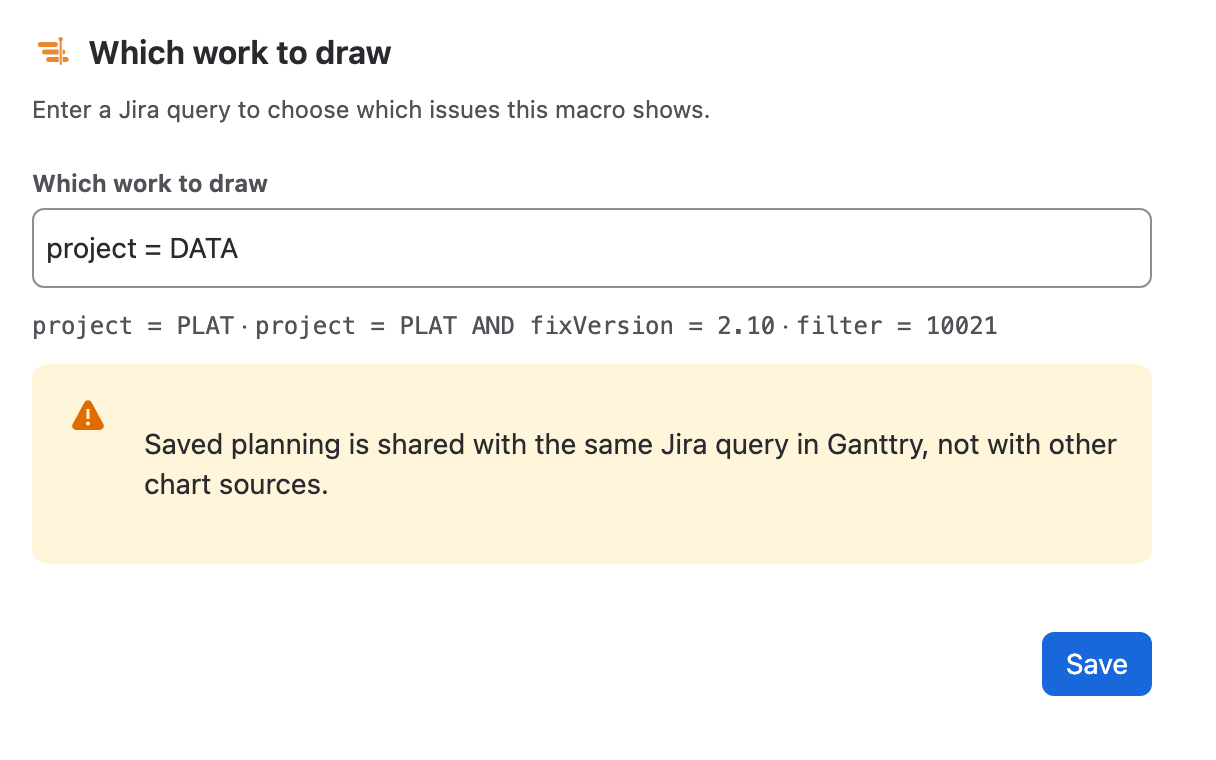
Each macro has its own query
A macro shows the issues its own query returns, so two macros on one page can show different work. To change it, edit the page, open the macro's settings and change the query in Which work to draw.
Ganttry's server reads the query saved in the macro, never one sent by the browser. A macro with no query shows This macro has no query yet - edit it and say what to draw. It never borrows the chart chosen on Ganttry's Jira page.
What people can do on the page
The macro is view only and says so above the chart. People can read the Board table, the timeline, Workload and Plan insights, and scroll through the plan.
The chart header is not there: grouping, search, filters, Share, exports, publishing and every edit live in Jira. Nothing on the page can create, move or change an issue, and notes cannot be added or edited.
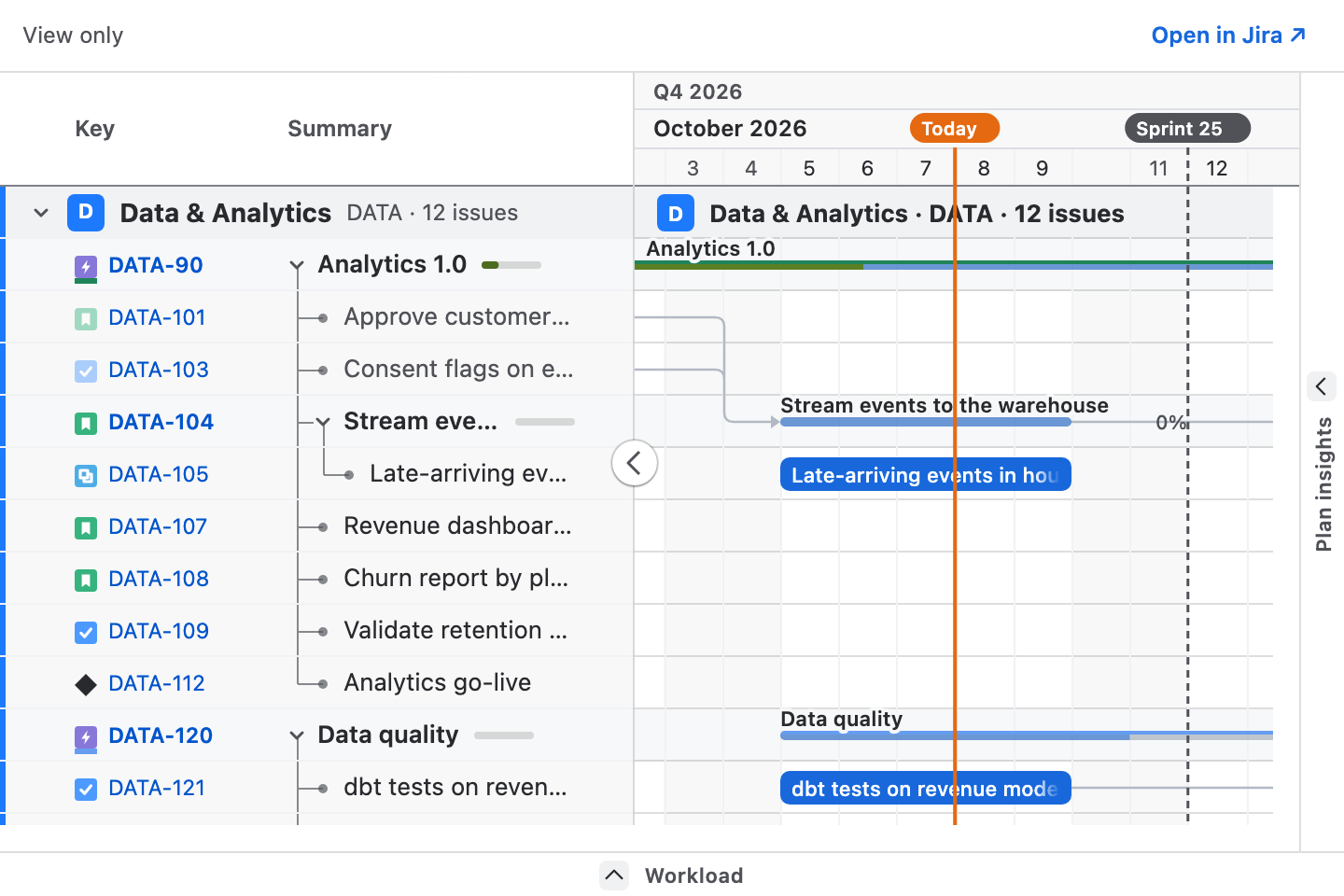
Open the same plan in Jira
- Choose Open in Jira above the chart. Ganttry's global page in Jira opens with the macro's query as its chart.
- Plan there as usual: drag bars, link issues, add notes or try a scenario.
- Review and publish the dates you want in Jira.
- Reload the Confluence page to see the saved plan in the macro.
Permissions and data
- Each viewer sees only the issues they can open in Jira. A Confluence page or its link never grants Jira access.
- Ganttry does not read the page. The macro's settings hold only its query.
- Saved planning stays in the Forge storage of the Jira installation, the same storage the Jira chart uses.
- The subscription is checked against the Jira installation. If it has lapsed, the macro says where a Jira administrator can renew it.
Size and language
The chart is 480 pixels tall and as wide as the page's content. For a wider timeline, set the page to full width in the Confluence editor.
The macro's labels use the viewer's Atlassian language when Ganttry supports it, and English otherwise.
When the chart does not show
- This macro has no query yet: edit the page and enter a query in Which work to draw.
- Macro settings could not be saved: choose Save again in the macro's settings.
- If the chart cannot be read, a card replaces it with Reload chart.
- Issues are missing: the query, or your own Jira permissions, leave them out. Open the same query in Jira's issue search to compare.
Stuck on something this guide skips? Write to the developers →