Workload
See who is overloaded, and balance the plan before it slips.
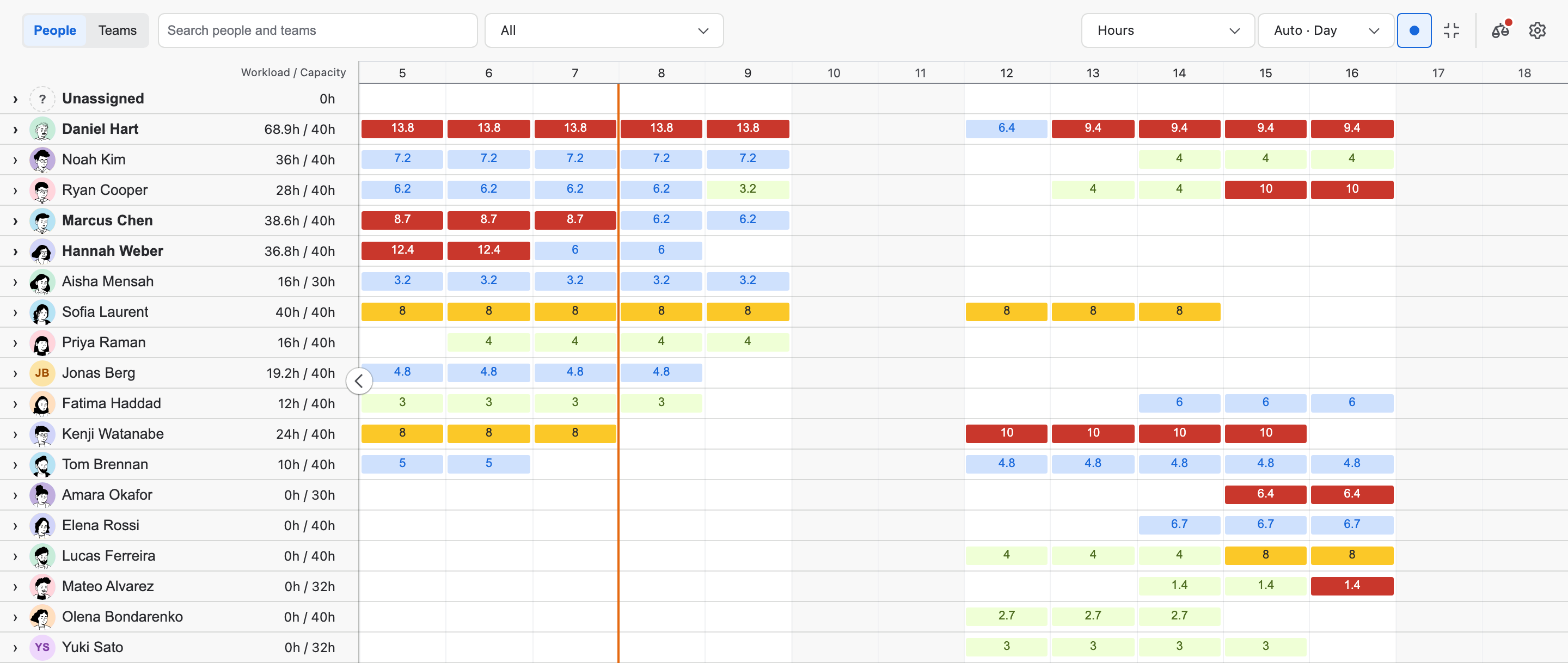
Workload sits under the Gantt and sets each person's and team's load against when they can actually work. Level resources proposes the moves and shows the result first. Nothing reaches Jira until you publish.
- Story points, hours or percent
- People and Teams
- Part-time weeks and days off
- Level resources
What you get
Workload, part by part.
01
People and teams
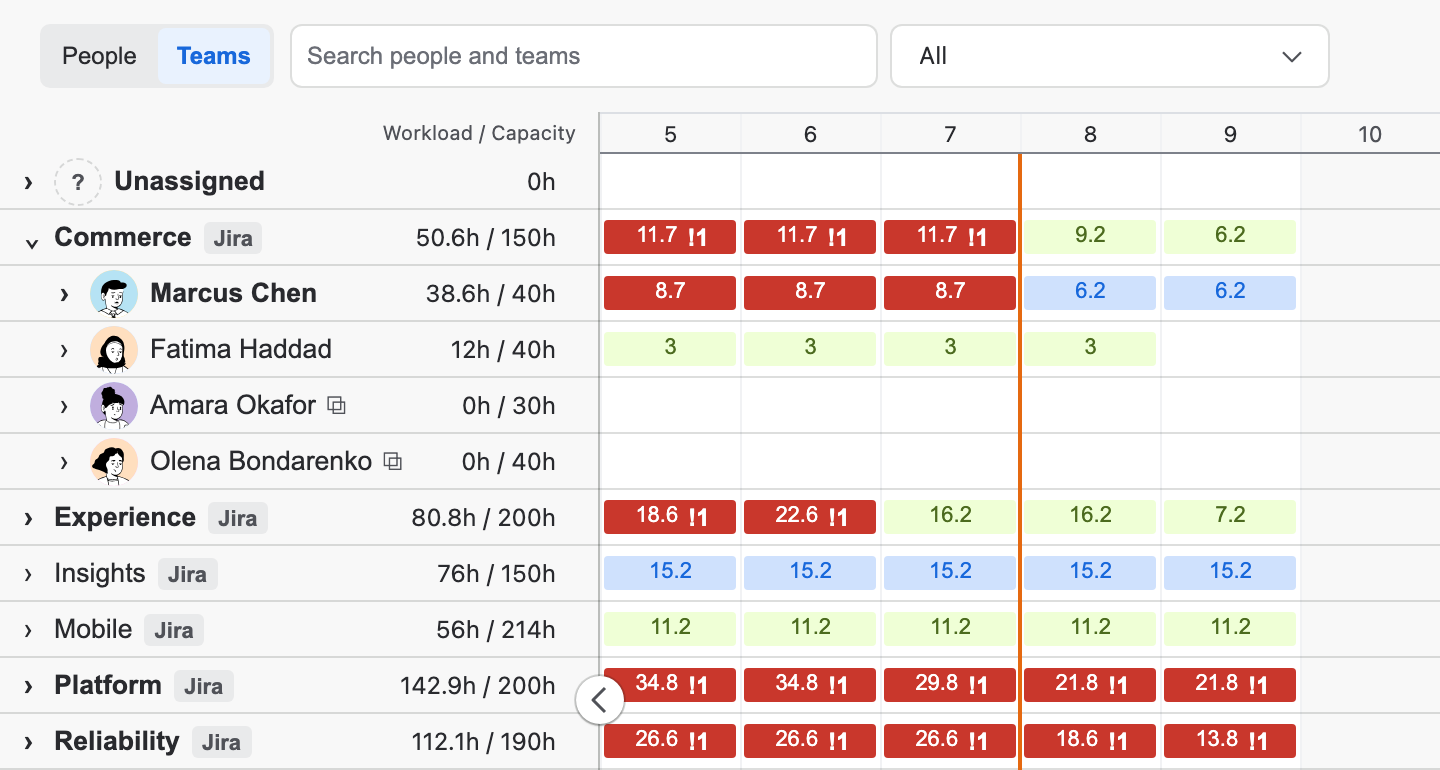
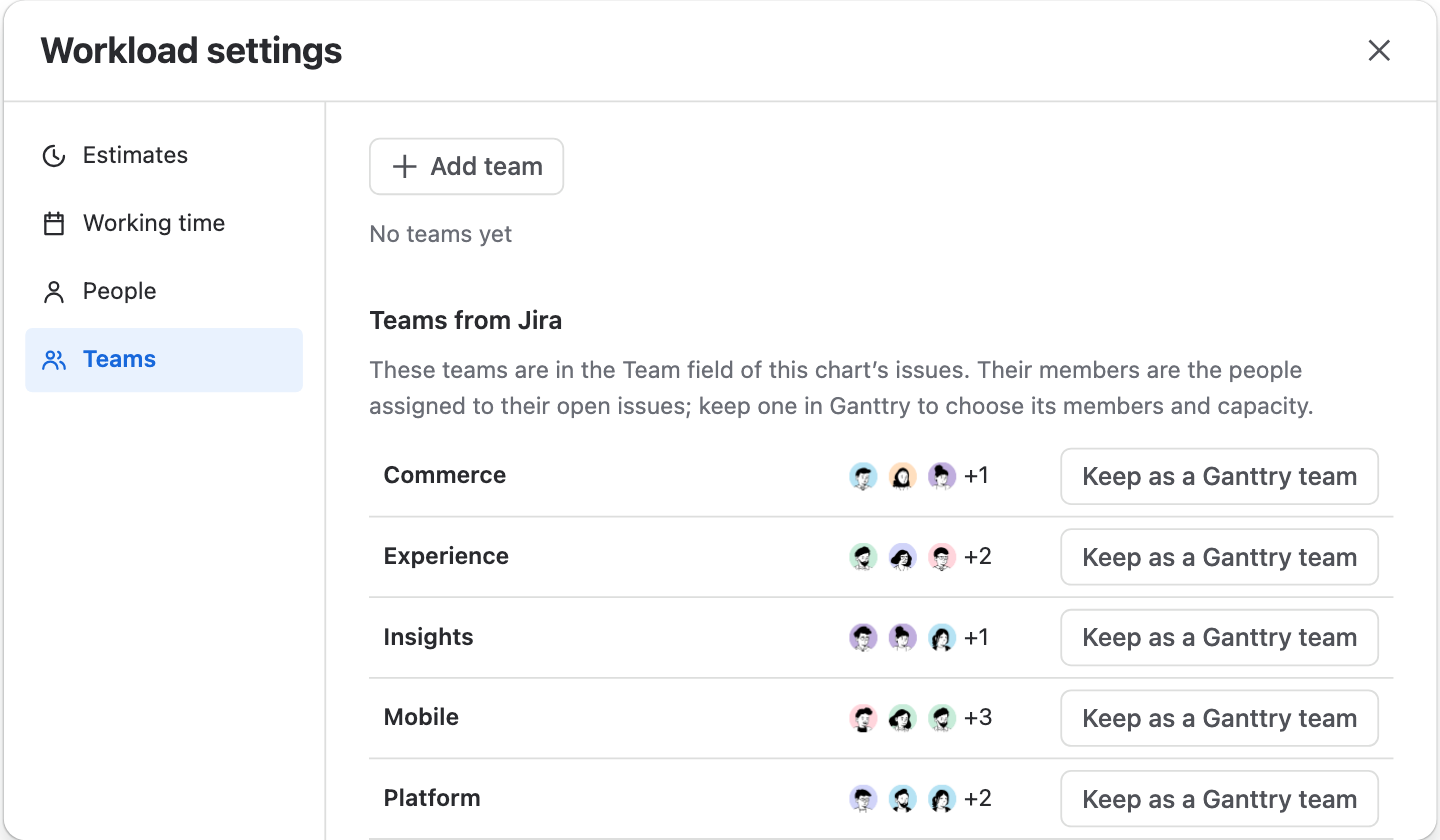
Switch to Teams to see each team's load against its members' capacity, and expand a team to see its people. Teams from the Jira Team field carry a Jira tag, and a cell counts the members who are overloaded.
02
Availability that matches real weeks
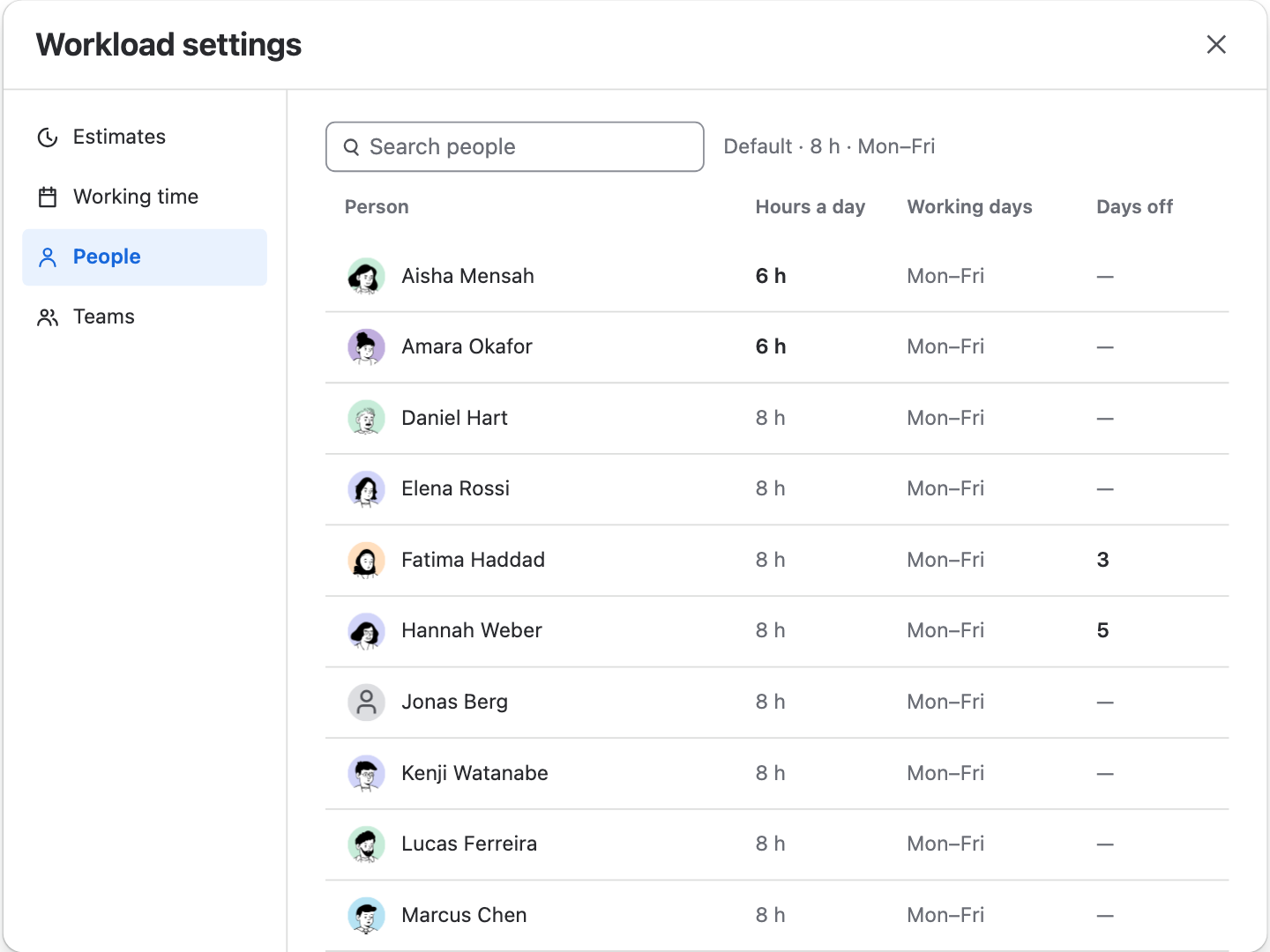
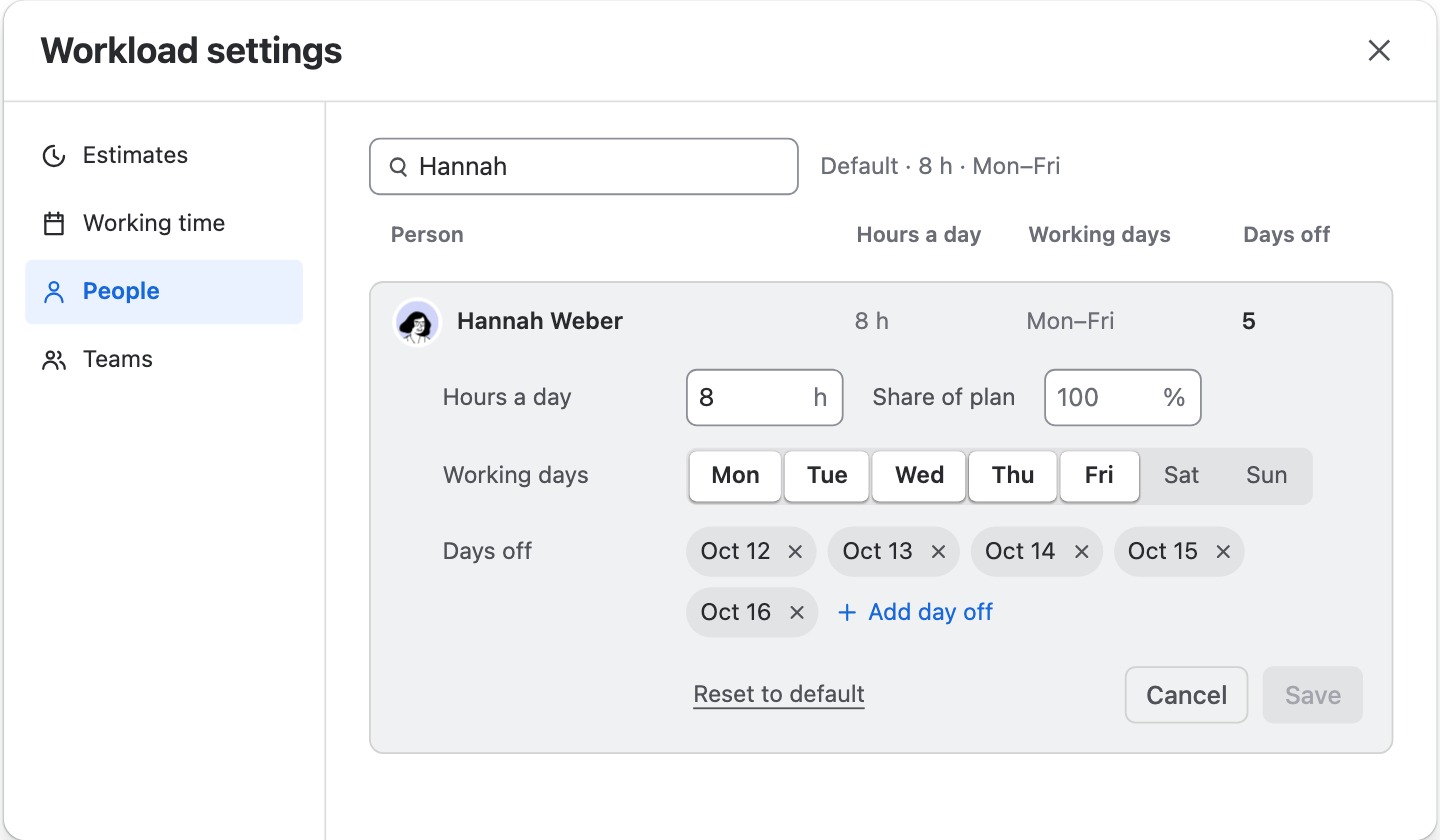
Workload settings lists everyone on the chart with hours a day, working days and days off. Values that differ from the chart's default are bold, so part-time hours and holidays stand out.
03
Leveling you can check first
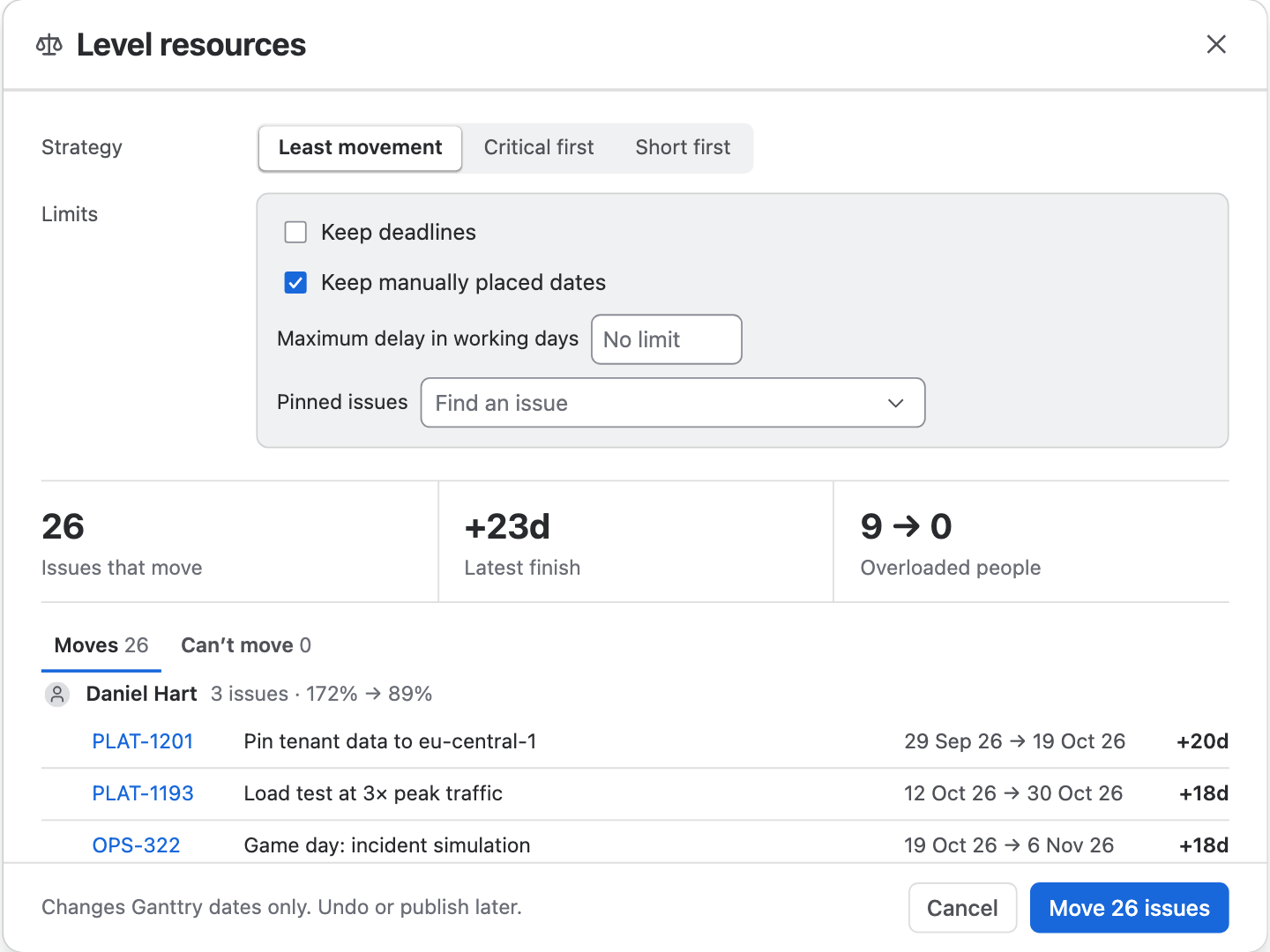
Level resources proposes date changes that fit each person's hours, share of the plan and days off. Before you apply them, it shows how many issues move, the latest finish and overloaded people before and after.
04
Follow a drag
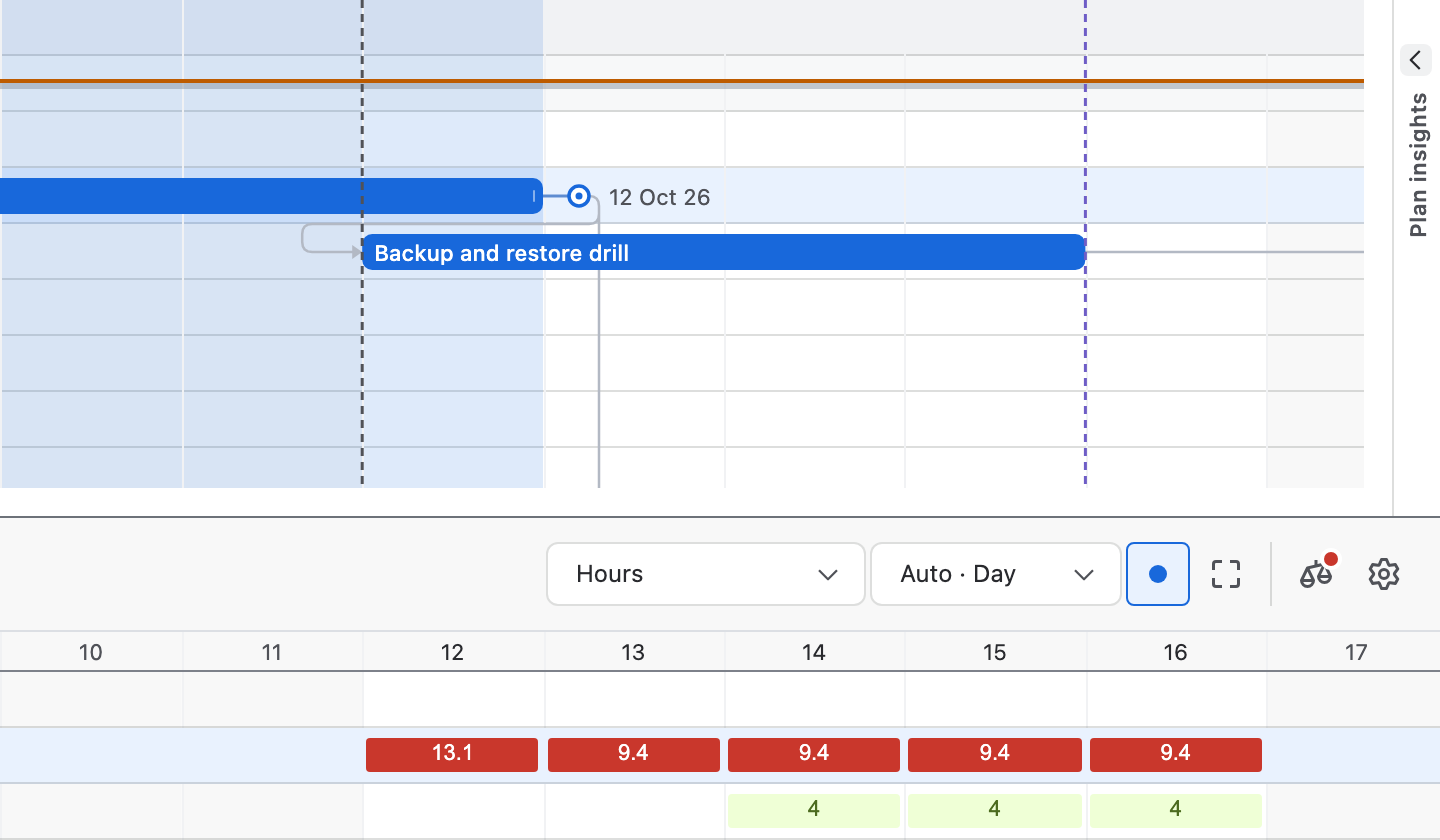
With Follow drag on, dragging or resizing a bar brings its assignee's row into view in Workload and highlights it, so you see the load change before you let go.
How to use it
From the first look to a balanced plan.
Step 1
Open Workload
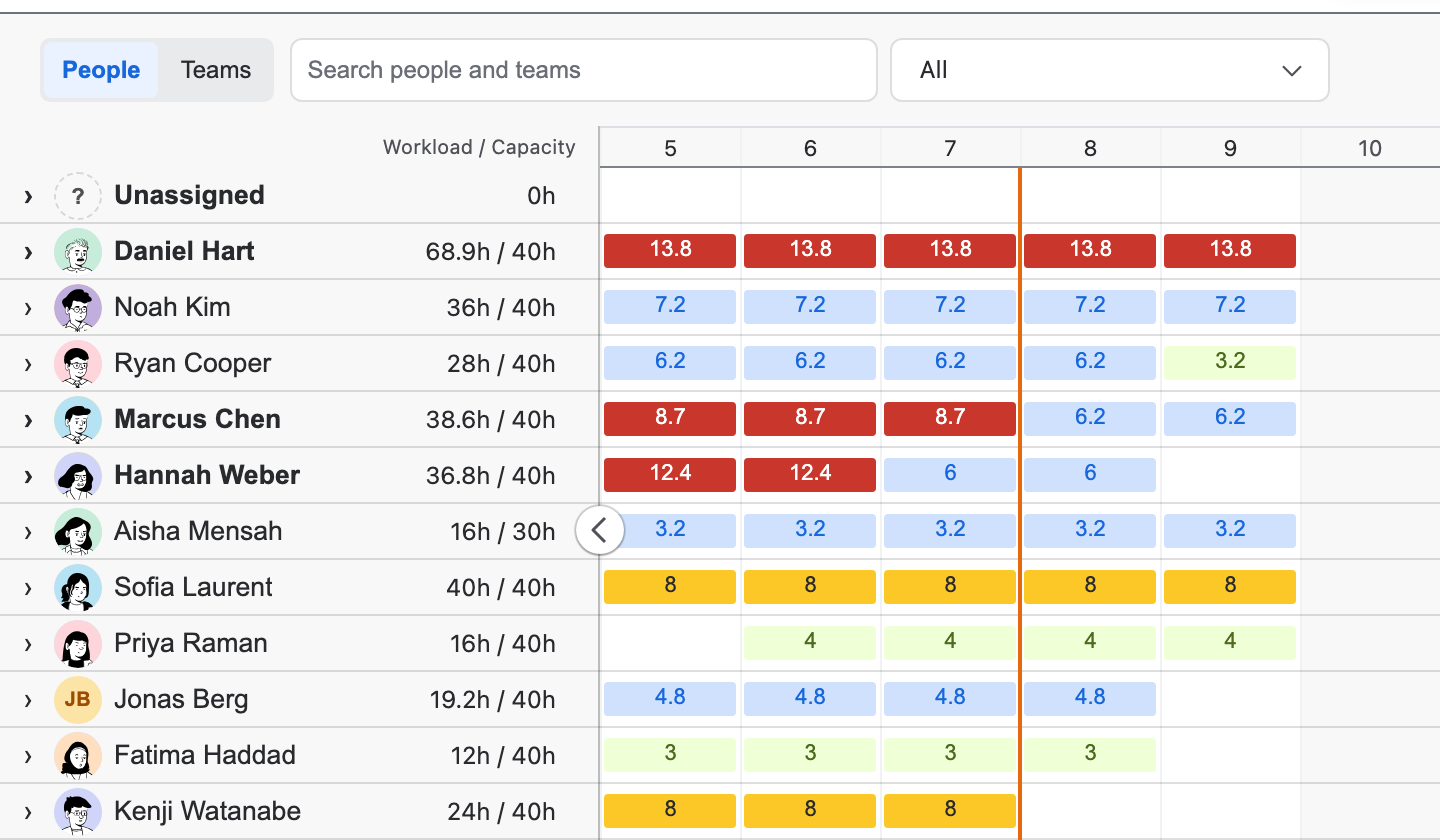
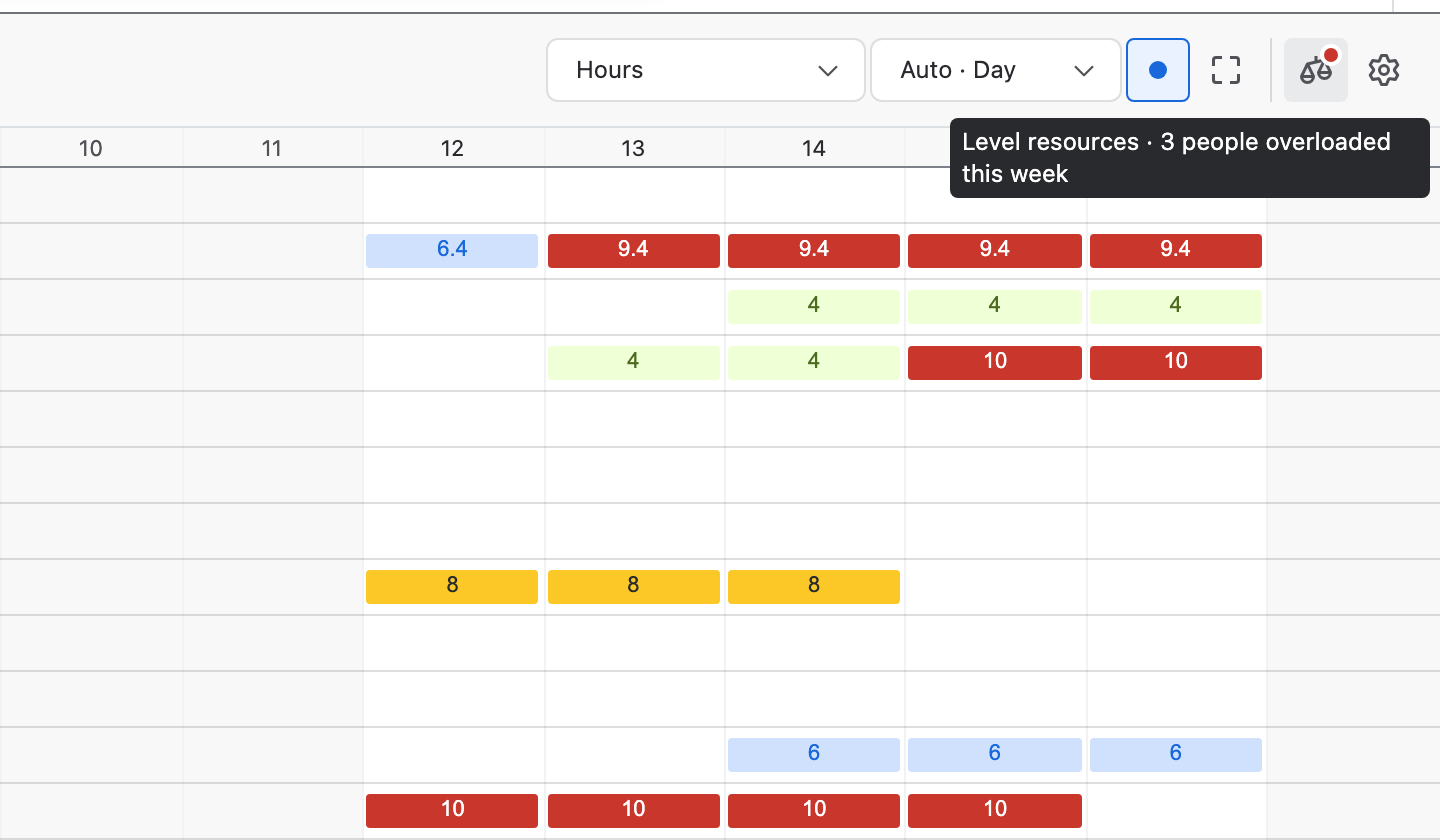
Choose Workload under the chart. Each row compares this week's workload with capacity, and the cells follow the chart's dates: green has room, blue is normal, yellow is full and red is overloaded.
Step 2
Choose what to count
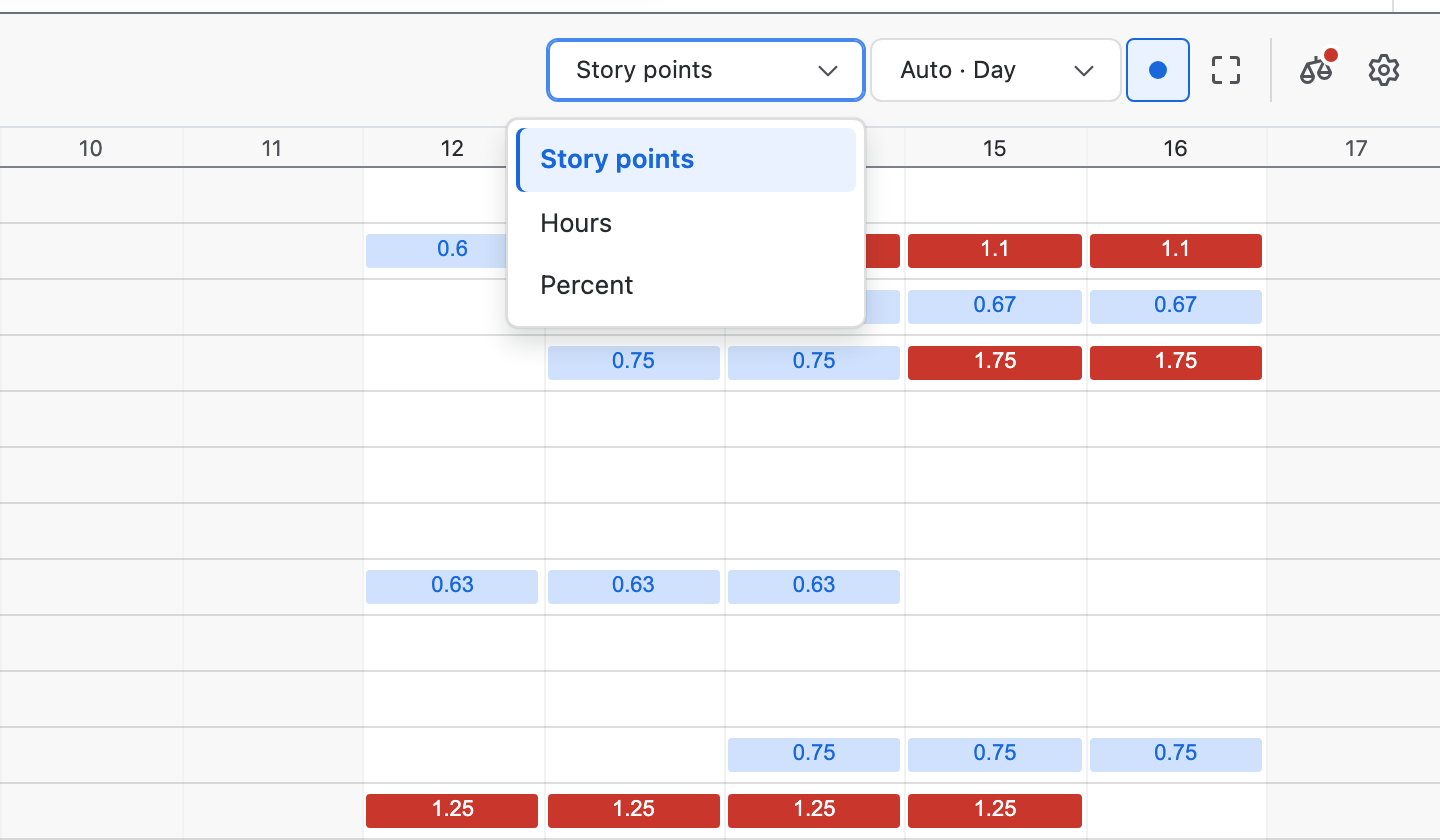
Pick Story points, Hours or Percent, and a period. This menu changes only your view. With the period on Auto, cells move from days to weeks and months as you zoom out.
Step 3
See the work behind a number
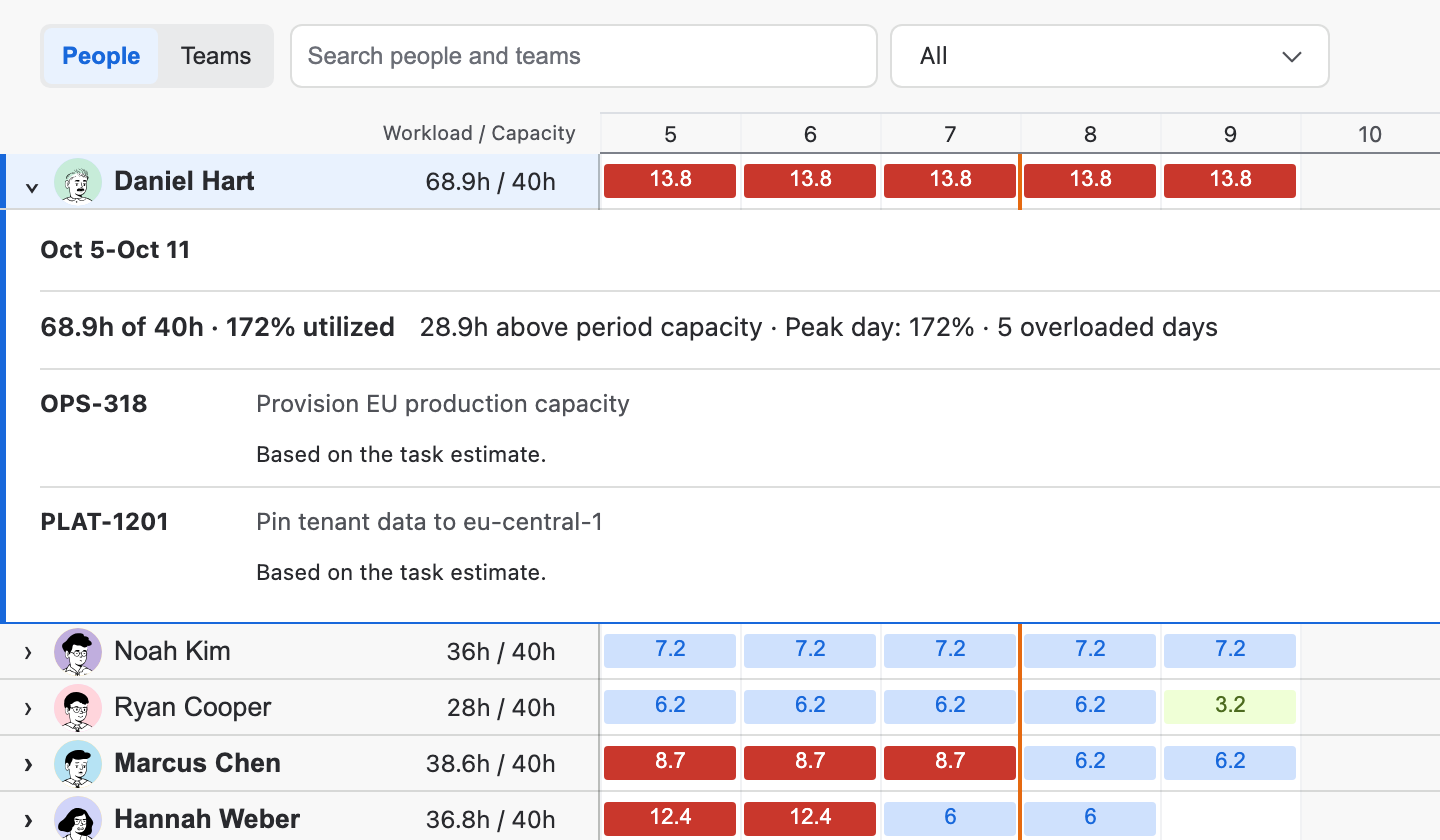
Select a person for their week, or a cell for that period. The details open under the row with the load against capacity, the peak day and each issue, plus Manage allocations and Manage availability.
Step 4
Set when people can work
Open the gear for Workload settings and choose People. Select a person to set Hours a day, Share of plan, their working days and days off, then Save that person.
Step 5
Bring in your Jira teams
In Teams, the teams in your issues' Jira Team field are listed with the people assigned to them. Keep as a Ganttry team to choose members and sprint capacity, or Add team for one of your own.
Step 6
Level resources
A dot on the scales icon means people are overloaded; point at it for this week's count. Open it, choose a strategy and limits, check the result, then Move … issues.
Good to know
- Stored in Ganttry
- Workload settings, availability, allocations and leveling are shared with everyone on the chart and write nothing to Jira. Dates reach Jira only when you publish them.
- Every loaded issue counts
- Workload counts unfinished assigned work from every issue the chart has loaded, whatever the Board's filters, search or folded rows hide.
- No invented capacity
- Until a person's hours are known, their work still shows, in a neutral colour, without capacity or overload. The Unassigned row never gets a capacity.
- Jira teams, without a directory
- A Forge app cannot read Atlassian Teams membership, so a Jira team's members are the people assigned to its open issues until you keep it as a Ganttry team and choose them.
Read more in the docs
Ganttry for Jira Cloud