Workload and resource leveling
See who is overloaded and balance the plan. The Workload panel, people and teams, availability, estimates and Level resources.
10 sections7 min readUpdated October 2026
Open Workload
Workload is the panel under the chart. Choose Workload at the bottom of the chart to open it, drag its top edge to make it taller, and click the edge to close it again. Expand gives it the whole chart area and Collapse puts it back.
Its calendar follows the chart's dates, zoom and sideways scrolling, so a cell sits under the same days as the bars above it. Drag an empty part of Workload to move around, as you would on the chart.
Workload is on for new charts. To hide it, open Chart settings and set Workload to No; the choice is kept for that chart.
Read the rows
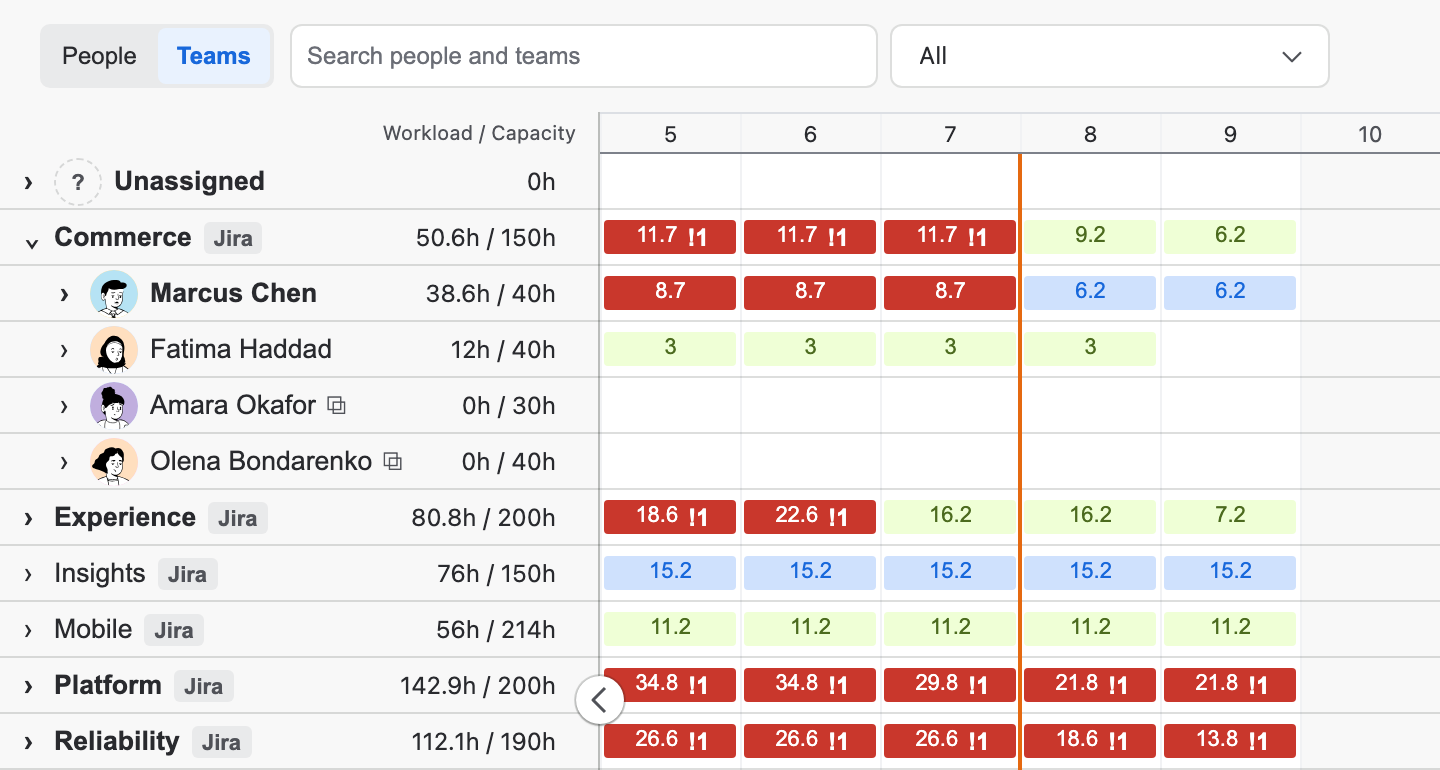
Each row starts with this week's workload against capacity, such as 38.6h / 40h. The week is the current UTC week and stays put while you pan or zoom, and so does the order of the people.
Cells show the load in each period and are coloured by how full it is. Hover a cell for its dates and exact value. A week or month turns red when a day in it is overloaded, even if the average is lower.
| Colour | Meaning |
|---|---|
| Green | Spare capacity. |
| Blue | Normal workload. |
| Yellow | Full capacity. |
| Red | Overloaded. |
| Neutral | Availability is not set, so there is no capacity to compare with. |
Units, periods and filters
These header controls change only your own view. The measure the whole chart uses is set in Workload settings, and saving a change there returns the units to that measure.
| Control | Choices |
|---|---|
| Workload units | Story points (the default), Hours or Percent of capacity. |
| Period | Auto, which shows days and moves to weeks and months as you zoom out, or a fixed Day, Week or Month. |
| Workload status | All, Overloaded, Availability not set, Working or Idle. Overloaded is unavailable until capacity can be assessed. |
| Search | Finds people and teams by name. |
People, teams and Unassigned
People lists each person on the chart. Teams lists Ganttry teams and the teams in the Jira Team field of the chart's issues that no Ganttry team stands for; those carry a Jira tag, and their members are the people assigned to their open issues. Expand a team to see its members.
A team row shows the full workload of its members, and a cell counts the members who are overloaded, such as !1. Someone in more than one team is marked, because their full workload appears in each team.
Both views start with Unassigned. Scheduled work without an assignee shows there in hours, with no capacity or utilisation. Its details list the issues and let you add a Ganttry allocation without changing the Jira assignee.
Details, allocations and availability
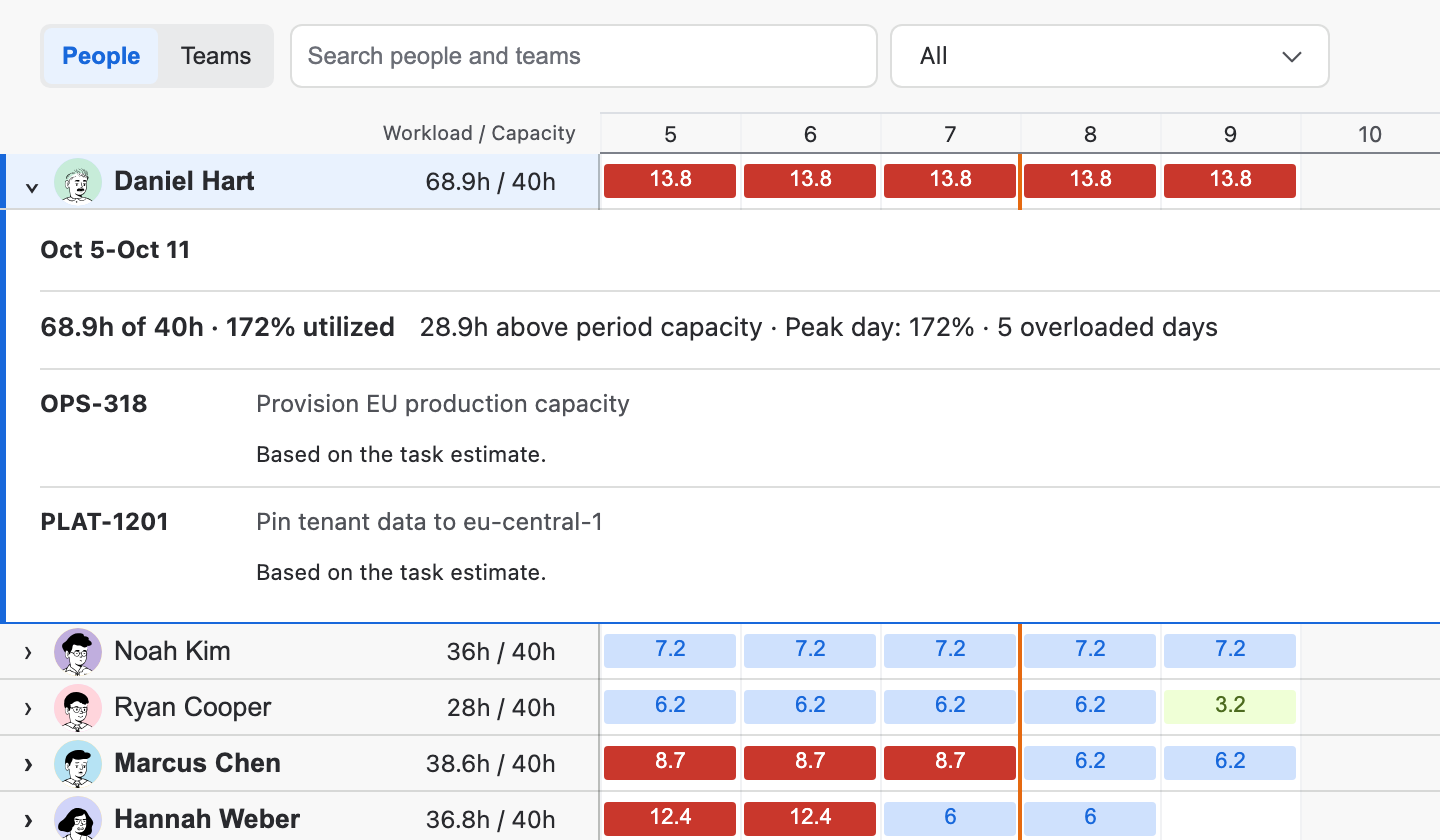
Select a person to open their week, or a cell to open that period. The details appear under the row: the load against capacity, the free hours or the hours above capacity, the peak day, the number of overloaded days, and each issue with its hours, share and how it is spread.
Manage allocations opens Resource allocations. Pick an issue and use Add resources to give it several people, each with their own Allocation % and Contour: Even, Front-loaded, Back-loaded or Custom with Custom daily weights. An allocation is a share of the issue's effort, not of the person's day, and allocations over 100% add work instead of splitting it. Allocations are kept in Ganttry; the Jira assignee does not change.
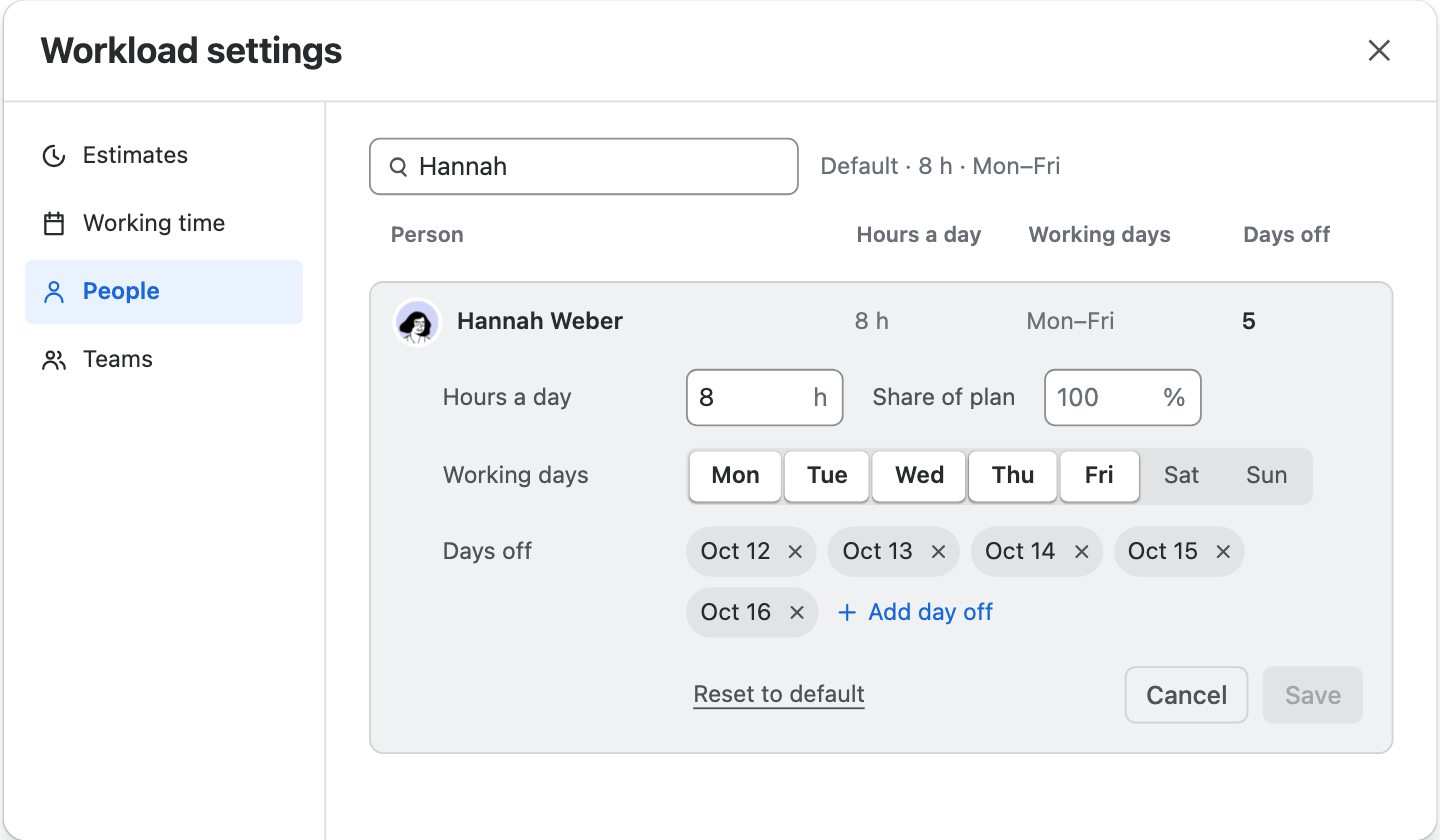
Manage availability edits that person's hours, share of the plan, working days and days off under the row.
Workload settings
The gear at the end of the Workload header opens Workload settings, with four sections. Settings are shared with everyone on the chart and are never written to Jira.
Estimates and Working time save as a whole from the bar that appears when you change something. People and Teams save one row at a time. If you leave a section or close the dialog with unsaved changes, Ganttry asks whether to save or discard them.
| Section | What it sets |
|---|---|
| Estimates | Measure by Story points, Original estimate or Remaining estimate. For story points, how many hours 1 story point is (one working day unless you change it), and whether an issue with No estimate counts its bar's working time (Use bar length) or stays unknown (Leave unknown). |
| Working time | The chart's Working days and Working hours, one country's Public holidays and the plan's own Days off. These are the chart's calendar, so saving them recalculates Ganttry's dates as well as capacity. |
| People | Each person's hours a day, share of the plan, working days and days off. |
| Teams | Ganttry teams, their members, the Jira team each stands for and their sprint capacity. |
Part-time weeks and days off
Everyone starts with the chart's working days and hours, shown at the top of People as the default. A person's own values appear in bold.
- Open Workload settings and choose People. Search by name if the list is long.
- Select the person. Set Hours a day for the hours they actually work, and Share of plan for the part of that time this plan may use.
- Turn their working days on or off, and use Add day off for holidays and leave.
- Choose Save. Reset to default clears their own hours, share and week.
Follow a drag
Follow drag in the Workload header is on by default. While you drag or resize a bar, Workload brings the assignee's row into view and highlights it, scrolling only as far as needed, and the cells update as you move.
It works in the People view while the panel is open. Press Escape during a drag to put the bar and the workload back.
Level resources
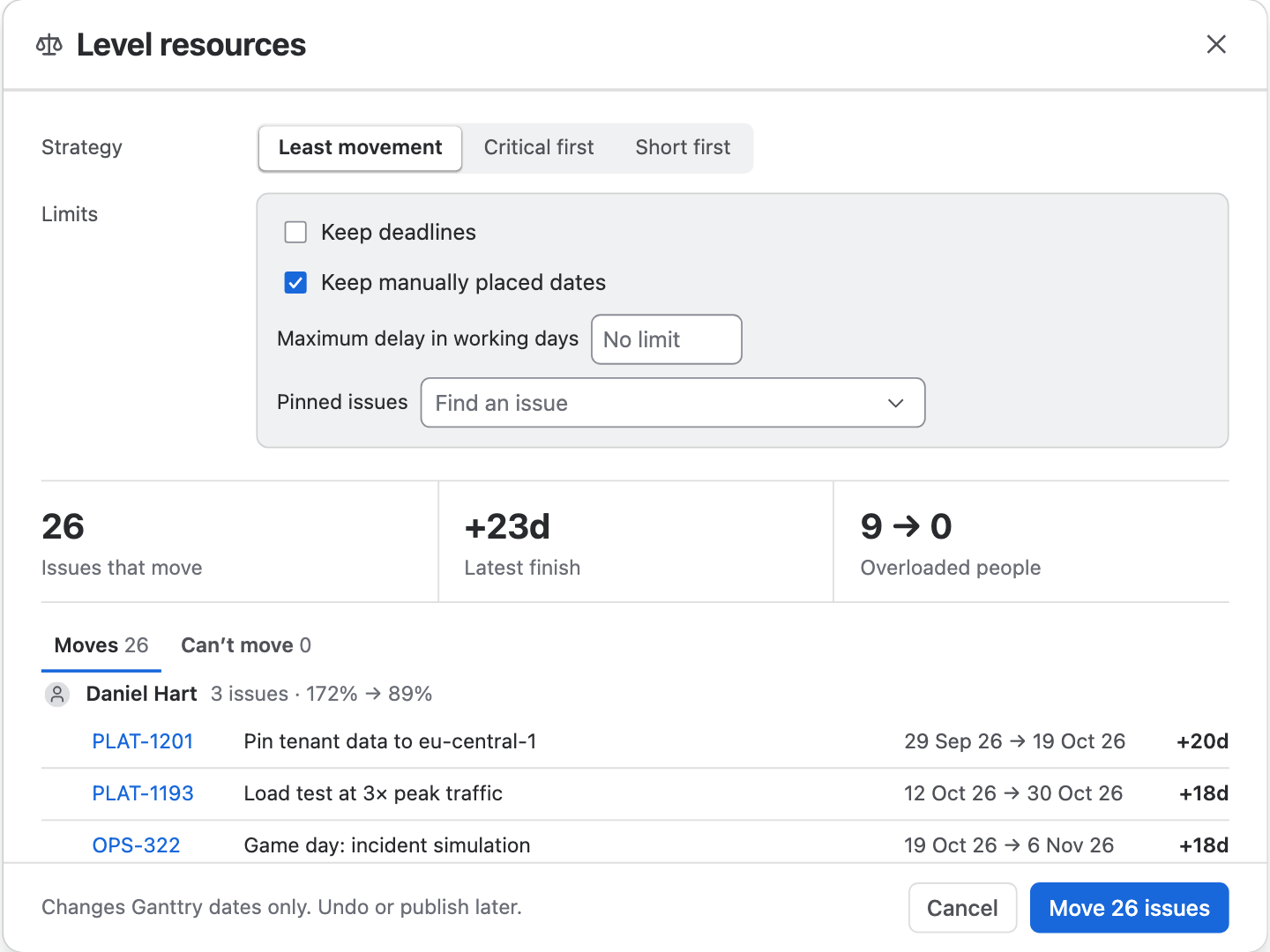
The scales icon in the Workload header opens Level resources. It shows a dot while people are overloaded, and its tooltip gives this week's count. Leveling proposes new dates that fit each person's hours a day, share of the plan and days off.
- Choose a Strategy: Least movement, Critical first or Short first.
- Choose Change beside Limits to set Keep deadlines, Keep manually placed dates, Maximum delay in working days and Pinned issues.
- Read the result: Issues that move, the Latest finish and Overloaded people before and after. Moves lists the moves by person with their peak load before and after, and Can’t move groups the rest by reason.
- Choose Move … issues. Only Ganttry dates change; Undo reverses it, and Publish takes the dates to Jira when you are ready.
| Can’t move | Why |
|---|---|
| Would miss its deadline | Moving it would take it past its due date while Keep deadlines is on. |
| Pinned or placed by hand | It is in Pinned issues, or was placed by hand while Keep manually placed dates is on. |
| Would pass the delay limit | It would move further than Maximum delay in working days. |
| Availability not set | Its assignee's hours are unknown. |
| Does not fit the plan | There is no place for it in the plan. |
Permissions and limits
- Workload settings, availability, allocations and leveling change only Ganttry's plan, which needs permission to edit it. Without it, you can read Workload and its settings.
- Workload counts unfinished assigned work from every issue the chart has loaded, whatever the Board's filters, search or folded rows hide. When the chart has not loaded every issue, Workload says Plan incomplete and Level resources waits until the rest is loaded.
- A Confluence macro shows Workload for viewing, without Level resources or Workload settings.
- On a combined chart, Workload settings and Level resources stay with each chart; open a chart on its own to change them.
Stuck on something this guide skips? Write to the developers →