Sprints, teams and Plan in Jira
Plan sprints and teams with the chart. Sprint grouping, the Team column, Jira teams and Plan in Jira.
8 sections4 min readUpdated October 2026Writes to Jira: Sprint, backlog, Team and rank, from Plan in Jira
Group the chart by sprint
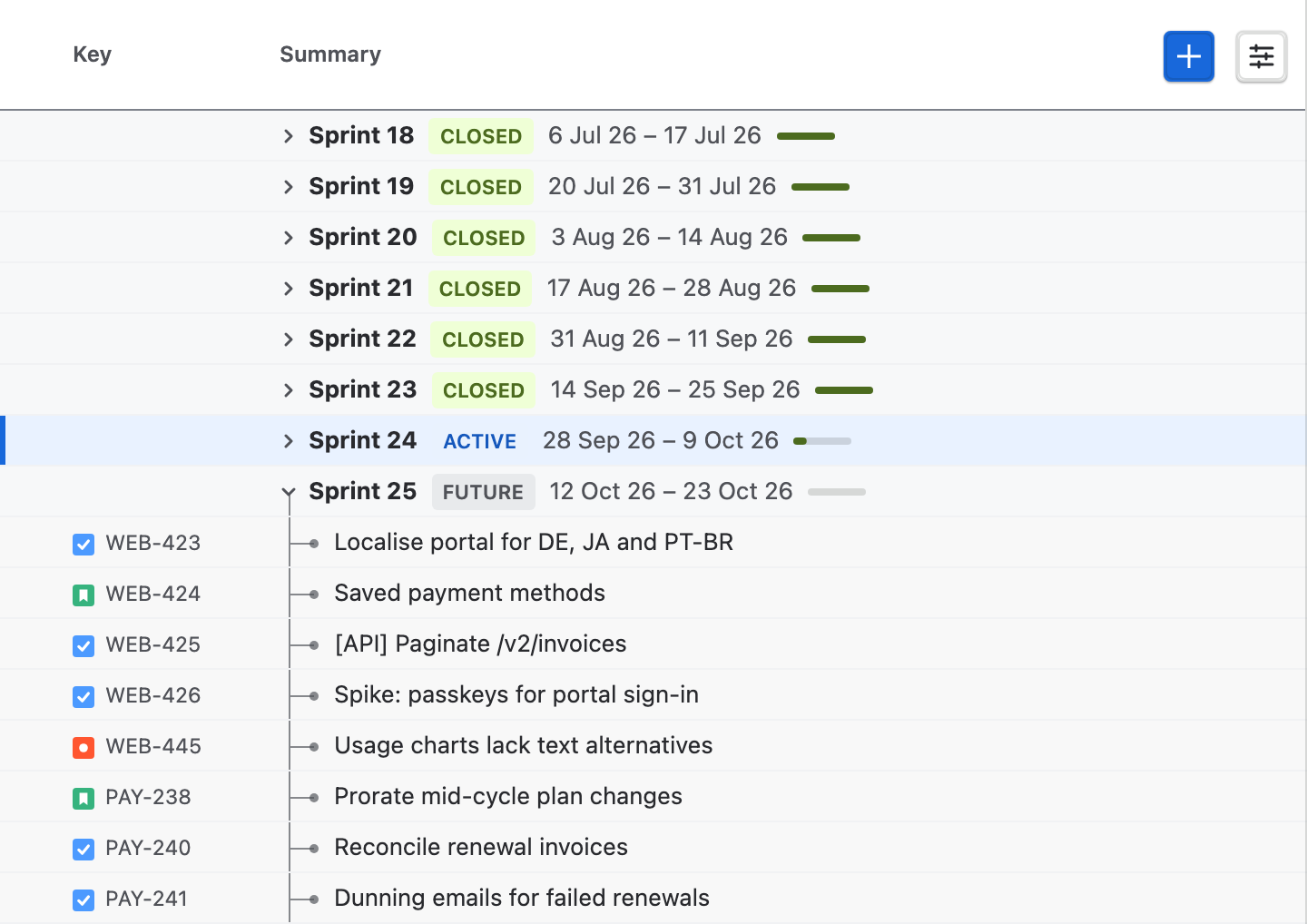
Open Group in the chart header and choose Sprint. Each sprint gets a row with its name, Jira's state, Active, Future or Closed, its dates and its progress. The active sprint's row is tinted, with an accent edge, on both the Board and the timeline.
Fold a sprint with its chevron to keep only the ones you are planning in view. To see each issue's sprint without grouping, add the Sprint column from Columns at the right end of the Board header.
The Team column and Group: Team
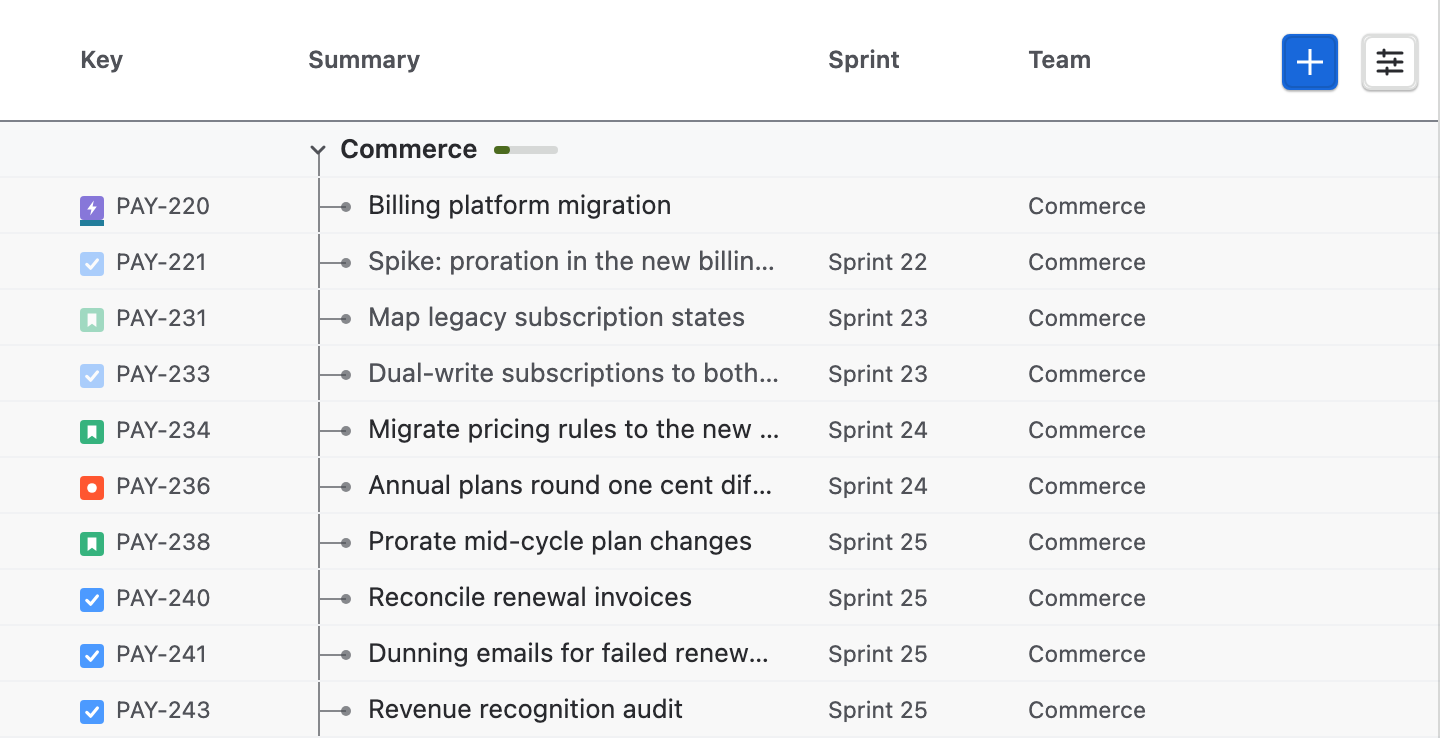
Add the Team column from Columns, or choose Team in Group to give each team its own section. Every view uses the same team for an issue:
- Its Jira Team field, shown as the Ganttry team that stands for that Jira team when there is one.
- Otherwise, the Ganttry team its assignee belongs to.
Ganttry teams
A Ganttry team is a team you define for the chart: its members, the Jira team it stands for, and its sprints. Teams are kept in Ganttry, shared with everyone on the chart, and never written to Jira.
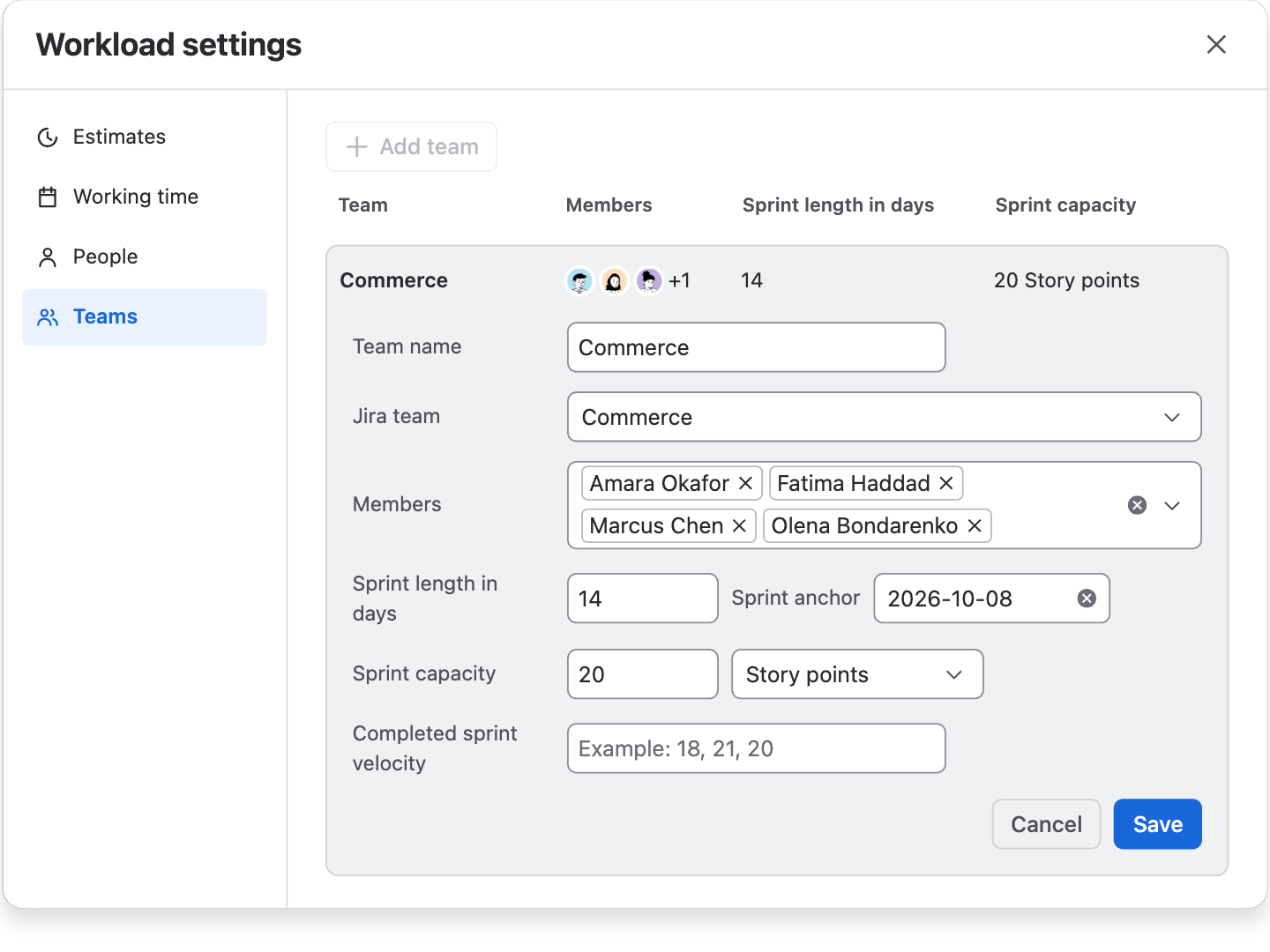
- Open the gear in the Workload header for Workload settings and choose Teams.
- Choose Add team, or select a team to change it.
- Set the Team name and, if the team is in Jira, the Jira team it stands for. Choose its Members.
- Set Sprint length in days, a Sprint anchor date that a sprint starts on, Sprint capacity in story points, hours or days, and optionally Completed sprint velocity, such as 18, 21, 20.
- Choose Save. Each team saves on its own; Delete team removes one.
Teams from the Jira Team field
Under Teams from Jira, Workload settings lists the teams in the Team field of the chart's issues that no Ganttry team stands for yet. A Forge app cannot read Atlassian Teams membership, so their members are the people assigned to their open issues.
Keep as a Ganttry team creates a Ganttry team that stands for that Jira team, with those people as members, ready for you to adjust. Linking a team you already have works the same way: choose its Jira team. From then on, the Jira team and the Ganttry team are one team everywhere in the chart.
Where teams appear
| Place | What it shows |
|---|---|
| Board | The Team column and Group → Team. |
| Workload | Teams lists Ganttry teams and Jira teams, the latter tagged Jira. Expand a team to see its members; a cell counts the members who are overloaded. |
| Dependency map | Team lanes over time, with handoffs between teams highlighted. Its Teams view counts the links between each pair of teams. |
| Program board | Team and sprint lanes, opened from Plan, marking which other teams block or depend on each issue. |
| Executive Summary | Over-capacity sprints, counted from each Ganttry team's sprint length, anchor and capacity. |
Plan sprints and teams in Jira
On a chart built on a board, Plan in Jira moves the issues you mark into a sprint or the backlog, sets their Jira Team, and can rank one issue against another.
- Mark the issues: use their checkboxes, Ctrl/⌘-click or Shift-click rows. The selection bar appears above the column headings.
- Choose Plan in Jira in the selection bar.
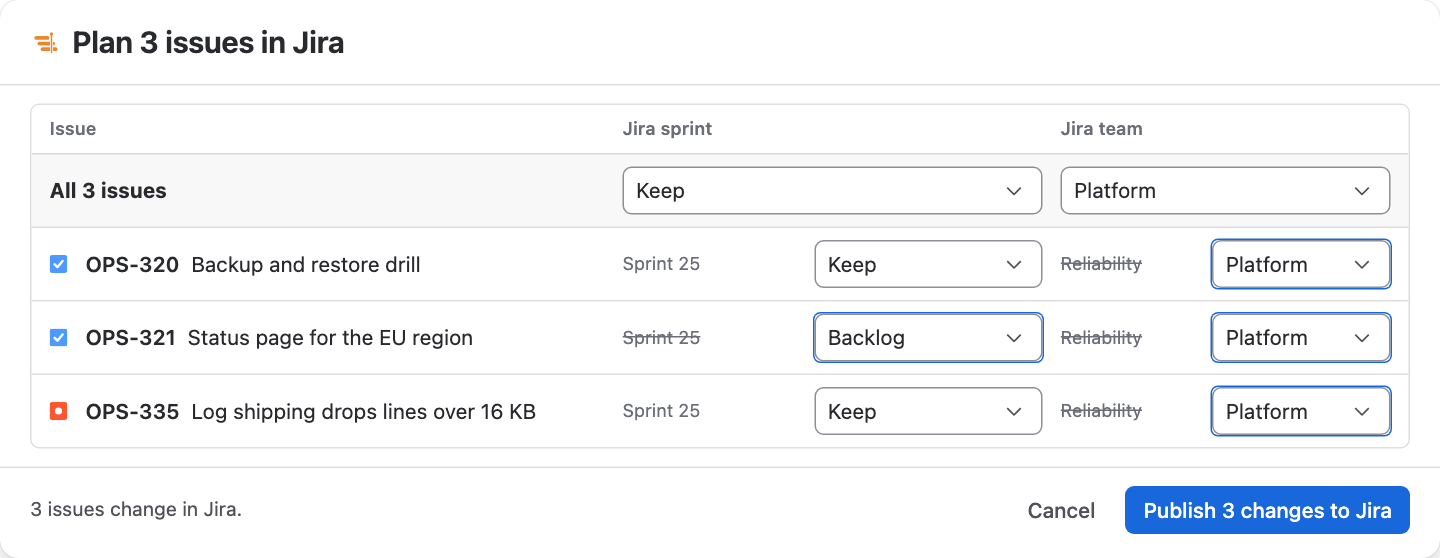
- Each issue shows its current Jira sprint and team. Choose what it gets: Keep, Backlog or an active or future sprint of the board, and Keep, No team or a Jira team. The All … issues row sets every issue at once.
- With a single issue marked, Rank places it Before or After another issue, or Keep current rank.
- Check the count beside the buttons. Choices that match what Jira already has are left out. Then choose Publish … changes to Jira.
When Plan in Jira is available
| Situation | What you see |
|---|---|
| The chart is built on a project, saved filter or JQL query | No Plan in Jira; it needs a chart built on a board. |
| You do not have Plan permission | The action is disabled and says why. |
| A combined chart | Not available; open the chart on its own. |
| Your site has no Jira Team field | The team choices are disabled. |
| Publish approvals are switched on | Planning changes reach Jira only with a matching approved request. |
What is written to Jira
- Plan in Jira writes the sprint, backlog, Team and rank changes you publish, to the marked issues only, as you and with your Jira permissions. Nothing is written until you choose Publish.
- After publishing, Ganttry reloads the chart so the new sprints and teams show.
- Grouping, columns, Ganttry teams, team members and sprint capacity are stored in Ganttry and change nothing in Jira.
Stuck on something this guide skips? Write to the developers →