FAQ and troubleshooting
Answers to the questions people ask most. Missing issues, dates that look wrong, blocked actions, error references and support.
10 sections7 min readUpdated October 2026
Issues are missing from the chart
A chart shows the issues its source returns for you, the person looking at it. Work through these in order.
- Check the source. A project's chart shows that project; a board, saved filter or JQL chart shows what that query returns in Jira.
- Check what you can see. Ganttry shows only issues Jira lets you browse, so a permission or issue security level hides an issue here as it does in Jira.
- Clear Search and Filter. A dot on Search or a count on Filter means some rows are hidden.
- Expand collapsed parents and folded project sections.
- Look for finished issues later. The chart opens once every open issue is read; issues finished in the last two years arrive shortly after, and older finished issues are not loaded.
- If loading was stopped, the status line says so. Open Plan and choose Fetch the rest to read the remaining issues.
- An issue created in Jira a moment ago appears when Jira reports the change, which Ganttry reads at most every five seconds, or when you come back to the chart. Jira can delay these reports.
- In Jira's issue view, Ganttry shows only that issue and the work connected to it, not the whole project.
What does ~ before a date mean?
A tilde marks a date Ganttry calculated. Jira has no date for that end of the issue, a dependency or an estimate set it, or it is a parent row adding up its children. A date without ~ is set explicitly: it comes from Jira, or from a bar someone moved in Ganttry.
Hover a Start or End date to see which it is. Choose Explain schedule in the row menu to see what placed the bar.
A bar does not match the dates in Jira
- Someone moved it in Ganttry. Moves are saved in the plan, and the header counts them as changes not in Jira until they are published.
- A dependency moved it. An issue starts no earlier than its links allow, so it can start after its Jira start date. A bar that was placed by hand stays put, and a link it breaks turns red.
- Jira has only one of its dates. Ganttry works out the other end from how long the issue takes; an issue with only a due date ends on that date.
- It is finished. A done issue ends on the day Jira recorded its resolution, unless Jira also has a start date or someone moved it in Ganttry.
- Working time. Ganttry counts the working days of the plan's calendar, so a bar stretches across weekends and holidays, and an edge dropped on a non-working day stops at the last working day.
- The due date is the last day the bar covers. An issue that starts on Monday and is due on Friday spans five days.
Did my change reach Jira?
Moving or resizing bars, placing undated issues, calendars, scenarios, baselines, notes and markers change Ganttry's plan for everyone on the chart, not Jira. The header shows how many changes are not in Jira yet; Publish reviews them and writes the dates you select.
Changing status or assignee, creating or deleting an issue, adding or removing a link and changing a release date are Jira edits. Ganttry makes them as you, straight away, and Jira checks your permissions.
Publish is missing or greyed out
| What you see | Why | What to do |
|---|---|---|
| No Publish button | No project on the chart gives you both Edit Issues and Schedule Issues, or you are in a Confluence macro. | Ask a Jira administrator for the permissions, or use Open in Jira from the macro. |
| Merge instead | You see Merge because you are on a scenario branch. Only Main publishes to Jira. | Merge the branch into its parent until it reaches Main, then publish. |
| Publish greyed out | There are no changes not in Jira, Ganttry is still reading your permissions, or a publish is running. | Wait for the chart to finish loading, or for the publish to finish. |
| Approval needed | The publish dialog shows Approval needed: the chart requires approval before publishing. | Ask an approver to approve it in Activity and governance, then choose Resume checks. |
Jira asked Ganttry to wait
Jira limits how much one app can read on a site, counting every person who uses it. When Ganttry reaches that limit, Jira asks it to wait, and every chart and tab on the site waits together. Large first loads are the usual cause.
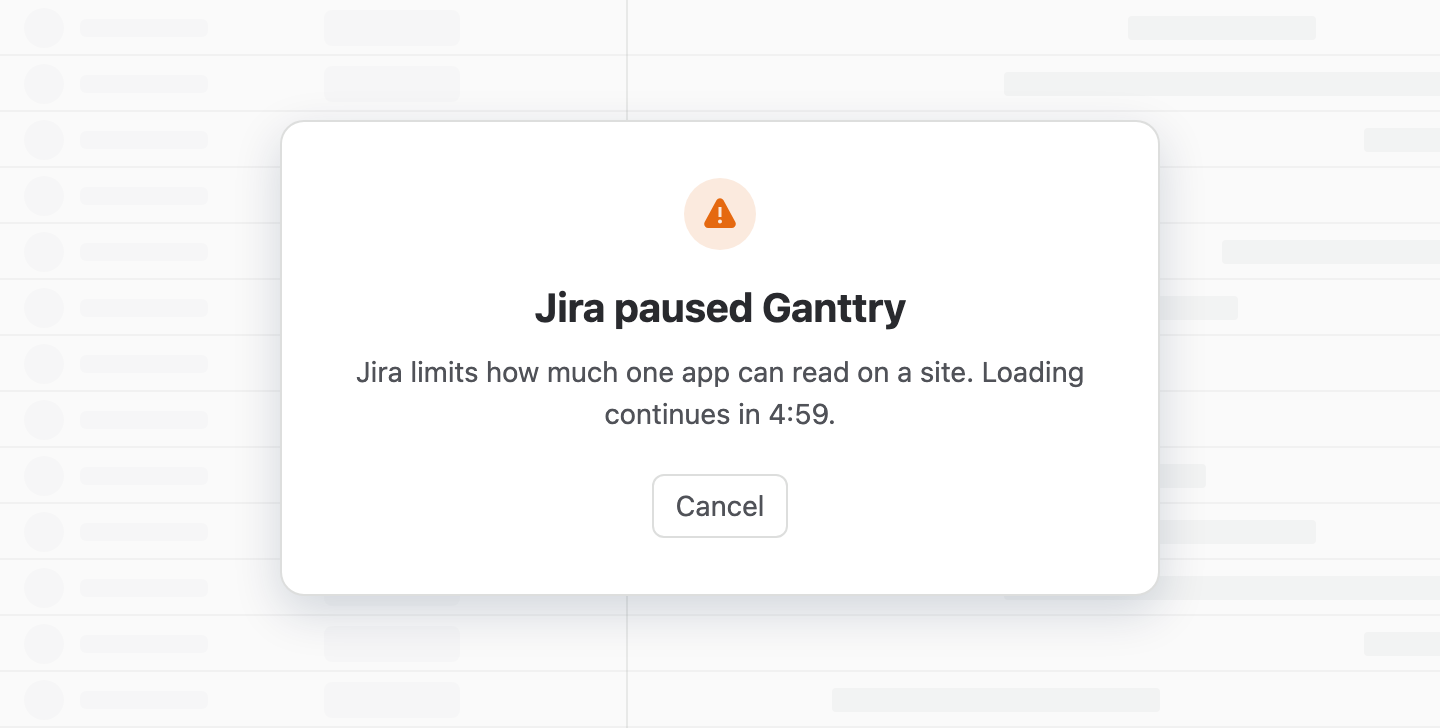
On an open chart a notice says Jira is limiting requests and counts down; Ganttry retries by itself. While a chart is still loading, a pause of ten seconds or more shows the card below with a countdown and the issues loaded so far. Cancel shows those issues now, and Fetch the rest in Plan continues later. After a fourth long pause, Ganttry stops reading in the same way.
If nothing had loaded yet, the chart shows Jira paused Ganttry with Reload chart; reload in a few minutes. In Choose what to plan, the Projects tab counts down with Retry while Recent, Board, Saved filter and JQL keep working.
The chart does not load
| Card | What it means and what to do |
|---|---|
| Could not load | We could not load this chart: the first read of the chart failed. Choose Reload chart; if it keeps happening, ask your site administrator or contact support. |
| Not subscribed | Ganttry is not subscribed on this site: the subscription is not active, so Ganttry reads nothing from Jira. A Jira administrator can start or renew it under Apps → Manage apps. |
| Jira paused | Jira paused Ganttry: Jira's limit was reached before any issue loaded. Reload the chart in a few minutes. |
Something went wrong
When an action fails unexpectedly, Ganttry shows a message with a reference made of GT- and eight letters and digits. Quote it when you contact support: it finds the matching diagnostic record, which holds where the error happened in Ganttry's code and never your issue content.
A message that names a missing Jira permission is not a fault. Ask a Jira administrator for that permission; Administration and permissions lists what each action needs.
Contact support
Email support@plugthatapp.com. The more of this you include, the faster we can help:
- What you did and what you expected, step by step.
- The message you saw and its GT- reference, if it has one.
- Ganttry's version: open Help in a chart, where it sits beside What's new, or read it after the Charts title.
- Where you were: a project's chart, Charts, a dashboard gadget, the issue view or Confluence.
- A screenshot, with anything confidential covered.
Stuck on something this guide skips? Write to the developers →