Notes and collaboration
Keep risks, decisions and questions on the plan. Note types, owners, due dates, replies, the Notes queue, period notes and live presence.
12 sections7 min readUpdated October 2026
Add a note
A note holds what the bars cannot show: a risk to a date, a decision the plan depends on, a question someone has to answer. Notes are stored in Ganttry and never write to Jira.
- Choose New note in the timeline dock at the bottom of the chart. Over empty chart space, a hint follows the pointer.
- Click where the note belongs. Press Escape instead to cancel.
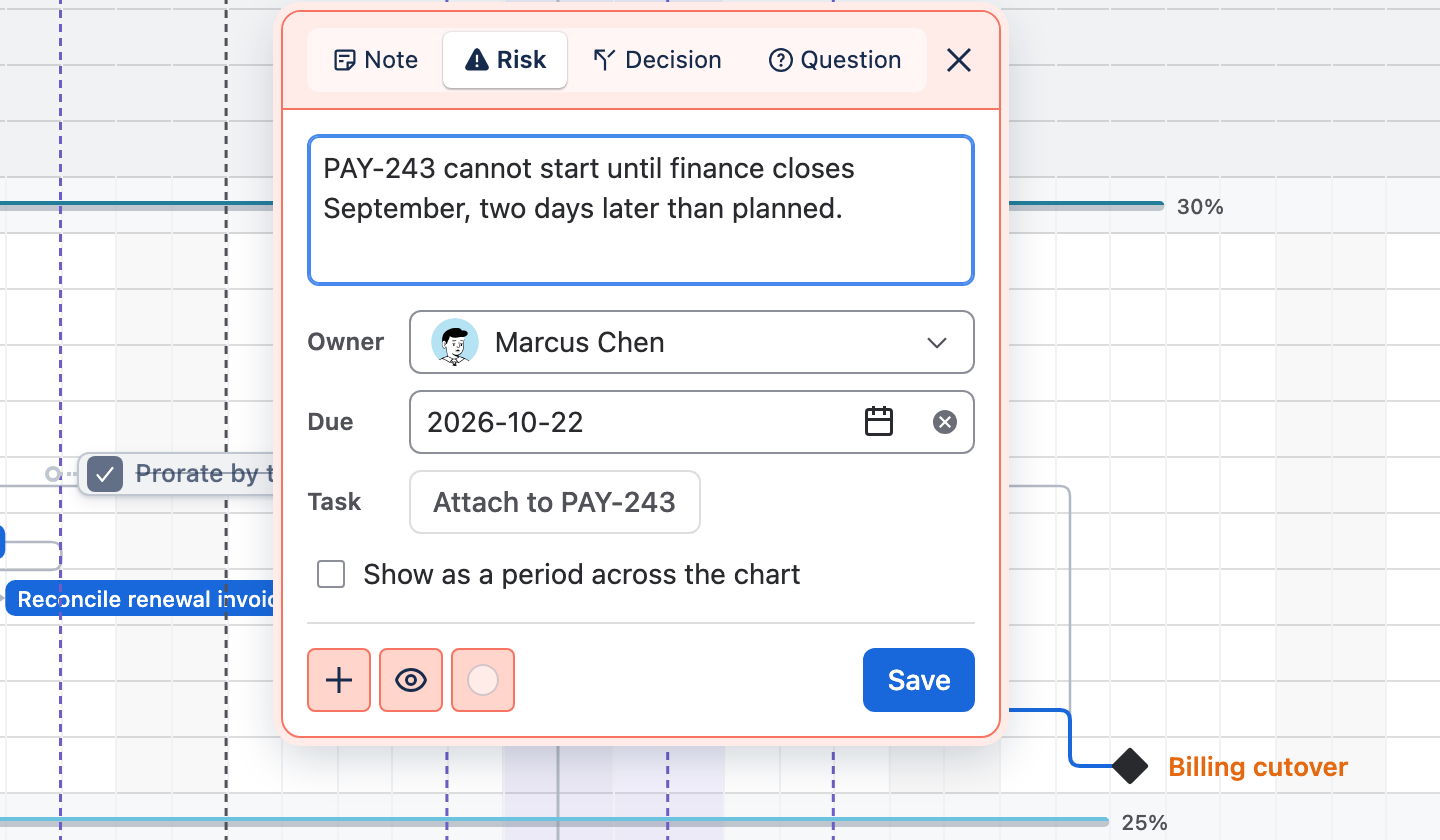
- Choose Note, Risk, Decision or Question and write up to 250 characters.
- Set the Owner and the Due date if the note needs them.
- To attach the note to an issue, select the issue's bar and choose Attach to … in the Task field.
- Choose Save, or press Enter. Shift+Enter starts a new line.
Types, owners and due dates
The type sets the note's badge and its starting colour. You can pick another colour with the colour button in the editor's footer.
- Owner names who looks after the note. The owner's avatar shows on the chart.
- Due gives the note a date, in UTC. Its due chip turns amber on that day and red once the day has passed.
- The priority button in the footer marks a note Critical, High, Medium, Low or Lowest. A note starts with no priority.
| Type | Starting colour | Use it for |
|---|---|---|
| Note | Yellow | Context and reminders. |
| Risk | Pink | Something that may go wrong. |
| Decision | Green | A choice the plan now rests on. |
| Question | Blue | Something someone has to answer. |
Notes on the chart
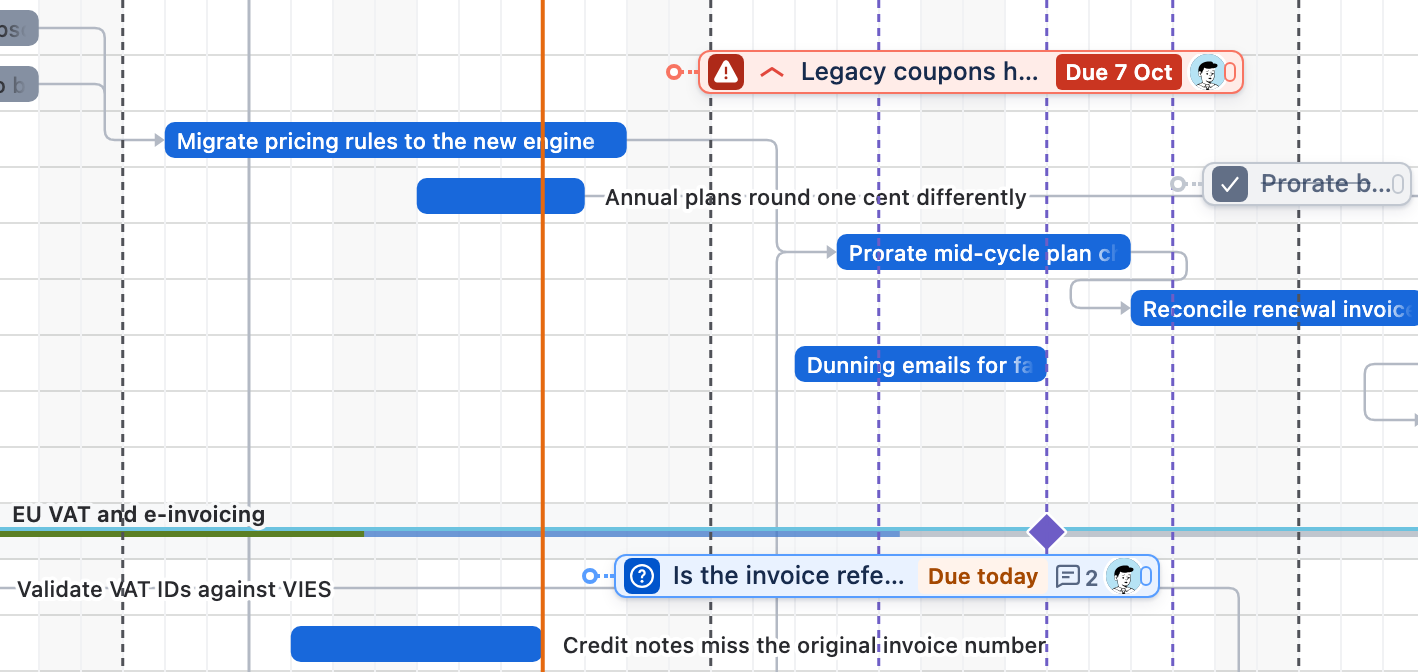
A folded note is a chip in its colour with the type badge, the text, the due chip, a reply count and the owner's avatar. A note attached to an issue joins the end of its bar with a short dotted leader and moves with the bar.
Click a note to unfold its full text and see who created it or last changed it; click anywhere else to fold it again. Double-click a note to open the editor.
- Drag a note by any part to move it. Notes stay inside the chart.
- Drag the handle on a note's right edge to change the dates it spans. A note too narrow for its text shows as a note icon; hover it to read it.
- To detach a note from its issue, remove the issue from the Task field.
- To hide every note, open Chart settings and set Show notes to No. Hidden notes are not deleted.
- To delete a note, open it and choose Delete in the footer.
Mark a period
A note placed on the chart, rather than attached to an issue, can stand for a stretch of time such as a code freeze. Open it and turn on Show as a period across the chart. While notes are shown, its dates are shaded across the chart, behind the bars.
Drag the handle on the note's right edge to change the period.
Issue keys and edge cues
Write an issue key, such as PAY-253, and it becomes a link when that issue is on the chart. Hover it to highlight the issue's row; click it to scroll to the bar and select it. Keys of issues that are not on the chart stay plain text.
When you scroll past a note on a row that is still in view, a cue in the note's colour stays at the left or right edge of the timeline, with a count when a row has several. Click the cue to scroll back to the note. While Plan insights is open, the right-hand cue sits at the edge of the panel.
Resolve and reopen
When a note is dealt with, choose Resolve in the editor, or the resolve button on its row in the Notes tab. The note stays on the chart in grey with its text struck through, and the editor names who resolved it.
Reopen makes the note open again. Resolved notes leave the Open, Mine and Overdue filters and are listed under Resolved.
Reply to a note
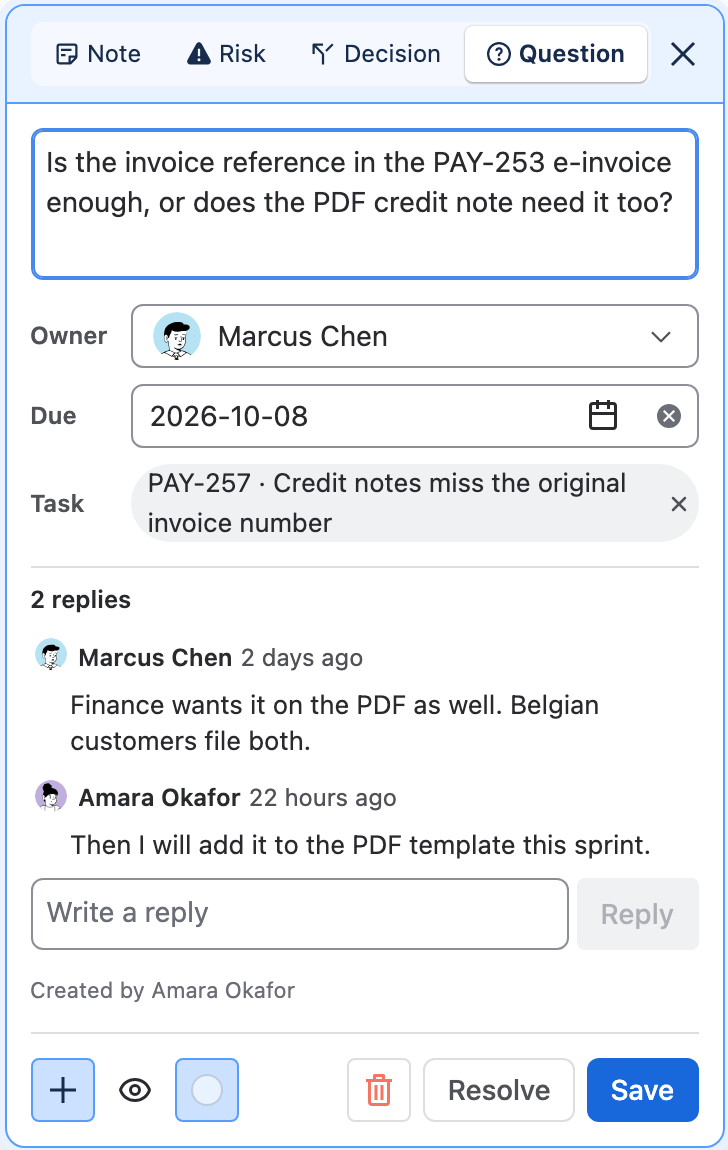
Open a public note to see its replies under the fields. Write in Write a reply and choose Reply, or press Enter; Shift+Enter starts a new line. Each reply shows its author's Jira name and avatar and how long ago it was written; hover the time for the exact time in UTC.
- A note holds up to 50 replies of up to 500 characters each.
- Only a reply's author can delete it, with Delete reply and a confirmation.
- Folded notes and rows in the Notes tab show how many replies a note has.
- Private notes take no replies.
- Other people see a new reply when they open the note again; replies do not appear live.
- Replies add no change history, are not part of chart backups or exports, and never write to Jira.
The Notes queue
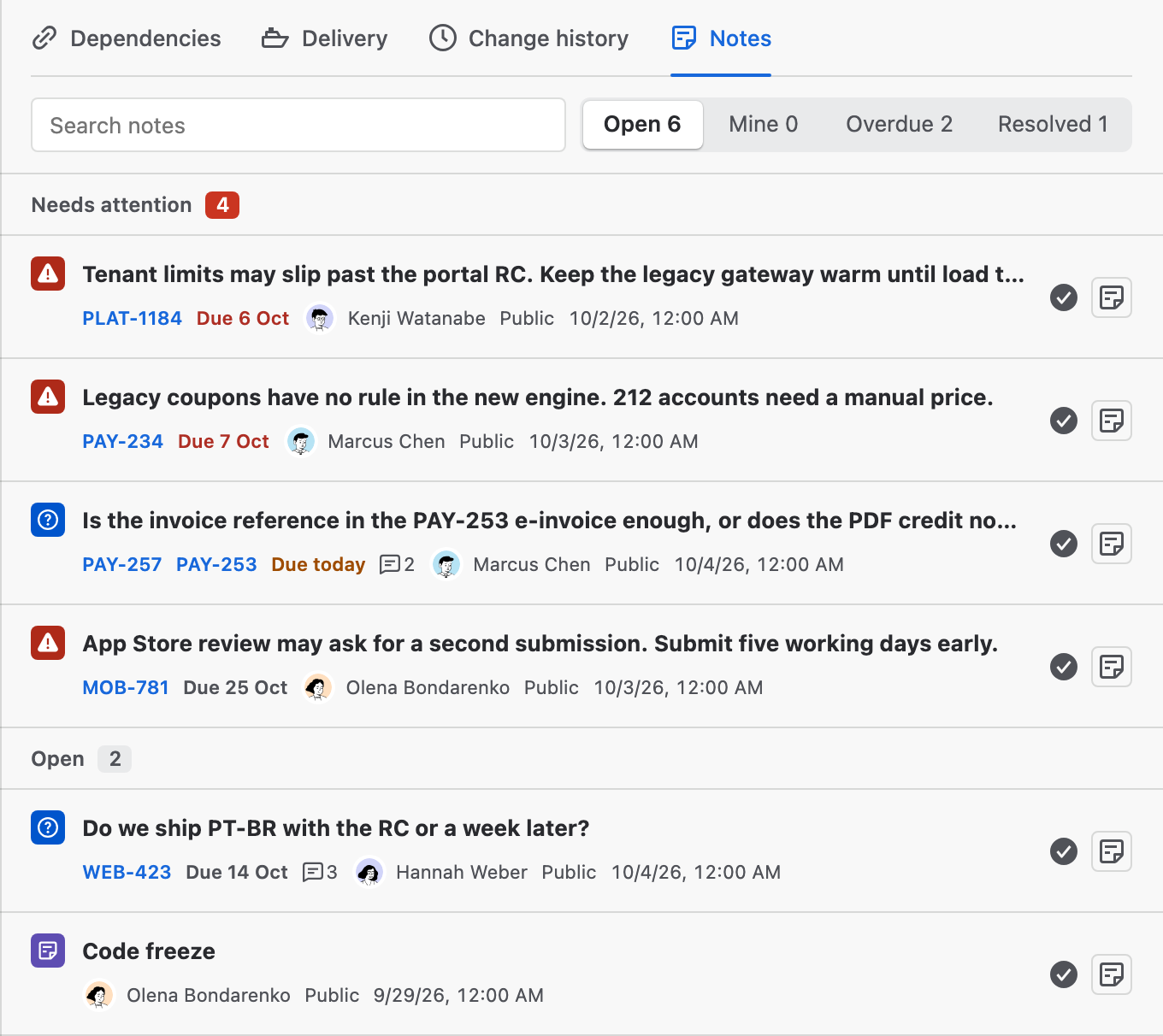
Open Plan insights on the right of the chart and choose Notes. It lists the chart's public notes and your private ones, and Search notes narrows them by text.
- Needs attention comes first: late notes, notes due today, and risks marked critical or high. Open and then Resolved follow. Within Needs attention and Open, the soonest due date comes first.
- Each row shows the type, the text, the attached issue and up to three issue keys from the text, the due date, the reply count, the owner or creator, the visibility and when it was created, in UTC.
- The resolve button resolves or reopens a note from its row. Show note on board scrolls the chart to the note.
- Arrow keys, Home and End move between notes.
| Filter | Shows |
|---|---|
| Open | Every note that is not resolved. |
| Mine | Open notes you own. |
| Overdue | Notes whose due date has passed. |
| Resolved | Resolved notes, the most recently resolved first. |
Public and private notes
The eye button in the editor's footer sets who sees a new note. A Public note is visible to everyone who can open the chart and shows who created or last changed it. A Private note is visible only to you; on the chart it shows the eye and no name.
The creator of a public note can make it private from the same button. A private note cannot be made public, and making a note private does not remove it from history entries or backups that already hold it.
Working at the same time
Avatars beside Publish show who has the chart open, each person once even across several browsers; your own avatar has a border. Hover an avatar for the person's name and the branch they are viewing.
Saved notes and saved scheduling reach everyone on the same branch without a reload. A note you are still dragging or editing stays on your screen until you save it, and private notes reach no one else. Each person keeps their own branch and view.
When someone saved newer work first, a save made against the older plan is rejected rather than written over it. A colleague's Jira edits to issues on the chart also appear in your open chart.
History, branches, backups and exports
- Change history in Plan insights records creating and deleting public notes, changes to their text, type, priority, owner and due date, and resolving and reopening. One person's text edits to one note within a minute count as one entry. Moving, resizing, attaching and recolouring add no entry, and private notes never appear.
- A new branch copies the public notes and your private notes, and from then on its notes change on their own. The branch shares the replies of every note it copied.
- Chart backups include public notes, but not private notes or replies.
- Exports from Share → PNG or PDF draw public notes and their periods when Show notes is ticked. Private notes are never exported, and HTML exports and configuration packages contain no notes.
- In a combined chart, the notes of every chart show together. A note is saved to the chart that holds it, changing it needs edit rights in that chart, and a period stays within that chart's rows.
Permissions and limits
- Adding, changing, resolving and replying need edit rights to the plan. Anyone who can only read sees notes and replies but cannot change them.
- A note attached to an issue, and its replies, are hidden from anyone who cannot see that issue in Jira.
- You can keep up to 100 notes, counting the chart's public notes and your private ones. Existing notes stay readable if other people's notes take the total past the limit.
- The Confluence macro does not offer New note.
- Notes and replies never write to Jira.
Stuck on something this guide skips? Write to the developers →