Keyboard shortcuts
Move around a chart without the mouse. Search, selection, the table and dialogs from the keyboard.
9 sections3 min readUpdated October 2026Writes to Jira: Removing a selected dependency with Delete or Backspace
Where shortcuts work
Chart shortcuts work whenever you are not typing in a field or using a dialog or menu, so they never take a letter you meant to type. They follow the physical key, so they stay in the same place on any keyboard layout.
On a Mac use ⌘; on Windows and Linux use Ctrl. Help → Keyboard shortcuts lists them with the right key for your computer.
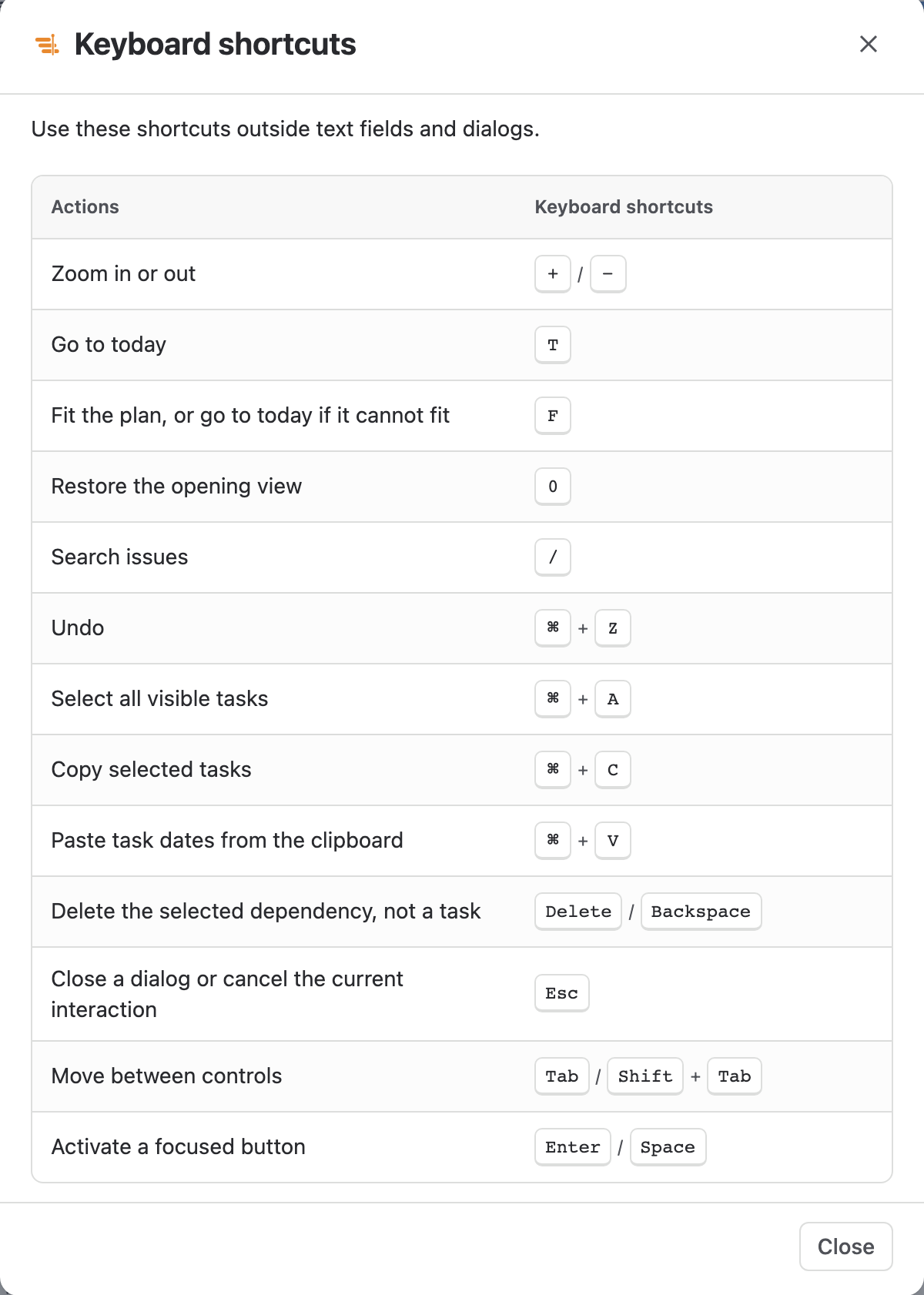
Move around the timeline
| Keys | What they do |
|---|---|
| + or − | Zoom in or out. |
| T | Scroll to today. |
| F | Fit the whole plan on screen, or go to today when it cannot fit. |
| 0 | Return to the opening view. |
Find and select issues
| Keys | What they do |
|---|---|
| / | Open Search in the header and type part of a key or summary. |
| Ctrl/⌘ + A | Mark every row the current filter leaves visible. |
| Ctrl/⌘ + click | Mark or unmark one row. |
| Shift + click | Mark the rows from the selected row to this one. |
| Esc | Close an open menu first; pressed again, clear the marked rows and a selected link. |
Edit the plan
| Keys | What they do |
|---|---|
| Ctrl/⌘ + Z | Undo your last plan change. |
| Ctrl/⌘ + C | Copy the marked rows, or the visible table when none are marked, as tab-separated text for a spreadsheet. |
| Ctrl/⌘ + V | Paste lines that hold an issue key and dates. Ganttry moves those bars in the plan as one change that Ctrl/⌘ + Z puts back, and names any keys that are not on the chart. |
| Delete or Backspace | Remove the selected dependency. This removes the Jira issue link, as you; it never deletes an issue. |
| Esc during a drag | Cancel the drag and put the bar back. |
Resize from the keyboard
Column edges in the Board header and the edges of Plan insights and Workload can take focus with Tab.
- A Board column edge: Left and Right arrows change the width by 10 pixels, or 40 with Shift. Enter or Home returns the column to its default width, and Esc cancels.
- The Plan insights edge: Left and Right arrows widen or narrow the panel, in bigger steps with Shift.
- The Workload edge: Up and Down arrows make the panel taller or shorter.
Notes and replies
- In the note editor, Enter saves the note and Shift + Enter starts a new line.
- In a note's replies, Enter sends the reply and Shift + Enter starts a new line.
- While placing a new note, Esc cancels the placement.
Charts and Plan insights
- On Charts, Up and Down arrows move between charts, Space selects one and Enter opens it. Right and Left arrows expand and collapse a combined chart.
- In Plan insights → Dependencies, Up and Down arrows, Home and End move between links and select each one, as a click would.
Work without the chart
Help → Accessible task table lists the plan as a paged table with the hierarchy, dates, assignees, dependencies and schedule problems, and row actions that set dates without dragging. It works with the keyboard and a screen reader and returns focus to Help when it closes.
Stuck on something this guide skips? Write to the developers →